Author: Jason Carter

  • Which online file tools upload your files? We checked six

    All six popular online file tools we checked upload your file to their servers to process it, and say so in their own documentation: Smallpdf, iLovePDF, Adobe Acrobat’s online tools, CloudConvert, Zamzar and remove.bg. They say they delete files after anything from about an hour to seven days. That’s not sinister, it’s how most of these services work, but it’s worth knowing before you drop in a payslip, a passport scan or a client’s contract. Tools that run in your browser, like JFDI, don’t upload anything.

    What each tool says

    We read each company’s own help, security or privacy pages in October 2026. Policies change, so follow the links for the current wording.

    ToolUploads your file?What it says about keeping itSource
    SmallpdfYes, to servers in IrelandFree tool usage: “Files deleted after 1 hour”Smallpdf
    iLovePDFYes“Completely deleted within 2 hours of upload”, or straight away with a Delete it now buttoniLovePDF
    Adobe Acrobat online toolsYes: “Acrobat online services upload your files to Adobe cloud storage”Signed in: kept in your account. Not signed in: deleted after an unspecified short periodAdobe
    CloudConvertYes, to servers in Germany, or the US for US users“Automatically deleted after 24 hours at the latest”, or straight away with the delete buttonCloudConvert
    ZamzarYesFor people without an account, kept “for no longer than 7 days following receipt”Zamzar
    remove.bgYesDeleted “at the latest about one hour after the upload”remove.bg

    All six are served over encrypted (HTTPS) connections, and several describe further security measures. None of this suggests they misuse files. The point is simply that, for a while, your file exists on a computer you don’t control.

    Why it can matter

    For a restaurant menu or a holiday photo, it probably doesn’t. It’s worth thinking twice when:

    • The file is about someone else. Customer lists, patient letters, HR documents and client contracts often come with legal duties. Many employers’ policies forbid putting them into unapproved online services.
    • The file is about you, in detail. Passports, bank statements, payslips and tax returns are exactly what identity thieves want.
    • The file is confidential before publication: results, a manuscript, a bid, an unannounced product.

    Any company storing files, even briefly, can suffer a data breach, a mistake or a legal demand. A file that never leaves your device can’t be caught up in any of those.

    How browser-only tools are different

    A browser-only tool sends you the program instead of asking you for the file. The page loads code into your browser, and your browser does the converting, compressing or editing on your own computer. When you click Download, the result is saved from your browser’s memory straight to your device. Our explainer on how browser-only tools work goes into the technology.

    That’s how every JFDI tool works: the PDF toolkit, file converter, image editor (including background removal), chart maker, map maker and QR code maker.

    Check any tool yourself in two minutes

    You don’t have to trust anyone’s privacy page, including ours. Your browser can show you every request a page makes.

    1. Open the tool in Chrome, Edge or Firefox.
    2. Press F12 (or right-click the page and choose Inspect) and open the Network tab.
    3. Tick Preserve log (Chrome and Edge) or Persist Logs (Firefox, in the settings cog), and clear the list with the 🚫 button.
    4. Use the tool as normal: add a file, convert it, download the result.
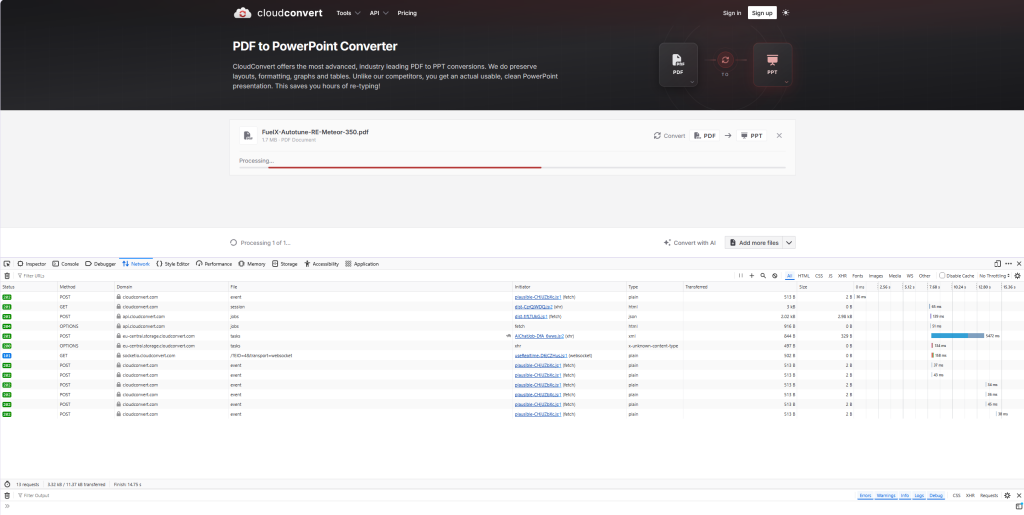
    5. Look at the list. Sort by Size or look for requests with the method POST or PUT. An upload shows up as a request whose size is roughly the size of your file, sent to the tool’s server.

    On a browser-only tool you’ll see the page fetch its own code (and, for some tools, a one-off download such as a font or an AI model), but nothing sent out that’s as big as your file. On an upload-based tool, you’ll see your file go.
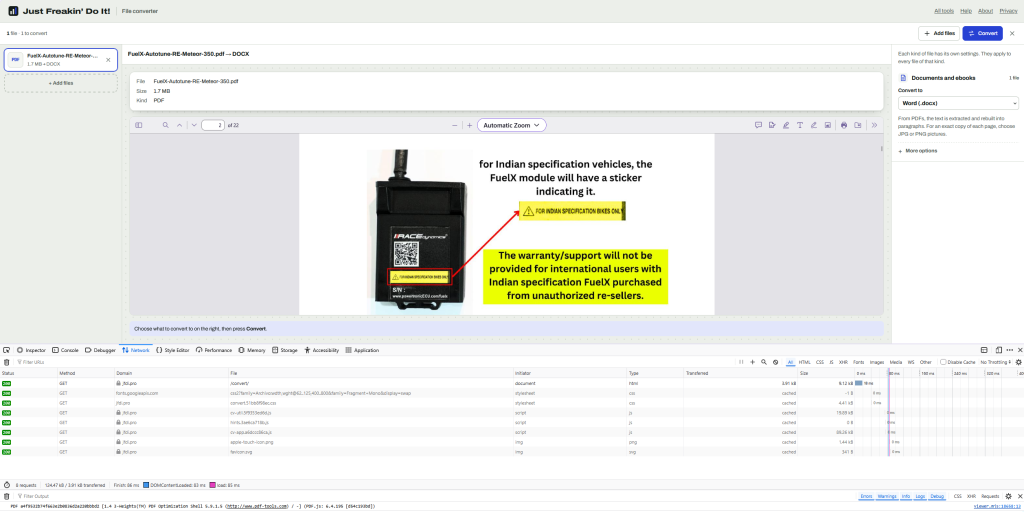
    JFDI File Converter does not upload your files away from your device. All of the work is performed locally, in private.
    Some online file converter tools upload your files to their server - compromising your privacy.

    Do browser tools have downsides?

    Yes, a few:

    • Your device does the work, so very large files are faster on a computer than an old phone.
    • Nothing is saved for you. Close the tab and your work is gone unless you’ve downloaded it.
    • Some jobs need a server, such as OCR on scanned documents or converting formats browsers can’t read. Those services aren’t wrong to upload; just choose them deliberately.
    Related

  • How to redact a PDF properly (a black box isn’t enough)

    To redact a PDF properly, the hidden words have to be removed from the file, not just covered. A black rectangle, a black highlight or a white box drawn on top hides text from view, but the text is still there underneath, and anyone can select it, copy it and paste it somewhere else. Use a real redaction tool, then check the result before you send it.

    The black box mistake keeps happening

    This isn’t a beginner’s error. It has caught out lawyers, government departments and newspapers for years:

    • January 2019: lawyers for Paul Manafort filed a document in his case with black bars over sensitive passages. A Guardian reporter found the text could be copied and pasted into a new document, revealing details about his contacts with Konstantin Kilimnik (Columbia Journalism Review).
    • 2014: redactions in a leaked CIA presentation published by The New York Times could be bypassed by highlighting and copying, exposing an NSA agent’s name.
    • 2011: a federal judge’s opinion in Apple v. Samsung had redacted passages that could be copied into a text document.
    • A 2011 study estimated that “thousands, and probably tens of thousands” of documents in the US federal courts’ PACER system had redaction failures.

    The last three are from the American Bar Association’s round-up of embarrassing redaction failures.

    Why covering doesn’t work

    A PDF isn’t a picture of a page. It’s a list of instructions: put these words here in this font, draw this shape there, place this image. When you draw a black box, you add one more instruction, draw a black rectangle, on top. The instruction that draws the words is untouched, so:

    • Copy and paste pulls the text from under the box.
    • Search finds it.
    • Screen readers read it aloud.
    • Text extraction by any program, including search engines, sees it.

    The same goes for black highlighting in Word before saving as PDF, and for white-out boxes.

    What proper redaction does

    Real redaction removes the content under the box from the file. In the JFDI PDF toolkit, the Redact tool works like this:

    1. Open the PDF in the toolkit and go to Edit & sign.
    2. Choose Redact (shortcut X) and drag over every name, number or passage that must go.
    3. Download. Each page with a redaction is rebuilt as a 200 dpi image with the black boxes burned in, so the hidden words no longer exist anywhere in the file.

    The trade-off: the rest of a redacted page can no longer be selected or searched, because the page is now a picture. Pages without redactions stay as normal text. Page numbers and watermarks are added afterwards, so they stay sharp.

    Nothing is uploaded at any point. The PDF is opened and rebuilt inside your browser, which is the point when the document is confidential.

    Don’t forget the hidden information

    Visible text isn’t the only thing that leaks. PDFs can carry:

    • Document details: the author’s name, the software used, creation and editing dates.
    • Editing history: some programs save changes by adding to the end of the file, so earlier versions of a page can still be inside.
    • Attachments, scripts and form data.
    • Text under scans: a scanned page that’s been through OCR has an invisible text layer behind the image.

    In the toolkit’s Finish tab, tick Remove hidden information before downloading. It strips the author, software, dates, embedded metadata, scripts, attachments and editing history. And check the file name: “Smith-v-Jones-settlement-£2.4m.pdf” can give away what the redactions hide.

    White-out or redact?

    White-outRedact
    Looks likeA white (or coloured) boxA black box
    The hidden wordsStill in the file. Anyone can copy them.Removed for good
    Rest of the pageUnchangedTurned into an image
    Use it forTidying up, hiding a typo, making space for new textNames, addresses, account numbers, anything confidential

    The toolkit’s Change existing text tool also covers the original words rather than removing them, so never use it to remove private information.

    Check before you send: five tests

    1. Select all and copy (Ctrl+A, Ctrl+C) on each redacted page, then paste into a text editor. Nothing hidden should appear.
    2. Search the PDF for a redacted word, such as a surname.
    3. Open it in a different PDF reader: your browser’s built-in viewer and one other.
    4. Check the document properties (File › Properties in most readers) for the author and title.
    5. Read the file name.

    Common questions

    Can a redaction be undone?

    Not when the content has been removed, as above. A drawn box can be “undone” by anyone with a PDF editor, by simply deleting the box.

    Is redacting a scanned document different?

    A scan is already a picture, so a black box burned into the image hides it. But scans often have an invisible OCR text layer; a real redaction tool removes that too, which is why the toolkit rebuilds the page.

    Does Adobe Acrobat do this properly?

    Yes, when you use its Redact tool and apply the redactions; drawing a black shape with its comment tools doesn’t. The same check above works for any tool.

    Related

  • How to convert HEIC to JPG without uploading your photos

    To convert HEIC photos to JPG without uploading them, open them in a browser-based converter that does the work on your own device. In the JFDI image editor, drop in your HEIC files, set Save as to JPG, and press Download all. It works in any current browser, on Windows, Mac, Chromebook or phone, with no app to install, no account and no limit on how many photos you convert.

    What HEIC is, and why it’s a problem

    HEIC is the file type iPhones use for photos by default. Apple switched to the HEIF format, which HEIC files use, with iOS 11 in 2017, on the iPhone 7 and later (Apple). It stores photos at roughly half the size of a JPG with the same quality, which is great for your phone’s storage.

    The trouble starts when the photos leave the iPhone. Many websites, upload forms, older Windows computers and photo printers don’t accept HEIC, and some show an error or a blank thumbnail. JPG opens everywhere.

    Step by step

    1. Open the image editor and choose HEIC to JPG on the start page, then drop your photos in. You can add several hundred at once.
    2. Under Save as, choose JPG. (If you leave it on Same as the original, HEIC files become JPG anyway.)
    3. Set the quality. 82, the starting point, is hard to tell from the original. Go lower for smaller files to email.
    4. Check the preview. Drag the line across the picture to compare before and after; zoom to 100% to see real pixels.
    5. Download all (ZIP), or This one for a single photo.

    Safari reads HEIC directly. Chrome, Edge and Firefox use a decoder built into the page, which takes a few seconds for a large photo. Either way, nothing is uploaded.

    Photos come out the right way up

    Phones often save photos sideways, with a note in the file saying which way to turn them. Some converters ignore the note, so portrait photos come out on their side. The image editor turns the picture itself, so it looks right everywhere.

    What happens to the date, camera and location

    iPhone photos carry hidden details: the date and time, the phone model and settings, and usually the exact GPS location where the photo was taken.

    By default, the editor removes all of them (Remove location and camera details is on). That’s the safe choice for photos you’ll post or send to strangers, because the location can reveal where you live. There’s more on this in how to remove location data from photos.

    One thing to know: details can only be kept when a JPG is saved as a JPG. Converted HEIC photos always lose them, including the date taken. If you’re converting photos to keep in a photo library, which sorts by that date, use one of the other methods below.

    Other ways to get JPGs from an iPhone

    • Change the camera setting to save JPGs from now on: Settings › Camera › Formats › Most Compatible. Photos take more space on the phone.
    • Transfer settings: with Settings › Apps › Photos › Transfer to Mac or PC set to Automatic, photos copied over USB are converted to JPG as they go.
    • Share by email or Messages: iPhones may convert to JPG automatically when the other device doesn’t support HEIC.
    • On a Mac, Preview can export a HEIC photo as JPG with File › Export.
    • On Windows, the Photos app opens HEIC once Microsoft’s HEIF and HEVC extensions are installed from the Microsoft Store.

    Is it really private?

    Yes: the conversion happens in your browser tab, and the photos never leave your device. You can check this yourself; our post on which online tools upload your files shows how. Many “free HEIC converter” websites upload every photo to their servers to convert it, which is a lot to hand over for a phone’s worth of family pictures.

    Common questions

    My HEIC photo won’t open

    A few HEIC files, such as some HDR or burst photos, use features the decoder doesn’t support. Open the photo in the iPhone’s Photos app and share or export it as JPG instead.

    Should I use PNG or WebP instead?

    For photos, JPG is the safe choice that opens everywhere. WebP is smaller at the same quality and works in all current browsers, which makes it good for websites. PNG is lossless but makes photos much bigger.

    Can I resize them at the same time?

    Yes. Set a size under Resize (for example Longest side 2,000 pixels) and every photo is resized as it’s converted.

    Related

  • How to make a UK constituency map from a spreadsheet

    How to make a UK constituency map from a spreadsheet

    To make a map of UK parliamentary constituencies, you need a spreadsheet with one column of constituency names (or ONS codes such as E14001063) and one column of values. Paste it into the JFDI map maker and you get a map of all 650 Westminster seats, drawn on the July 2024 boundaries, without signing up or uploading anything.

    This guide walks through it with real data, then covers the problems that trip most people up: old boundaries, spelling differences and party colours.

    What you need

    A table with two columns is enough (these values are made up):

    ConstituencyValue
    Aberafan Maesteg41.2
    Aberdeen North38.7
    Aberdeen South44.0

    The first row should be a header. The values can be numbers (turnout, majority, population, a survey score) or words (the winning party, Leave or Remain). Words make a map of categories, each with its own colour.

    You don’t need to tidy the names first. The map maker recognises constituencies by name however they’re written, and by their nine-character ONS code. If your file has both, that’s fine too.

    Step by step

    1. Open the map maker and paste your cells into the box (copy them straight from Excel or Google Sheets), or drop a CSV or Excel file onto the page.
    2. Check the match count. The Data section says which map it chose and how many rows matched. For constituency data, it picks Constituencies as hexagons (2024) by default.
    3. Fix anything unmatched. Press Fix to see rows it couldn’t place. Typos come with a suggestion you can accept in one click.
    4. Choose colours and a title. Under Colours, pick a light-to-dark set for numbers, or keep the automatic colours for categories.
    5. Download it as PNG, SVG or PDF, or copy the embed code for a web page.
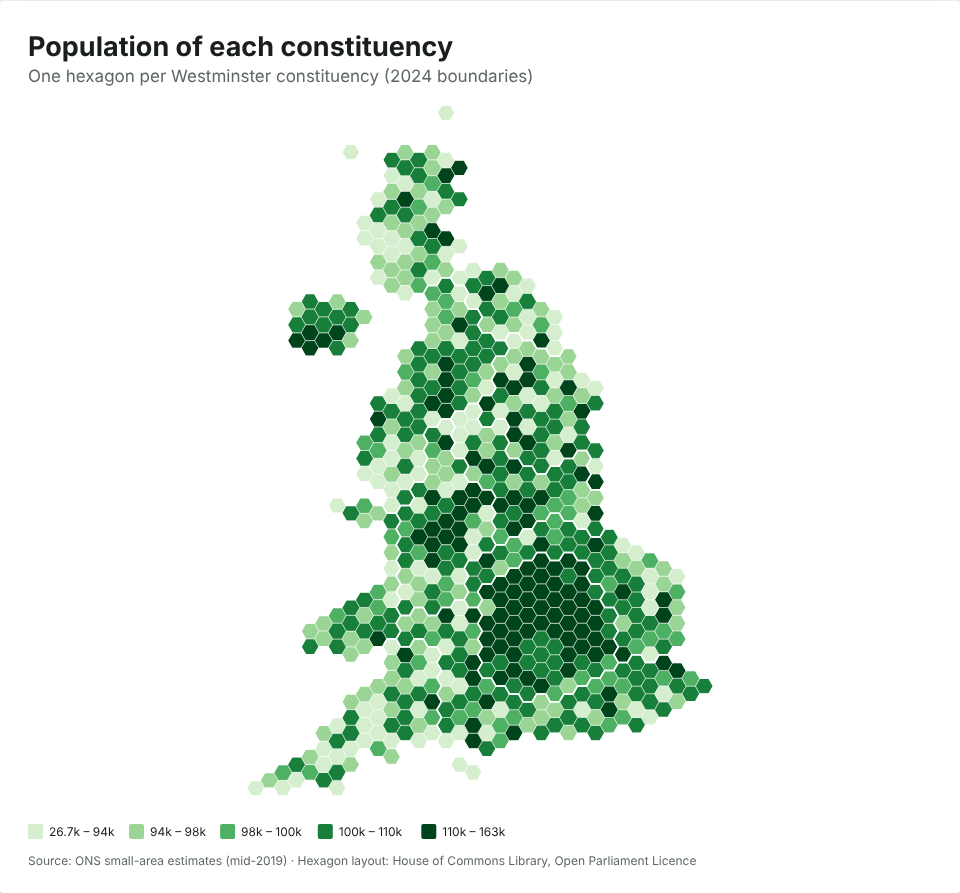
    A hexagon map of all 650 UK constituencies, shaded by population
    Every constituency gets one hexagon. This one shows each seat’s population, from ONS small-area estimates.

    Hexagons or real shapes?

    You get hexagons by default because they’re fairer for constituency data. Constituencies have roughly equal numbers of voters, but very unequal areas. Caithness, Sutherland and Easter Ross covers about 11,600 km², more than seven times the area of all 75 London seats put together (about 1,570 km²). On a normal map, the big rural seats dominate and you can barely see the cities.

    On the hexagon map, which uses the House of Commons Library’s layout, every seat is the same size. Switch to real boundaries under Data › Map › Constituencies (2024) if you want geography instead. There’s more on this choice in Hex maps vs real maps: why election maps use hexagons.

    Election results get party colours

    If your values are party names (Labour, Conservative, Liberal Democrat, SNP, Plaid Cymru, Reform UK, Green and so on), the map uses each party’s usual colour, as election maps on TV do. You can switch to any other colour set under Colours.

    Common problems

    “Some of my constituencies don’t match”

    The most common cause is old boundaries. Constituency boundaries changed at the July 2024 general election, and data from before then (including the 2019 results) uses the old seats. The map maker recognises the old ONS codes and tells you they’re from the previous boundaries, rather than quietly putting them in the wrong place.

    Many names didn’t change in 2024, so a file can match almost perfectly and still be on old boundaries. Check the date of your data before you publish.

    “It picked the wrong map”

    If your table mixes levels (some councils, some constituencies), the map maker picks the level with the most matches. Choose the map yourself under Data › Map.

    Totals and rates

    If you’re mapping a count, such as the number of people claiming a benefit, compare like with like. Constituencies have similar electorates but not identical populations, so a rate (per 1,000 people, or a percentage) is usually fairer than a raw count. The map maker spots columns that look like totals and suggests a rate. Our explainer on what a choropleth map is and when it misleads goes into why.

    Where the boundaries come from

    The 2024 constituency boundaries are the Office for National Statistics’ generalised boundary files, published under the Open Government Licence, and the hexagon layout is the House of Commons Library’s, under the Open Parliament Licence. The map carries the required credit at the bottom; keep it if you crop the image. You can use the maps commercially.

    Is my data private?

    Yes. The map is drawn inside your browser, and the spreadsheet never leaves your device. That matters if you’re mapping unpublished polling, membership lists or canvassing returns. If you make a share link, the data travels inside the link itself, so treat the link like the data.

    Related

  • Why your free QR code stopped working, and how to make one that won’t

    If a QR code that used to work now shows an error, an advert or a “subscription expired” page, it’s almost certainly a dynamic code. Dynamic codes don’t contain your link: they contain a short link to the QR company’s server, which forwards people to you, for as long as the company keeps doing it. A static code contains your link itself and keeps working forever. The JFDI QR code maker only makes static codes.

    Static and dynamic codes

    Static codeDynamic code
    What’s inside the codeYour actual link, Wi-Fi details or textA short link to the QR company’s server
    Works if the company closes or you stop payingYes, foreverNo
    Can be tracked (how many scans, where, when)NoYes
    Can show adverts or a landing page firstNoYes
    Can change the destination after printingNoYes

    Dynamic codes are a real product with real uses, such as campaign tracking. The problem is that many sites offering “free QR codes” make dynamic ones by default, without making the catch clear.

    What QR companies say themselves

    You don’t have to take our word for it. One vendor, Uniqode, writes that dynamic codes “can expire when a subscription lapses, a monthly scan limit is reached”, and that free dynamic codes “expire when the free trial ends or when a monthly scan limit is reached” (Uniqode). Another, QRStuff, says that when a paid subscription expires, “a 50 scans/month limit is automatically applied to each code” (QRStuff).

    The printed code looks exactly the same either way. You only find out when a customer tells you the code on your menu, poster or packaging doesn’t work.

    How to tell which kind you have

    Point your phone’s camera at the code and look at the link it shows before you open it:

    • Your own website’s address, such as yourcafe.co.uk/menu: it’s static. It will work as long as that page exists.
    • Someone else’s short address, often a QR company’s domain or an unfamiliar short link: it’s dynamic, and it depends on that company.

    How to fix a dead code

    You can’t revive a dynamic code without paying the company that controls its redirect. Your options:

    1. Pay to reactivate it, if reprinting would cost more.
    2. Replace it with a static code pointing straight at your page, and reprint.
    3. Cover it with a sticker of a new static code, as a quick fix for menus and posters.

    Making a code that won’t expire

    1. Open the QR code maker and choose what the code opens: a link, Wi-Fi, a contact card, an email, a phone call or a text message.
    2. Enter the details. The code updates as you type.
    3. Style it if you like, with colours, rounded dots and a logo. The notes under the preview warn you about anything that could stop it scanning.
    4. Download a PNG, SVG or PDF. Use SVG or PDF for print.
    5. Test it with two or three phones before you print lots.

    There’s no sign-up, no watermark and no limit, and the codes are yours to use commercially. Because the code holds only what you typed, nobody, including us, can see when or where it’s scanned.

    The one thing to plan for

    A static code can’t be changed after it’s printed. If the destination might change, such as a menu, a price list or an event page, point the code at a page on your own website that you can update, such as yourcafe.co.uk/menu, rather than at a PDF file whose address may change. You get the flexibility of a dynamic code without depending on anyone else.

    Related

  • How browser-only tools work, in plain English

    A browser-only tool sends you the program instead of asking for your file. When you open the page, your browser downloads the tool’s code; when you add a file, the browser reads it from your disk and processes it on your own computer; when you click Download, the result goes straight from your browser’s memory to your device. The website’s server never receives the file, so it can’t keep, leak or look at it.

    Two ways a file tool can work

    Upload-based toolBrowser-only tool
    Where the work happensThe company’s serverYour computer or phone
    Your file travelsTo the server and backNowhere
    Speed depends onYour upload speed and their queueYour device
    Size limitsOften capped on free plansYour device’s memory
    Works offline after loadingNoOften, for much of the work
    Can save your work for youYes, if you have an accountNo: you download it

    Most well-known online file tools are upload-based; we looked at what six of them say about it in Which online file tools upload your files?

    What makes it possible

    Ten years ago, a web page couldn’t realistically edit a PDF or convert a video. Several things changed that:

    • WebAssembly. A way to run fast, compiled programs inside a web page, at close to the speed of a desktop app. It became an official W3C web standard on 5 December 2019, described as “a virtual instruction set architecture that enables high-performance applications on the Web” (W3C). It lets existing software, written in languages like C, C++ and Rust, run in the browser.
    • Access to your device’s media hardware. The WebCodecs interface lets a page use the same chips your device uses to record and play video, so converting a video in a browser can be as fast as in a desktop app.
    • Access to your graphics card. WebGPU lets a page run heavy maths, such as an AI model, on the graphics processor.
    • Background threads. Web Workers let a page do heavy work without freezing, so you can keep using it while a batch of 300 photos processes.
    • Reading and saving files locally. Browsers can read a file you choose and save a result, all without a server in between. Chrome and Edge can even write results straight into a folder you pick.

    How each JFDI tool uses them

    ToolWhat runs in your browser
    PDF toolkitMozilla’s PDF.js draws the pages; pdf-lib rebuilds the file with your changes
    File converterSheetJS for spreadsheets; Mediabunny with WebCodecs for video and audio
    Image editorA HEIC decoder compiled to WebAssembly; the IS-Net background-removal model on WebGPU, or WebAssembly when there’s no usable graphics card
    Chart maker and map makerThe d3 drawing library, plus boundary files served from this site
    QR code makerA QR encoder written in plain JavaScript

    All of these are open-source libraries, credited in our licences file.

    What still gets downloaded

    “Nothing is uploaded” doesn’t mean “nothing is downloaded”. Your browser fetches:

    • The tool’s code, when you open the page.
    • Extra pieces when they’re needed: the PDF engines in the background after the PDF toolkit opens, the 44 MB background-removal model the first time you use it, map boundaries for the US or UK when you make those maps. Your browser keeps them, so later visits are quick.
    • The font for the pages, from Google Fonts. Like any website, Google can see your IP address when your browser fetches it. Our privacy page explains this.

    None of these requests contain your files.

    How to check for yourself

    Open the browser’s developer tools (F12), choose the Network tab, and use the tool. You’ll see every request the page makes. An upload shows up as an outgoing request about the size of your file; on a browser-only tool, there isn’t one. The steps are in Which online file tools upload your files?

    The trade-offs

    • Your device does the work, so a huge video converts faster on a laptop than an old phone.
    • Nothing is saved for you. That’s the privacy, but it also means closing the tab loses unsaved work. Download as you go.
    • Some jobs still need a server, such as recognising text in scanned documents (OCR) or reading formats browsers can’t, like old Word .doc files.

    Related

  • Map of the month: equal electorates, very unequal populations

    Map of the month: equal electorates, very unequal populations

    Westminster constituencies were drawn to have nearly equal numbers of voters, but the number of people living in them varies almost twofold. Leaving aside five protected island seats, the smallest constituency by population, Congleton, has about 84,000 residents; the largest, Cities of London and Westminster, has about 163,000. Thirty-one of the fifty most populous seats are in London.

    A hexagon map of UK constituencies shaded by population, with the darkest hexagons concentrated in London and major cities
    Population of each Westminster constituency (2024 boundaries). One hexagon per seat. Source: ONS small-area population estimates (mid-2019), via mySociety.

    The rule: equal electorates

    For the 2023 boundary review, which set the seats used at the July 2024 general election, each constituency had to have between 69,724 and 77,062 registered electors, within 5% of a quota of 73,393, based on the electoral register of 2 March 2020. Five island seats were protected from the rule: the two Isle of Wight seats, Na h-Eileanan an Iar, Orkney and Shetland, and Ynys Môn (2023 review).

    So every MP outside the islands represents roughly the same number of voters. They don’t represent the same number of people.

    The numbers

    Across the 645 seats subject to the rule:

    Population
    Smallest (Congleton)83,907
    10th percentile92,181
    Median100,479
    90th percentile117,075
    Largest (Cities of London and Westminster)162,641

    The ten most populous seats are:

    ConstituencyPopulation
    Cities of London and Westminster162,641
    Birmingham Ladywood157,574
    Kensington and Bayswater147,231
    Hampstead and Highgate144,676
    Poplar and Limehouse141,599
    Erith and Thamesmead139,649
    Tottenham138,358
    Holborn and St Pancras137,909
    Bethnal Green and Stepney135,919
    Coventry South135,355

    And by region, the average London seat has about 119,000 residents, against about 96,000 in Scotland and 97,000 in the South West.

    Why the gap?

    Equal electorates and unequal populations aren’t a contradiction: lots of residents aren’t on the electoral register. The seats with the most people per voter tend to share features that are likely to explain much of it:

    • Children. Under-18s can’t vote in general elections, so seats with more young families have more residents per elector.
    • People who can’t vote in general elections. Most foreign nationals, including most EU citizens, can’t, while Irish and qualifying Commonwealth citizens can. Seats with many residents from elsewhere have fewer electors per head.
    • People who aren’t registered. Registration rates are lower among renters, people who move often and students, all common in inner cities.
    • Timing. The populations here are mid-2019 estimates and the electorates come from March 2020; places growing fast have moved on since.

    This data can’t separate these effects, so treat them as likely contributors rather than a measured breakdown.

    What it means

    Equal electorates are the legal standard, and there are good arguments for it: MPs are elected by voters. But MPs also serve residents who can’t vote, taking up their casework and representing them in Parliament. An MP for Birmingham Ladywood represents nearly twice as many people as one for Congleton.

    How this map was made

    The population figures are the ONS’s mid-2019 small-area estimates, added up for each 2024 constituency by mySociety, and they’re built into the JFDI map maker: it’s the UK constituencies example on the start page. The map uses the House of Commons Library’s hexagon layout, so every seat is the same size. On a normal map, London’s 75 seats would cover less than 1% of the picture; see why election maps use hexagons.

    Open the example, change the colours, switch to real boundaries or add your own data, and download it. Every map you make is yours to use, with the boundary credit kept at the bottom.

    Map of the month takes a public dataset each month and maps it. Suggestions are welcome.

    Related

  • How to open a CSV in Excel without losing leading zeros

    Excel drops leading zeros because a CSV file has no column types, so Excel guesses, and anything that looks like a number becomes one. 00123 turns into 123, phone numbers lose their first 0, and long ID numbers get rounded to 15 digits. To stop it, either turn off the conversion in Excel’s options, import the file with the column set to Text, or convert the CSV to an Excel file that already stores those columns as text.

    What goes wrong

    In the CSVAfter opening in Excel
    00123 (product code)123
    07700 900123 (UK mobile)stays text only because of the space; 07700900123 becomes 7700900123
    02134 (US ZIP code)2134
    4111111111111111 (16-digit number)4.11111E+15, and the last digit becomes 0

    The last row is the nastiest. Excel stores numbers to 15 significant digits, so the sixteenth digit is replaced with a zero for good. Save the file and the original number is gone.

    Fix 1: change Excel’s settings (Microsoft 365 and Excel 2024)

    Newer versions of Excel let you switch off the conversions. On Windows go to File › Options › Data; on a Mac go to Excel › Preferences › Edit. Under Automatic Data Conversion, untick:

    • Remove leading zeros and convert to number
    • Keep the first 15 digits of long numbers and display in scientific notation if required

    Microsoft documents both in Set automatic data conversions. The settings apply to every workbook you open from then on, so they’re the best fix if you handle codes and IDs all the time. Older versions of Excel don’t have them.

    Fix 2: import instead of opening

    Instead of double-clicking the CSV, open a blank workbook and use Data › From Text/CSV. In the preview, choose Transform Data, select the columns that hold codes, and set their type to Text. Then Close & Load.

    This works in any recent Excel, but you have to do it every time, for every column.

    Fix 3: convert the CSV to an Excel file first

    The JFDI file converter reads each value for what it is. Codes such as 00123, phone numbers and postcodes stay exactly as written, and numbers longer than 15 digits are kept as text with every digit. Real numbers, dates and percentages still become numbers and dates, so you can sort and calculate with them.

    1. Open the file converter and drop in your CSV (or a whole folder of them).
    2. Choose Excel under Convert to.
    3. Press Convert, then Download.

    The workbook also gets a bold header row that stays put when you scroll, filter buttons and sized columns. Nothing is uploaded: the conversion runs in your browser, which matters when the file is a customer list.

    Fix 4: Google Sheets

    In Google Sheets, use File › Import › Upload, and untick Convert text to numbers, dates, and formulas before importing. Leading zeros and long numbers stay as written.

    Already lost the zeros?

    If the file has been saved after Excel removed them, the zeros are gone from the file. For codes with a fixed length you can add them back with a formula, for example =TEXT(A2,"00000") for five-digit ZIP codes. Long numbers rounded to 15 digits can’t be recovered; go back to the original export.

    Why it matters

    Lost leading zeros cause quiet failures: postcodes that don’t match, FIPS county codes that leave Alabama off a map, product codes that don’t find their stock. The same habit of guessing types is behind Excel turning text into dates, which famously corrupted gene names in published research. That’s the subject of why dates change when you open a CSV.

    Related

  • Hex maps vs real maps: why election maps use hexagons

    Hex maps vs real maps: why election maps use hexagons

    Election maps use hexagons because constituencies have roughly equal numbers of voters but wildly unequal areas. On a normal map, a handful of huge rural seats fill most of the picture and the cities shrink to specks. A hex map gives every seat one identical hexagon, so the picture shows seats, which is what decides an election.

    The numbers behind the distortion

    I added up the areas of all 650 Westminster constituencies on the July 2024 boundaries (ONS boundary files):

    AreaSeatsShare of seatsShare of UK land
    London7511.5%0.6%
    Scotland578.8%32%
    Rest of the UK51879.7%67%

    London elects more MPs than Scotland, yet on a normal map Scotland takes up about fifty times as much space. Fifty-nine seats are smaller than 20 km², while the largest, Caithness, Sutherland and Easter Ross, covers about 11,600 km². Colour each seat by the winning party and the map mostly shows who won the Highlands.

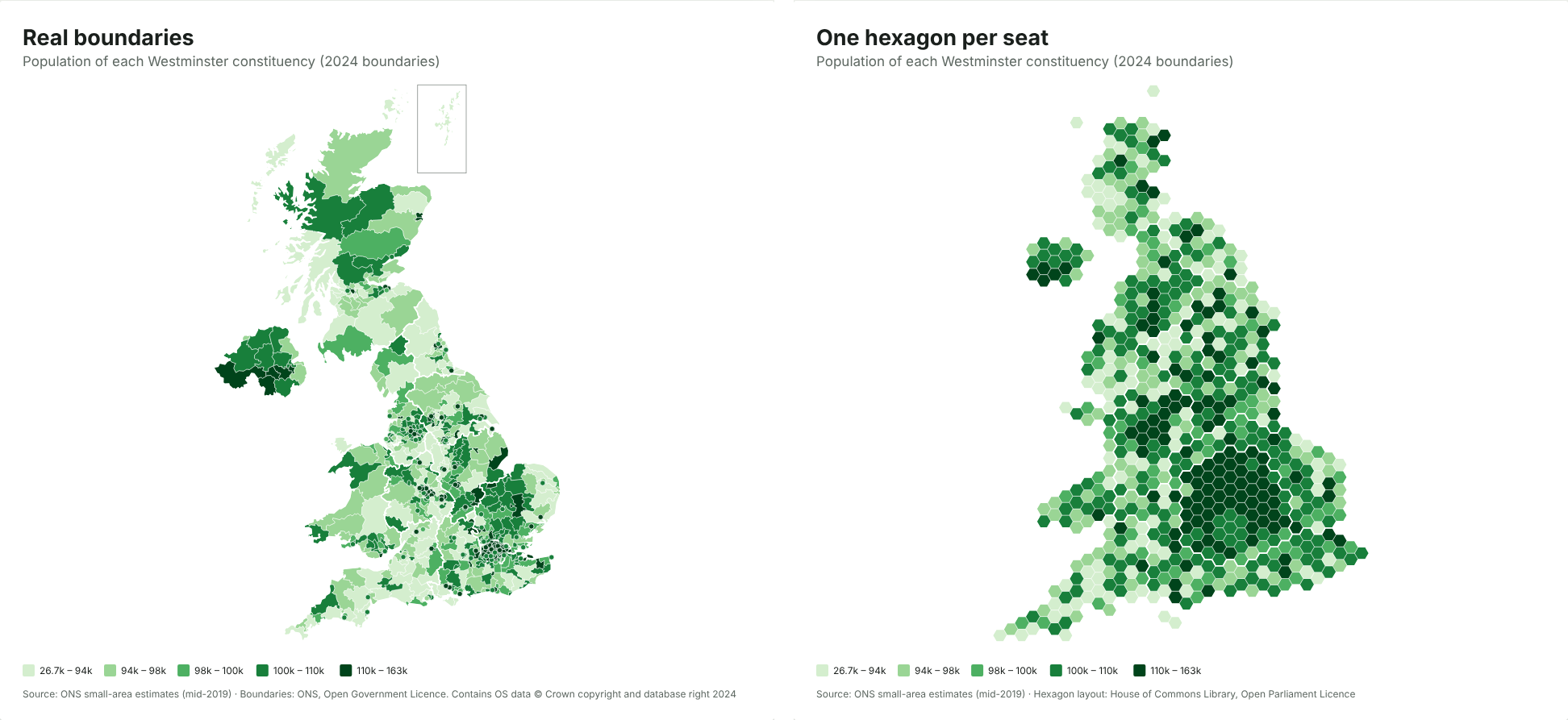
    The same constituency data drawn as real boundaries and as hexagons
    The same data both ways. On the left, real boundaries; on the right, one hexagon per seat.

    What a hex map is

    A hex map is a kind of cartogram: a map where the size of each area stands for something other than land. Here, each constituency is one hexagon, placed roughly where it really is so neighbours stay neighbours. London becomes a recognisable cluster, and you can see every seat in Manchester or Glasgow.

    The layout used in the JFDI map maker is the House of Commons Library’s, the same one many newsrooms use. It’s published under the Open Parliament Licence.

    When to use hexagons

    Use a hex map when each area counts equally in what you’re showing:

    • election results and vote shares
    • polling or MRP estimates by seat
    • anything per constituency that an MP or campaign will act on, such as casework or survey responses

    Use real boundaries when geography matters:

    • something physical, such as flood risk, broadband coverage or distance to a hospital
    • when readers need to find a specific place by shape or coastline
    • local data within one region, where size differences are smaller

    The trade-offs

    Hex maps aren’t free of distortion; they move it somewhere else.

    • Shapes and positions are approximate. A seat may sit a hexagon away from where you expect. Labels or a hover tooltip help people find their own.
    • Population isn’t exactly equal. Seats were drawn to have electorates within 5% of 73,393 (with five protected island seats excluded), but total population, including children and people not registered, varies much more.
    • Readers need a moment. Add a subtitle such as “One hexagon per constituency” so nobody mistakes it for geography.

    Councils: a different kind of cartogram

    Local authorities vary in population as well as area, from the Isles of Scilly to Birmingham, so one hexagon each would be unfair the other way. For councils, the map maker offers Local authorities sized by population, also from the House of Commons Library, where each council is built from small hexagons of about 8,000 people. Big cities get room in proportion to their residents.

    How to switch

    In the map maker, load your constituency data, then open Data › Map and choose between Constituencies (2024) and Constituencies as hexagons (2024). Your colours, title and data carry over, so you can download both and compare them. The step-by-step guide covers getting your data in.

    Sources

    • Constituency areas: ONS Westminster Parliamentary Constituencies (July 2024) boundaries, Open Government Licence.
    • Electoral quota: 2023 review of Westminster constituencies.
    • Hexagon layout: House of Commons Library, Open Parliament Licence.
  • Which chart should I use? A guide to 42 common charts

    Choose a chart by the question it needs to answer. Comparing items? Use bars. Change over time? Use a line. Parts of a whole? Use a stacked bar or, for two or three parts, a pie. Relationship between two numbers? Use a scatter plot. Flows between stages? Use a Sankey. The rest of this guide covers the cases in between.

    Every chart below is in the JFDI chart maker. Paste your data once and the gallery redraws all 130 chart types with it, putting the ones that fit your data’s shape first.

    1. Comparing items

    ChartUse it whenAvoid when
    Bar chartComparing a handful to a few dozen categories, especially with long namesShowing change over time
    Column chartComparing a few categories, or a few time periodsCategory names are long
    Grouped bar or columnComparing two or three series per categoryMore than about four series
    Dot plotMany categories with values close togetherYou need to show zero as a baseline
    Lollipop chartLike a bar chart, but lighter when bars are manyValues are negative and positive
    Bullet chartActual against a target, with good/bad bandsThe audience hasn’t seen one before
    Slope chartWho rose and who fell between two points in timeMore than two points in time
    Diverging bar chartValues above and below zero, or a midpointEverything is on one side

    Sort bars by value unless the categories have a natural order (age groups, months).

    2. Change over time

    ChartUse it whenAvoid when
    Line chartContinuous change, many time pointsYou have only two or three points
    Column chartA few periods, or totals per periodDozens of periods
    Step chartValues that change in jumps, such as prices or interest ratesChange is gradual
    Area chartEmphasising volume over time for one seriesComparing several series that overlap
    Stacked area chartA total and its components over timeReaders need to compare the middle layers
    Line with final dotHighlighting the latest value—
    Year-over-year lineComparing the same months across yearsData isn’t seasonal
    Fan chartA forecast with widening uncertaintyYou don’t have a range
    Bump chartRankings rising and fallingThe actual values matter more than ranks
    Calendar heatmapDaily values across a year, showing weekly patternsData is monthly

    3. Parts of a whole

    ChartUse it whenAvoid when
    Stacked bar or columnParts of a total, compared across categoriesMore than about five parts
    100% stacked barShares, not totals, across categoriesTotals matter
    Pie or donutTwo or three parts of one wholeParts are similar in size, or there are many
    Waffle chartShowing a percentage people can count, such as 37 in 100Values need decimals
    TreemapMany parts, or parts within partsPrecise comparison matters
    SunburstHierarchies with two or three levelsMore than three levels
    Waterfall chartHow a start value becomes an end valueValues aren’t sequential changes

    Pie or bar? Bars win for anything but two or three slices, because people compare lengths far more accurately than angles.

    4. Distributions

    ChartUse it whenAvoid when
    HistogramThe shape of one set of valuesComparing many groups
    Box plotComparing medians and spread across groupsAudience isn’t used to them
    Violin plotComparing the shape of distributionsGroups are small
    Beeswarm plotShowing every individual value, up to a few hundredThousands of points
    Population pyramidTwo groups (such as men and women) by age bandGroups aren’t comparable

    5. Relationships

    ChartUse it whenAvoid when
    Scatter plotTwo numbers per item: is there a pattern?Only a handful of items
    Scatter with trend lineShowing the direction of a relationshipThe relationship isn’t straight
    Bubble chartA third number shown by sizeBubbles overlap heavily
    Connected scatter plotHow two numbers moved together over timeMore than one or two series
    HeatmapValues across two categories, such as day × hourPrecise values matter
    Quadrant chartSorting items into four groups, such as impact × effortAxes have no natural midpoint

    6. Flows and processes

    ChartUse it whenAvoid when
    Sankey diagramQuantities flowing between stagesMore than about 20 nodes
    Alluvial chartHow groups move between categories over stagesCategories change between stages
    Funnel SankeyA conversion funnel with drop-offsSteps aren’t sequential
    Income statement chartRevenue flowing to costs and profit—

    7. Ranking races and small multiples

    ChartUse it whenAvoid when
    Bar chart raceAn animated ranking over time, for social or presentationsPrinted or static reports
    Grid of line charts (small multiples)Many series that would tangle on one chartSeries have very different scales

    Three rules that apply to every chart

    1. Title it with the finding. “Sales doubled after the price cut” tells readers what to look for; “Sales by month” doesn’t.
    2. Start bars at zero. The length of a bar is the value, so a cut-off axis exaggerates differences. Lines can start elsewhere, if you say so.
    3. Use colour for meaning. Highlight the one series that matters and grey the rest, rather than giving each its own bright colour.

    Related