 Just Freakin’ Do It!All tools
Help › Chart maker
Chart maker guide
Everything you can do with the Just Freakin’ Do It! chart maker: getting your data in, choosing a chart, styling it, and getting it out again as an image, a PDF, a link or an embed.
Quick start
- Paste your data into the box at the top of the first page (copy a block of cells from Excel or Google Sheets, including the header row). Every chart in the gallery redraws with your numbers, and the ones that suit your data move to the front.
- Pick a chart. Click any card. You can change your mind later without losing your data.
- Check the data on step 2. Fix anything the chart has misread, or apply the tidy-up suggestions.
- Style it on step 3: title, colours, labels, notes, size.
- Export on step 4: download a PNG, SVG or PDF, copy the image, create a share link, or copy code to embed it on a web page.
There's no save button. Every chart you open is kept automatically in this browser under Your charts on the first page.
Starting with your own data
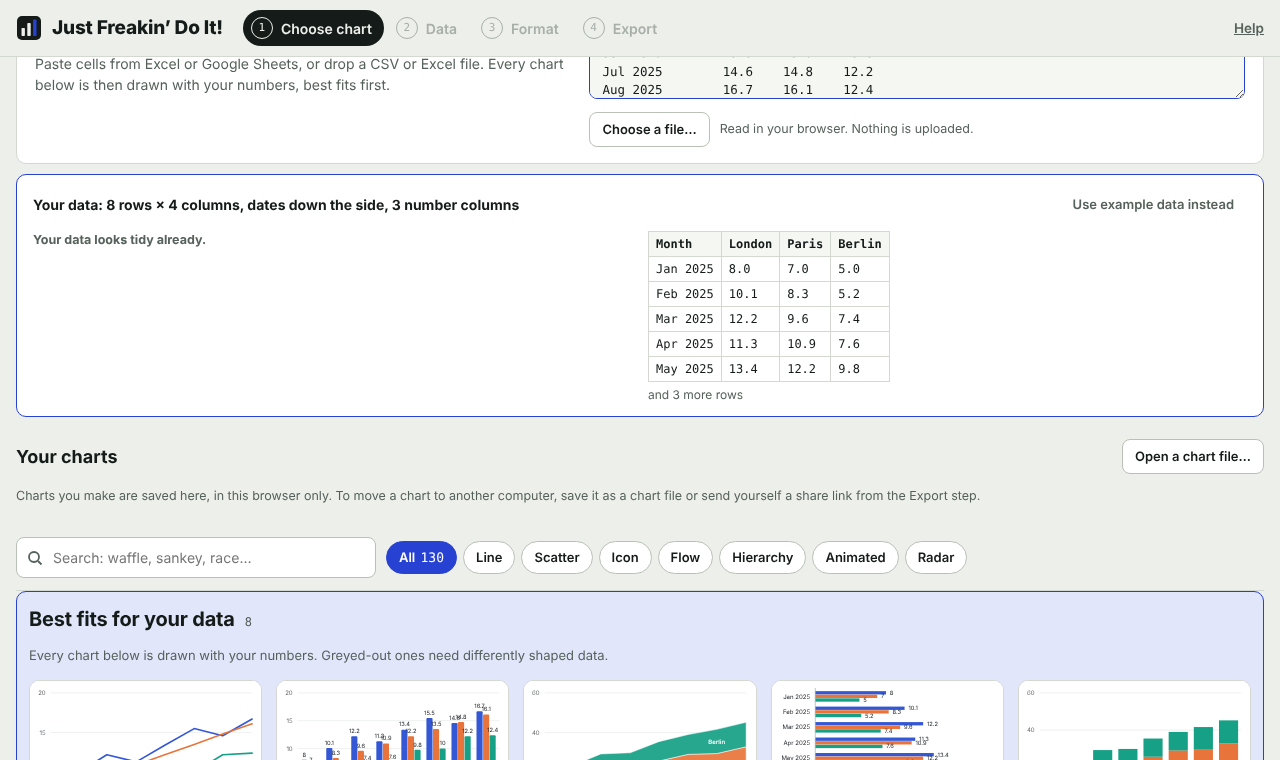
The quickest way to start is to give the chart maker your data first and let it suggest charts:
- Paste cells copied from Excel, Google Sheets, Numbers or a web table straight into the box. Tab-separated and comma-separated text both work.
- Choose a file… opens a CSV, TSV, TXT or Excel (.xlsx, .xlsm) file. If a workbook has several sheets, you can pick the sheet later on the Data step.
- Drop a file anywhere on the box.
The chart maker reads the data, tells you what it found (for example "13 rows × 3 columns, dates down the side, 2 number columns"), and redraws every card in the gallery with it. Charts that fit your data's shape come first; charts that need a different shape are dimmed. You can still open a dimmed chart to see the layout it expects.
To go back to the example data in every card, use Use example data instead.
How your data should be laid out
Most charts expect a simple table:
- Row 1 holds the column names (series names).
- Column 1 holds the labels: categories, names or dates.
- The other columns hold numbers, one column per series.
| Month | London | Paris |
|---|---|---|
| Jan | 8.1 | 7.2 |
| Feb | 8.5 | 8.3 |
| Mar | 11.0 | 12.2 |
Some charts need a different layout, such as a Sankey diagram (source, target, value) or a treemap (one column per level of the hierarchy, then a value). Open the chart and look at its example data: your data needs the same shape. The text above the sheet on the Data step describes what each column is for.
Tidy-up suggestions
Data copied from real spreadsheets is often messy. The chart maker spots common problems and offers to fix them. Each suggestion shows what it will change; apply them one at a time, or all at once with Fix all. One Undo reverses them.
- Title rows above the table
- Notes and footnotes below it
- A missing header row
- Empty rows and columns
- Units inside the numbers (£, $, %, "kg", "m")
- Total rows and total columns
- "Long" data with one row per value, turned into one column per series
- Dates running across the top instead of down the side
Choosing a chart
There are 130 chart types in seven families. Use the search box (try "waffle", "sankey" or "race") or the family buttons to narrow the gallery. Click a card to open it.
| To show | Try |
|---|---|
| Change over time | Line chart, area chart, column chart, step chart, slope chart |
| Ranking or comparing items | Bar chart, dot plot, lollipop chart, bullet chart, bar chart race |
| Parts of a whole | Stacked bar or column, waffle chart, donut, treemap, proportional area |
| Distribution | Histogram, box plot, violin plot, beeswarm plot |
| Relationships | Scatter plot (with trend line), bubble chart, connected scatter plot, heatmap |
| Flows between stages | Sankey diagram, alluvial chart, funnel Sankey, waterfall chart |
| Hierarchies | Treemap, sunburst, packed circles, radial tree |
| Patterns by day | Calendar heatmap, heatmap, cycle plot |
| Many small charts | Grid of line, bar, column, area or donut charts |
The families are: line, area, bar and column (58 types); scatter, distribution and relationship (27); icon and unit (12); flow and process (10); hierarchy (9); animated and image-based (8); radar and polar (6).
To switch chart type later, use Change chart above the preview. Leave Keep my data when switching ticked to carry your data over.
Editing data
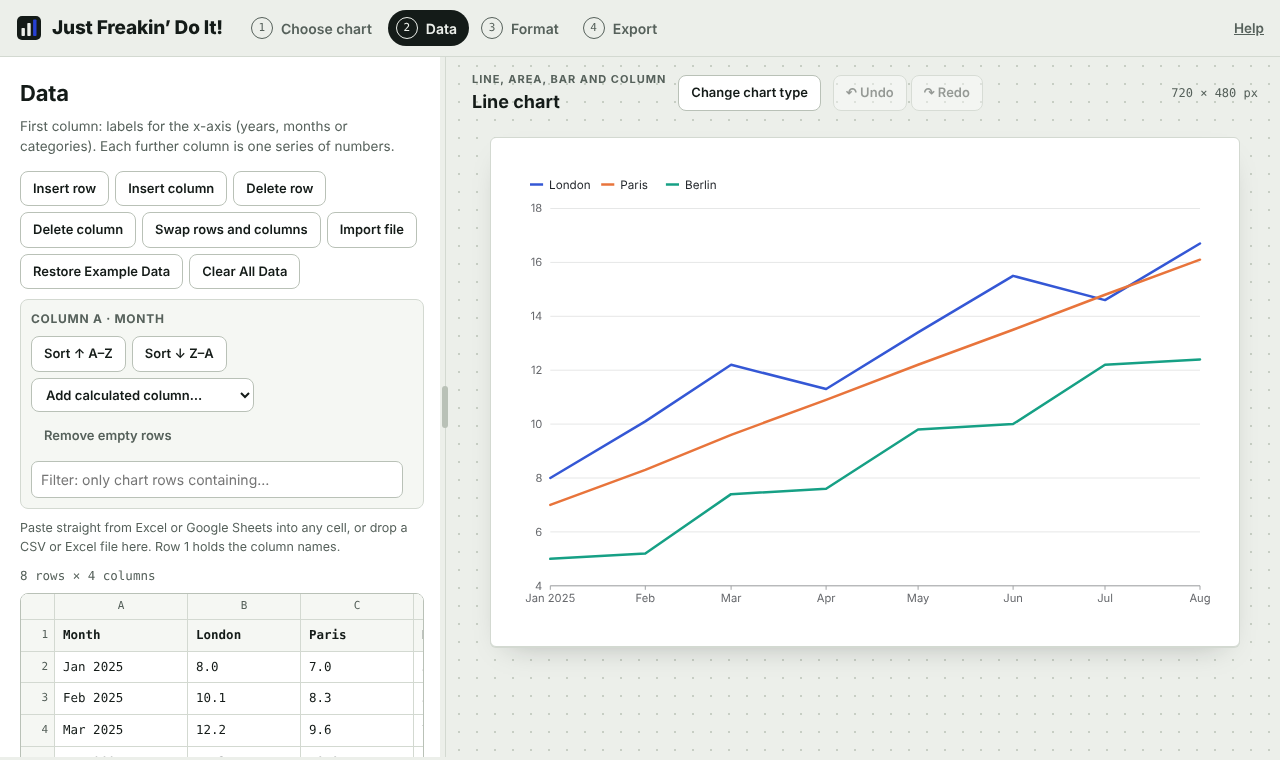
The Data step is a small spreadsheet. The chart redraws as you type.
- Type into any cell. Enter moves down, Shift+Enter moves up, and the arrow keys move between cells.
- Paste a block of cells into any cell: it fills from there, adding rows and columns as needed.
- Drop a CSV or Excel file onto the sheet, or use Import file. This replaces what's there. For workbooks with several sheets, choose the sheet from the Sheet menu.
- Insert row / Insert column / Delete row / Delete column act on the selected cell.
- Swap rows and columns turns the table on its side.
- Restore Example Data puts the chart's original example back. Clear All Data empties the sheet.
Data tools
Click a cell in a column, then:
- Sort ↑ A–Z / Sort ↓ Z–A sorts the rows by that column (numbers by size, text alphabetically).
- Add calculated column adds a new column worked out from the selected one: % change from the previous row, change from the previous row, share of the column total, running total, or an index where the first value is 100.
- Remove empty rows deletes rows with nothing in them.
- Filter shows only rows containing the text you type in the chart. Your data isn't changed; clear the filter to bring every row back.
Dates
When the first column holds dates (such as 2024-03-01, 01/03/2024, 2024-03, 1 Mar 2024, Mar 1, 2024, Mar 2024 or Mar-24), line, area and column charts can space them by time, so an irregular gap such as a missing month shows as a gap. Turn this on or off with Space dates by time in Format › Dates.
Formatting
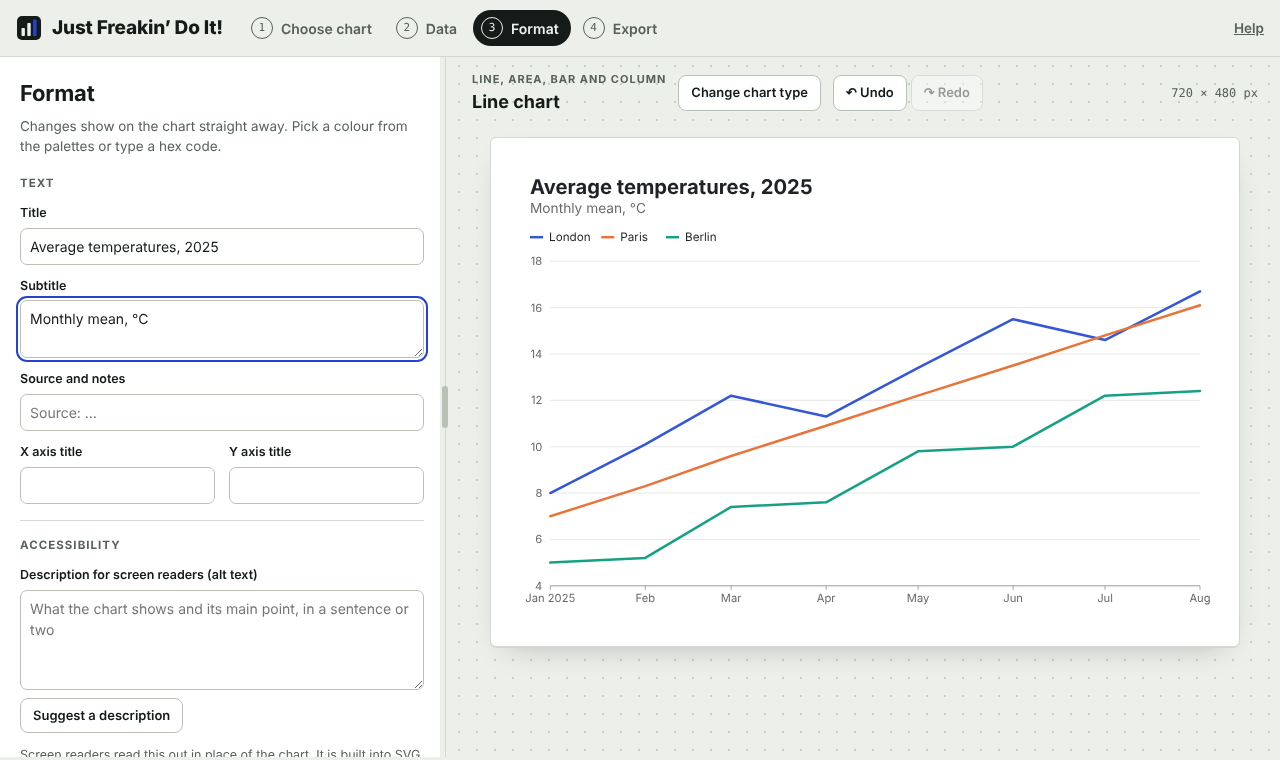
Every change shows on the chart immediately. The sections are:
Text
Title, subtitle and source (the source line sits under the chart, a good place for "Source: Office for National Statistics"). Charts with axes also have X and Y axis titles.
Accessibility
A description for screen readers (alt text). Suggest a description writes a starting point from the title and the data, such as the highest value and the overall trend; edit it to say what the chart shows. The description is built into SVG downloads and embeds, and Copy alt text on the Export step copies it for pasting wherever you use the image.
Annotations
Point out something on the chart with a note and an arrow: click Add a note, then click the spot it should point to, and type the note. Drag the note's text or its dot to move them. Press Esc to cancel while placing.
Reference lines and ranges
Add a line at a value (a target, an average, a threshold) or a shaded range between two values. On charts with a time or category axis, markers can also go on the X axis, for example a vertical line at a launch date or a shaded period. Choose a colour and add an optional label. The first line you add starts at the average of your data.
Logo
Show a logo in the top-right corner. Choose one of the built-in options or Upload image… (PNG, SVG, JPG or WebP, up to 1.5 MB). The title wraps around it. Your logo stays in your browser.
Chart options
Settings that only make sense for the chart you've picked, such as sorting, line shape, hole size for donuts, where a projection starts, number of bins in a histogram, the speed of a bar chart race, or a trend line on a scatter plot.
Colours
Choose a palette: Studio, Colour-blind safe, Harbour, Bold, Pastel, Earth, Print (greys), Diverging or Sequential. Studio, Harbour and Colour-blind safe stay easy to tell apart for people with colour blindness. To change a single item, click its swatch under Colour for each item and pick from the palette, any colour you like, or type a hex code. Reset to palette undoes your picks.
Layout
Pick a size preset for where the chart will go, or set the width and height yourself:
| Preset | Size (pixels) |
|---|---|
| Web article | 720 × 480 |
| Wide web | 960 × 540 |
| Slide (16:9) | 1280 × 720 |
| Square post | 1080 × 1080 |
| Portrait post (4:5) | 1080 × 1350 |
| LinkedIn / X card | 1200 × 627 |
| Story (9:16) | 1080 × 1920 |
| A4 landscape | 1123 × 794 |
| A4 portrait | 794 × 1123 |
Layout also covers the font, text size, light or dark theme, legend position, gridlines, background colour and text colour.
Numbers
Add a prefix (£, $) or suffix (%, kg), set decimal places, use short numbers (12k, 3.4M), turn value labels on or off, and fix the value axis minimum and maximum.
Downloading and copying
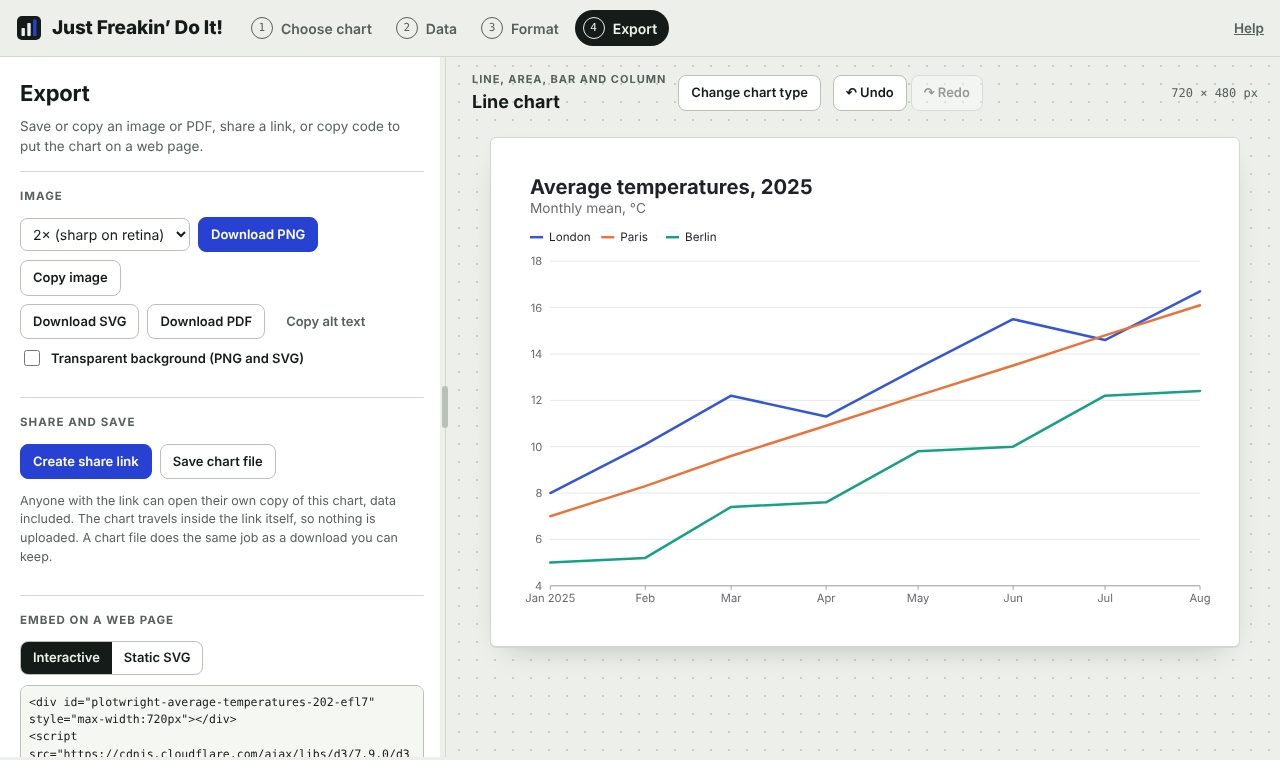
| Option | Best for |
|---|---|
| Download PNG at 1×, 2× or 3× | Slides, documents, social posts. 2× is sharp on high-resolution screens; 3× is for print. |
| Copy image | Pasting straight into PowerPoint, Google Slides, Word, Keynote or an email. |
| Download SVG | Designers: sharp at any size and editable in Illustrator, Figma or Inkscape. |
| Download PDF | Printing and reports. The page is the size of your chart. |
| Transparent background | Placing a PNG or SVG on a coloured slide or page. |
Animated charts (bar chart races, sliders) export the frame that's on screen. To keep the animation, use the embed code.
Very large images are scaled down a little so they still open on iPhones and iPads, which can't draw images above about 16 million pixels. The status line tells you when this happens.
Your charts, chart files and share links
Your charts
Every chart you open is saved automatically in this browser and listed under Your charts on the first page. From there you can open a chart, make a copy to try changes, download it as a chart file, or delete it (with a few seconds to undo). Continue where you left off reopens the chart you worked on last.
Saved charts live only in this browser on this device. Clearing your browser's site data deletes them, and Safari deletes a website's data if you don't visit it for 7 days. To keep a chart safe, download a chart file.
Chart files
Save chart file downloads a small .chart.json file with the chart type, data and formatting. Open it again with Open a chart file… on the first page, on any computer.
Share links
Create share link makes a link that opens a copy of your chart, data included. The whole chart travels inside the link itself (after the #), so nothing is uploaded and the link never expires. Anyone with the link can see the data, so share it like you'd share the data. Uploaded logos are left out to keep links short. Charts with lots of data make long links that some email and chat apps cut short; a chart file is more reliable for those.
Embedding on a website
The Export step gives you code to paste into a web page, blog or content management system:
- Interactive keeps tooltips, filters, sliders and animation, and redraws to fit narrow phone screens. It loads the free d3 library from cdnjs (run by Cloudflare).
- Static SVG is a plain picture with no scripts. It scales down like an image.
Download as web page saves the chart as a standalone HTML file you can open, email or upload on its own. The size of the code is shown next to the buttons.
Keyboard shortcuts
| Keys | What it does |
|---|---|
| Ctrl+Z (⌘+Z on a Mac) | Undo |
| Ctrl+Shift+Z (⌘+⇧+Z) | Redo |
| Enter / Shift+Enter | Move down / up a cell in the sheet |
| Arrow keys | Move between cells (left and right at the start or end of a cell's text) |
| Esc | Stop placing a note |
| Arrow keys, Home, End on the panel divider | Make the settings panel narrower or wider |
Privacy
Charts are drawn by your own browser. The data you paste or import is never sent to our server, and there are no accounts or tracking. Charts are saved in your browser's storage on this device, and share links carry the chart inside the link. See the privacy page for details.
Troubleshooting
My numbers aren't showing up on the chart
Check the Data step. Numbers need to be in their own cells, below a header row. Cells such as "£1,200" and "45%" are understood, but text like "approx. 1200" or "n/a" isn't. If tidy-up suggestions appear above the sheet, they usually fix the problem. Also check the filter box isn't hiding rows.
The chart shows my data in the wrong direction
Use Swap rows and columns on the Data step. Most charts expect labels down the first column and one column per series.
My dates are treated as text
Put the dates in the first column. These formats are recognised: 2024-03-01, 01/03/2024 (day first, unless that can't be right), 2024-03, 1 Mar 2024, Mar 1, 2024, Mar 2024 and Mar-24. Plain years (2021, 2022…) and quarters work as labels but aren't spaced by time. Then check Space dates by time in Format › Dates.
Copy image doesn't work
Some older browsers can't copy images. Use Download PNG instead, or try an up-to-date Chrome, Edge, Safari or Firefox.
My saved charts have disappeared
Saved charts are kept in the browser you used, on that device. They're lost if site data is cleared, in private browsing windows, and in Safari after 7 days without a visit. Download chart files for anything you want to keep.
A share link opens an error
The link has probably been cut short by an email or chat app. Copy the whole link again, or send a chart file instead.
Can I use the charts commercially?
Yes. Charts you make are yours to use anywhere, with no watermark and no credit required.