 Just Freakin’ Do It!All tools
Help › PDF toolkit
PDF toolkit guide
How to merge, split, organise, edit, sign, fill in, redact, compress and password-protect PDFs, all in your browser without uploading anything.
Quick start
- Open your files. Drop PDFs or images onto the page, or click Choose files. You can also start from a task, such as Sign a PDF or Compress, which takes you straight to the right place after opening.
- Pages tab: put pages in order, rotate them, delete the ones you don't need, and add more files.
- Edit & sign tab: add text, signatures, drawings, highlights and redactions, and fill in forms.
- Finish tab: add page numbers or a watermark, make the file smaller or add a password.
- Download PDF. The button at the top right is always there.
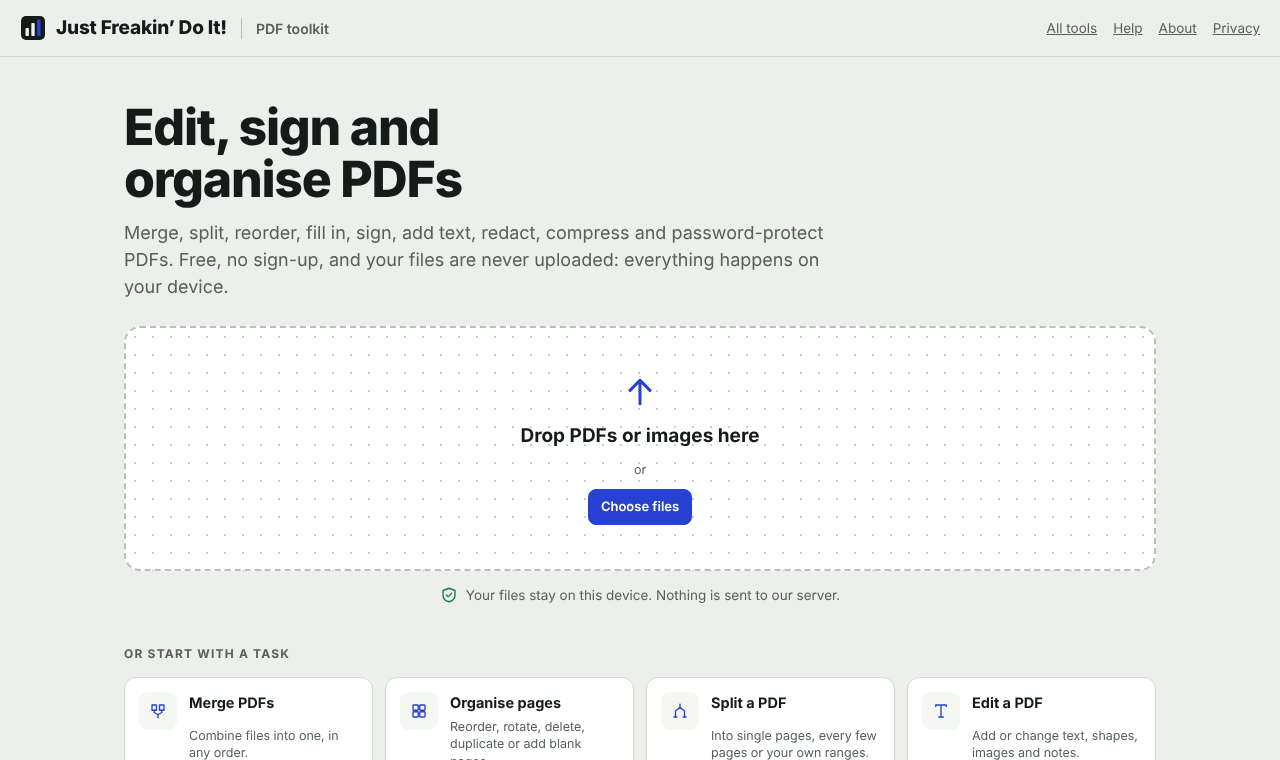
Your files never leave your device. They're opened, shown and rebuilt inside your browser tab, which also means your work isn't saved anywhere until you download it. If you try to close the tab with changes you haven't downloaded, your browser asks you to confirm.
Opening files
- PDFs: any number at once. Pages from every file appear together, so merging is just opening several files.
- Images: JPEG, PNG, WebP, GIF and BMP. Each image becomes a page. Phone photos are turned the right way up automatically.
- Add files (top bar) adds more at the end. To add files at a particular spot, drop them between pages in the Pages tab.
- Password-protected PDFs ask for the password when they open. Either the password for opening the file or the owner (permissions) password works. Files that only restrict printing or copying open without asking. See Removing a password.
To start again, use the × at the right of the top bar. It closes every file.
Organising pages
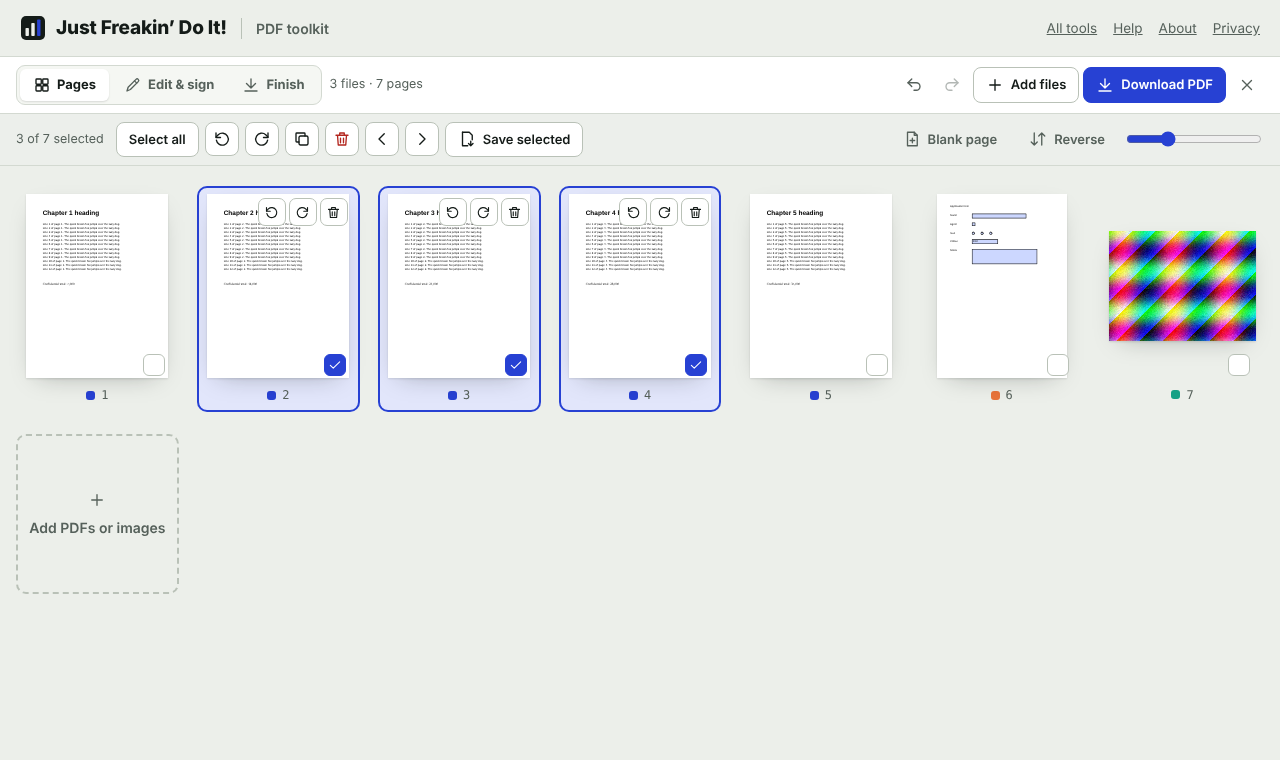
Selecting pages
- Click a page to select it. Ctrl-click (⌘-click on a Mac) adds or removes pages; Shift-click selects a run of pages.
- The tick box on each page toggles it, which is easiest on a phone or tablet.
- Select all selects every page; click it again to clear. Clicking an empty part of the grid clears the selection too.
Page actions
| Action | What it does |
|---|---|
| Rotate left / right | Turns the selected pages a quarter turn. Anything you've added to the page turns with it. Each page also has its own rotate buttons when you point at it. |
| Duplicate | Adds a copy of each selected page straight after it. |
| Delete | Removes the selected pages. Deleted pages are completely removed from the downloaded file, not just hidden. |
| Move earlier / later | Moves the selected pages one place. On a computer you can also drag pages. |
| Save selected | Downloads just the selected pages as a new PDF. |
| Blank page | Adds an empty page, the same size as its neighbour, after the selection (or at the end). |
| Reverse | Reverses the order of the selected pages, or of every page if fewer than two are selected. Handy for scans fed in backwards. |
To reorder, drag a page (or a selection of pages) and drop it where the blue line shows. The slider at the right makes the thumbnails bigger or smaller. Double-click a page to open it in the editor.
Badges on a page show when it has edits, is a blank page, is cropped, or will be redacted.
Editing and signing
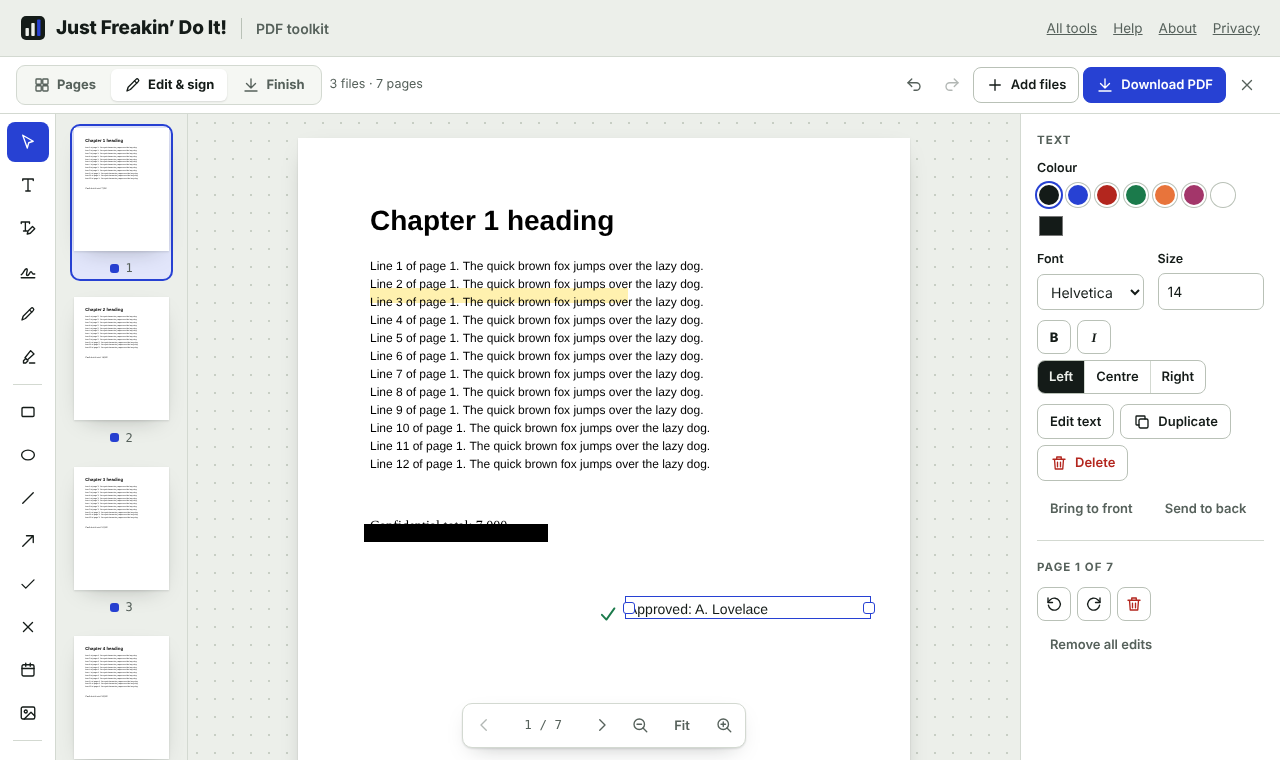
Pick a tool on the left, then click or drag on the page. Settings for the tool, or for whatever you've selected, appear in the panel on the right. Move between pages with the thumbnails, the arrows under the page, or Page Up / Page Down.
| Tool | Key | How to use it |
|---|---|---|
| Select | V | Click something you added to select it, then drag to move it or drag its handles to resize. Double-click text to edit it. Form fields can be filled in with this tool. |
| Add text | T | Click where the text should start and type. Click elsewhere or press Esc to finish. |
| Change existing text | E | Lines of the PDF's own text light up as you point at them. Click one to retype it. See below. |
| Signature | S | Draw, type or upload your signature, then drag it into place. |
| Draw | D | Freehand pen, for notes, circles and marks. |
| Highlight | H | Drag across text. The highlight is see-through, like a highlighter pen. |
| Rectangle, ellipse | R, O | Drag to draw. Choose the outline colour, thickness and fill. |
| Line, arrow | L, A | Drag from start to end. Hold Shift to keep to straight angles. |
| Tick, cross | Click to place a ✓ or ✗, ideal for forms that have no fillable boxes. | |
| Date | Click to stamp today's date as text you can edit. | |
| Image | Add a picture or logo from your device. | |
| White-out | W | Drag to cover something with a white box. See White-out or redact? |
| Redact | X | Drag over private details to black them out for good. |
| Crop | C | Drag a box around the part of the page to keep. |
Changing what you've added
- Move: drag it, or select it and use the arrow keys (hold Shift for bigger steps).
- Resize: drag the handles. Text boxes have side handles that change the width, and the text re-wraps. Pictures and signatures keep their shape when you drag a corner; hold Shift to stretch them freely.
- Style: colour, size, thickness, fill, font, bold, italic, alignment and opacity are in the panel on the right.
- Duplicate, Delete (or the Delete key), Bring to front and Send to back are there too.
- Remove all edits clears everything you've added to the current page.
- Everything can be undone with Ctrl+Z (⌘+Z) or the undo arrow in the top bar.
Text and fonts
Added text uses the fonts built into every PDF reader: Helvetica, Times and Courier, in regular, bold and italic. Text you add is real, selectable, searchable text. Letters these fonts don't have (for example Chinese, Arabic, Greek or emoji) are added as a picture of the text instead, so they still appear correctly but can't be selected.
Changing existing text
PDFs aren't made for editing like a word-processor document, so this tool works the way most PDF editors do behind the scenes: it covers the original line with a box in the page's background colour and puts your new text on top, matching the position, size and style (sans-serif, serif or monospaced) as closely as it can. It also picks up the text colour.
- The new text won't use the exact same typeface unless the original was Helvetica, Times or Courier.
- Delete all the words to remove a line: the cover stays and hides the original.
- The original words are still in the file underneath. Don't use this to remove private information; use Redact.
- Scanned pages are pictures with no text to change. If nothing lights up, use White-out and Add text instead.
Signatures
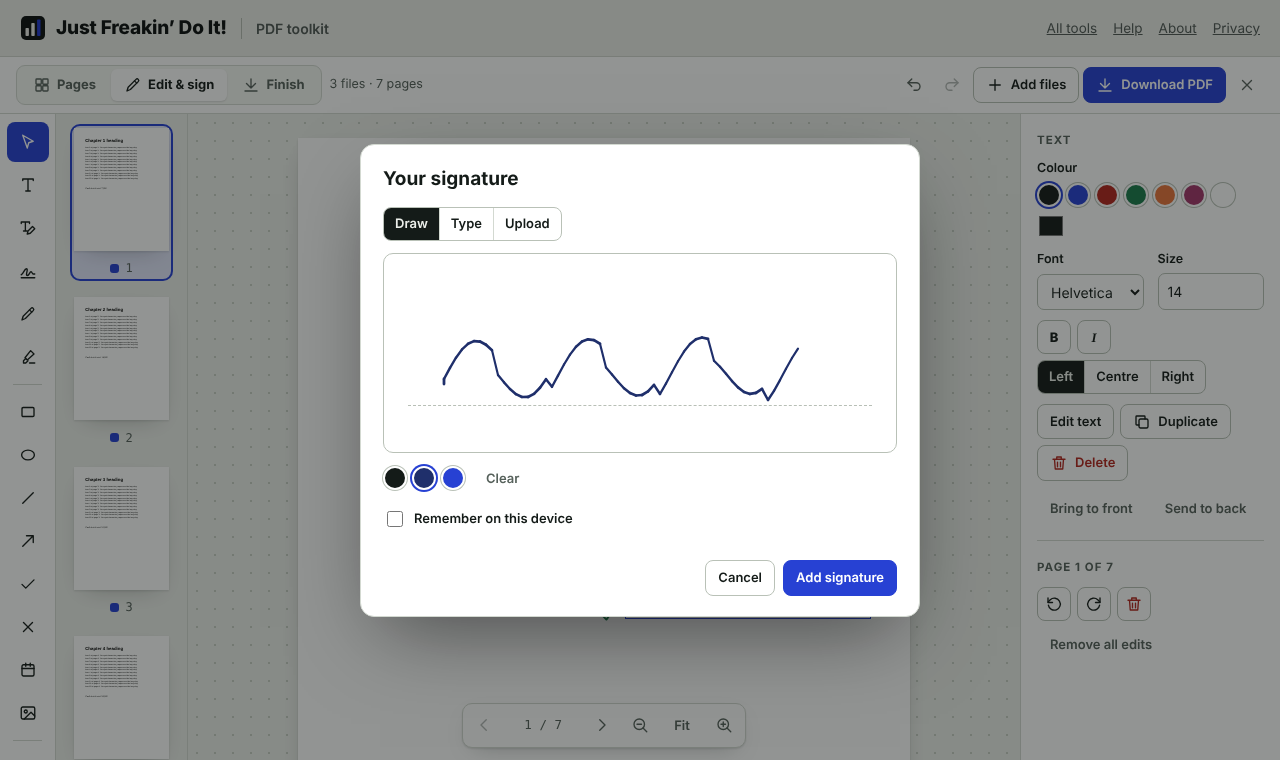
- Draw: sign in the box with your mouse, finger or a stylus (pen pressure is used where supported). Pick black or one of two blues. Clear starts again.
- Type: type your name and choose a handwriting style.
- Upload: choose a photo or scan of your signature. Remove the white background makes the paper see-through so only the ink shows.
- Tick Remember on this device to reuse the signature next time. Saved signatures are kept in this browser only; remove one with its ×.
The signature is placed in the middle of the page you're looking at. Drag it into place and resize it with the corners.
This is an electronic signature: a picture of your signature on the page, which is accepted for most everyday paperwork. It isn't a certificate-based digital signature. If a PDF already has a digital signature, changing the file in any way (here or in any other editor) means that signature will show as no longer valid.
Filling in forms
If a PDF has fillable boxes, they appear as blue-tinted boxes in the editor. With the Select tool, click a box and type, tick checkboxes, choose radio buttons and pick from drop-down lists. The panel on the right lists the fields on the current page; click one to jump to it.
When you download, answers are saved into the form, which stays fillable so the next person can still change them. To lock the answers into the page so they can't be edited, tick Lock form answers in place in the Finish tab.
If a PDF has no fillable boxes (for example a scanned form), use Add text, Tick and Date to fill it in instead.
White-out or redact?
| White-out | Redact | |
|---|---|---|
| Looks like | A white (or chosen colour) box | A black box |
| Hidden words | Still in the file under the box. Someone could copy them out. | Removed for good |
| Rest of the page | Unchanged | Rebuilt as a picture: text on that page can no longer be selected or searched |
| Use it for | Tidying up, hiding mistakes, making space for new text | Names, addresses, account numbers and anything confidential |
Redacted pages are turned into a high-resolution image (200 dpi) when you download, together with everything else you added to that page. Page numbers and watermarks are added afterwards, so they stay sharp.
Cropping pages
With the Crop tool, drag a box around the part of the page to keep. The rest is shaded and won't show in the downloaded file. Same crop on every page copies it to every other page of the same size; Remove crop shows the whole page again. Cropping hides the edges rather than deleting them, so don't use it to remove private information.
Pages made from images
For pages made from photos or scans, choose the Page size in the panel on the right: Fit to the image, A4 or US Letter (with a small margin). The page turns to landscape automatically for wide images.
Finishing and downloading
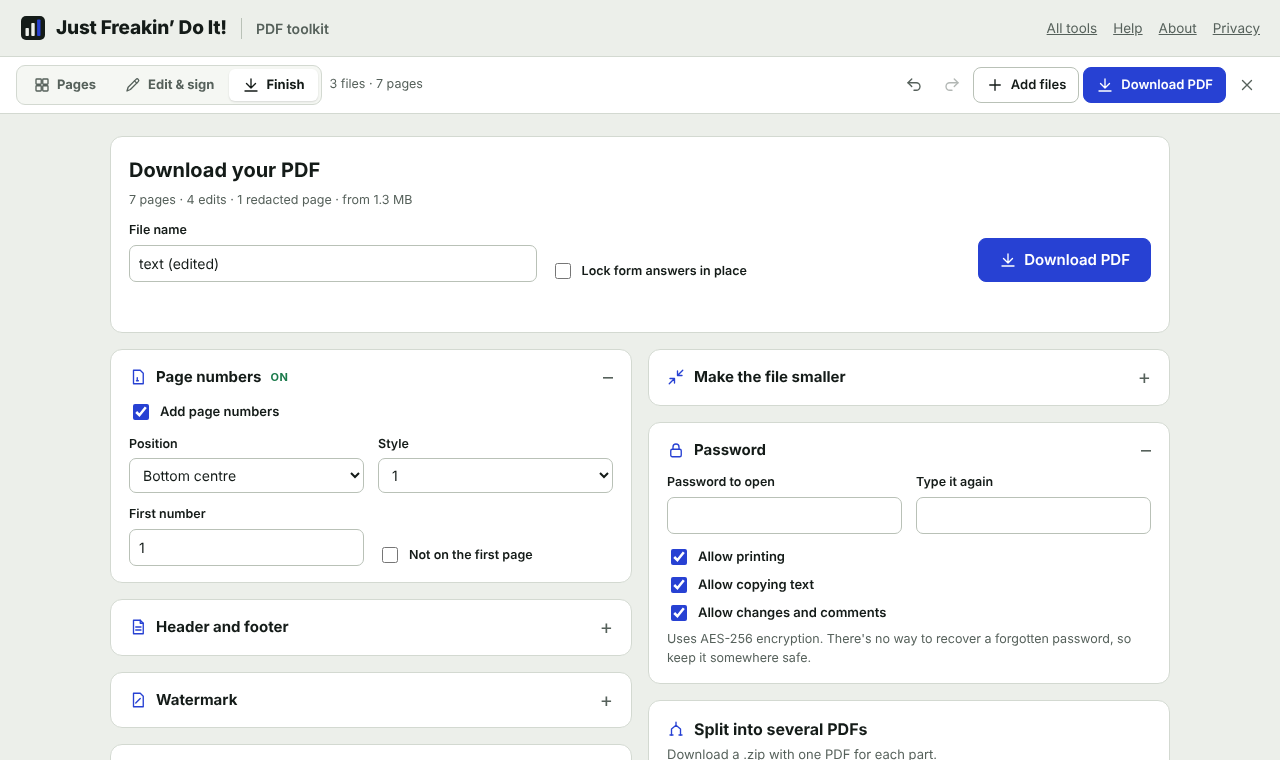
Type a file name and click Download PDF. Everything you've set in the Finish tab is applied to the download. After a download that makes the file smaller, the message shows the new size next to the old one.
Page numbers
Tick Add page numbers, then choose the position (top or bottom; left, centre or right), the style (1, Page 1, Page 1 of 9, 1 / 9, - 1 -), the first number, and whether to skip the first page (for a cover).
Header and footer
Six text boxes: left, centre and right at the top and bottom of every page. Use these codes to fill in details automatically:
| Code | Becomes |
|---|---|
{page} | The page number |
{pages} | The total number of pages |
{date} | Today's date |
{title} | The document title (from Document details) |
{file} | The file name |
For example, a footer left of Confidential and a footer right of {date}. Choose the text size, font and colour underneath. Page numbers take the place of a header or footer box in the same position.
Watermark
Type the text (such as DRAFT or CONFIDENTIAL), choose a colour, diagonal or across, and how strong it looks. It's placed in the middle of every page, over the content, sized to fit.
Document details
The title, author, subject and keywords stored inside the PDF, which readers show in the window title and file properties. They start with the details from your first file.
Remove hidden information strips the author, software, dates, embedded metadata, scripts, attached files and editing history from the download. Use it before sharing a file publicly. Any details you've typed in the boxes above are still added.
Making the file smaller
Choose what to do with pictures in the PDF:
| Setting | Pictures become | Good for |
|---|---|---|
| Keep as they are | Unchanged | Text documents, or when quality matters most |
| Balanced | Up to 2,200 pixels, good-quality JPEG | Most files: noticeably smaller with no visible loss on screen |
| Small | Up to 1,500 pixels | Sharing and on-screen reading |
| Smallest | Up to 1,000 pixels, lower quality | Email attachments with a size limit |
Pictures are only replaced when the result is actually smaller. Files that are mostly text won't shrink much, because text already takes up very little space. Unused data (including deleted pages) is always removed, whatever you choose.
Turn every page into a picture rebuilds each page as an image (150 dpi). It can shrink files full of complex drawings, and flattens everything, but the text can no longer be selected, searched or read by screen readers.
Adding a password
Type a password to open the file, and type it again. The download is encrypted with AES-256, the strongest encryption PDFs support, and opens in any modern PDF reader once the password is entered.
You can also untick Allow printing, Allow copying text or Allow changes and comments. Most PDF readers respect these settings, but they rely on the reader playing by the rules, so treat them as a polite request rather than a lock.
Keep the password somewhere safe. There's no way to recover a forgotten one, by us or anyone else.
Removing a password
Open the locked PDF and enter its password. The copy you download has no password (the Finish tab reminds you). This only works for files you have the password for.
Splitting into several PDFs
Choose Every page (one file per page), Every few pages (for example, every 2 pages), or My own ranges: type ranges such as 1-3, 4, 5-9, one file for each. The preview line tells you how many files you'll get. Several files download together as a .zip. Page numbers, watermarks and other Finish settings are applied to each part.
Saving pages as images
Choose PNG (sharpest, best for text) or JPEG (smaller, best for photos), the quality (72, 150 or 300 dpi), and which pages, for example 1-3, 5 (leave blank for all). One page downloads as an image; several come as a .zip. Images include all your edits, page numbers and watermark.
Copying out the text
Copy text copies the words from every page, ready to paste; Download .txt saves them as a text file, with a marker at the start of each page. It's the text as the page looks after your changes: text you've added is included, in reading order, and words you've changed, whited out or redacted are left out. Scanned pages have no text to copy.
Page ranges
Wherever you type page numbers, you can use:
- single pages:
4 - ranges:
2-6(or2–6, or2 to 6) - open ranges:
8-for page 8 to the end,-3for the first three pages oddoreven- any mix, separated by commas:
1, 3-5, 10-
Keyboard shortcuts
Anywhere
| Keys | What it does |
|---|---|
| Ctrl+Z (⌘+Z) | Undo |
| Ctrl+Shift+Z or Ctrl+Y | Redo |
Pages tab
| Keys | What it does |
|---|---|
| Arrow keys | Move between pages |
| Space | Select or deselect the page |
| Ctrl+A | Select every page |
| Alt+← / Alt+→ | Move the page earlier or later |
| Delete | Delete the selected pages |
| Enter | Open the page in the editor |
Editor
| Keys | What it does |
|---|---|
| V T E S D H R O L A W X C | Choose a tool (see the tools table) |
| Page Up / Page Down | Previous / next page (the arrow keys too, when nothing is selected) |
| Arrow keys | Nudge the selected item (with Shift: 10 points) |
| Delete | Delete the selected item |
| Esc | Finish typing, deselect, or go back to the Select tool |
On phones and tablets
The toolkit works on phones and tablets. In the editor the tools scroll sideways along the top, with the page in the middle and its settings underneath. Tap a page's tick box to select it and use Move earlier/later to reorder. Draw signatures with your finger. Very long or image-heavy PDFs use a lot of memory, so on older phones work with smaller files.
Privacy
PDFs and images are opened and rebuilt entirely in your browser and are never uploaded. Passwords you type stay on your device. Nothing is kept after you close the tab, except signatures you chose to remember. See the privacy page.
Troubleshooting
A PDF won't open
The file may be damaged, still downloading, or not really a PDF (some websites save web pages with a .pdf name). Try opening it in your browser's own PDF viewer first. Files with forms built in Adobe's older XFA format show only their static content.
I can't change the text in my PDF
Scanned documents are pictures of pages, with no text inside. Use White-out to cover the old words and Add text to type new ones.
The redacted page looks slightly blurred
Redacted pages are rebuilt as a 200 dpi image so the hidden words are truly gone. That's sharp for printing, but you may notice it when zoomed right in.
The file didn't get much smaller
Compression works on pictures. Files that are mostly text or vector drawings are already compact. For drawing-heavy files, try "Turn every page into a picture".
The text I added looks different from the rest of the document
Added text uses Helvetica, Times or Courier. Pick the closest one (Times for serif documents, Helvetica for most others) and match the size in the panel on the right.
Is there a page or file size limit?
No set limit. Everything happens on your device, so very large files (hundreds of megabytes or thousands of pages) depend on your device's memory. Computers handle large files much better than phones.
I forgot the password to my PDF
We can't help with that, and nobody should be able to: that's what the password is for. If you set it here, there's no copy anywhere.