 Just Freakin’ Do It!All tools
Help › QR code maker
QR code maker guide
How to make QR codes for links, Wi-Fi, contact cards and more, style them with your colours and logo, and print them so they scan every time.
Quick start
- Choose what the code should open: a link, text, Wi-Fi, a contact, an email, a phone call or a text message.
- Fill in the details. The code updates as you type.
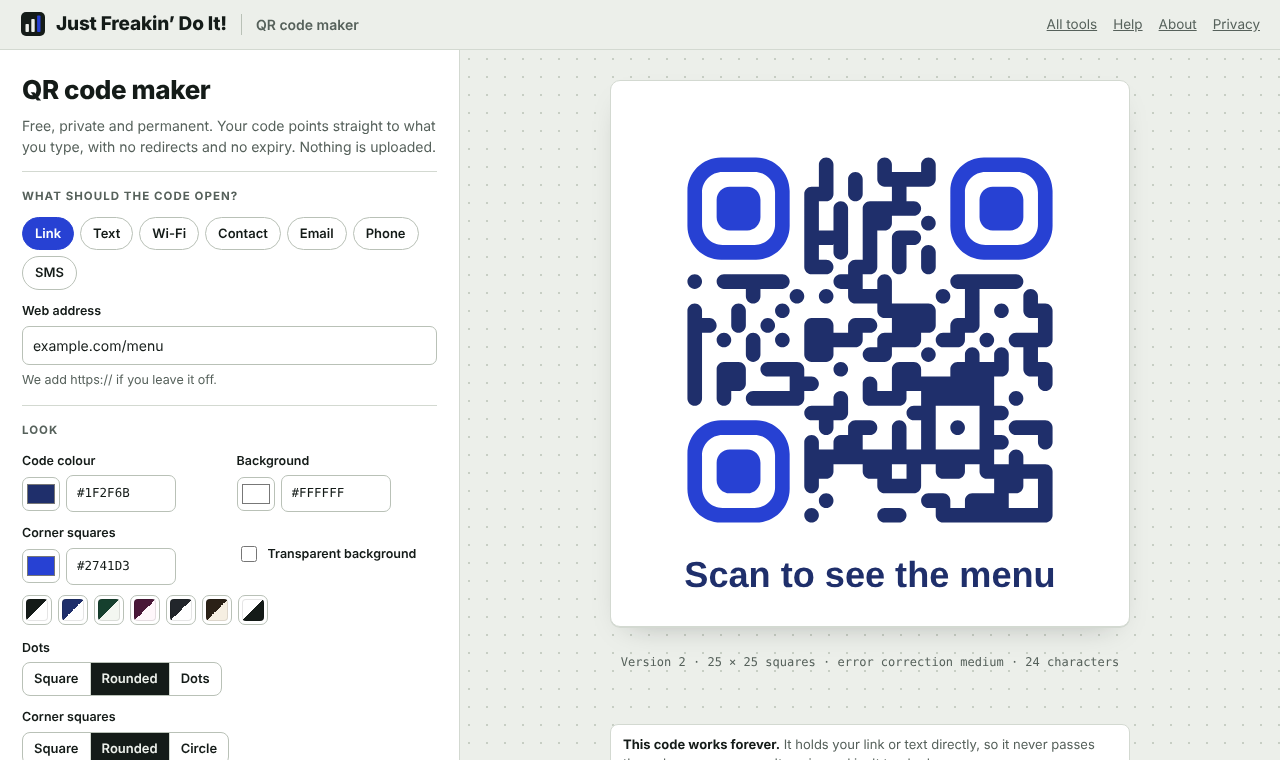
- Style it if you like: colours, dot style, corner style, a logo and a caption underneath.
- Check the notes under the preview. They warn you about anything that could stop the code scanning.
- Download a PNG, SVG or PDF, or copy the image. Test it with a phone before you print lots.
Codes that never expire
Many QR code websites give you a code that points to their server, which then forwards people to your link. Those "dynamic" codes can be tracked, can show adverts, and stop working if you stop paying or the company closes.
Codes made here are static: the code itself contains your link or text. Phones read it directly, so:
- the code works forever, even if this website disappears
- nobody (including us) can see when or where it's scanned
- there are no redirects, adverts or sign-ups
One thing to plan for: a static code can't be changed after it's printed. If the destination might change (a menu, an event page), point the code at a page on your own website that you can update, rather than at a file that may move.
What a code can hold
Link
A web address. Phones open it in the browser. If you leave off https://, it's added for you; addresses that already start with something like mailto: or http:// are kept as they are. Shorter links make simpler codes that scan more easily.
Text
Any text, shown on the phone's screen: a reference number, a short message, instructions. A QR code holds up to about 2,900 characters at the lowest error correction, fewer with accented letters, emoji or non-Latin scripts. For long text, put it on a web page and link to it.
Wi-Fi
Lets guests join your network by pointing their camera at the code, with no typing. Enter the network name exactly as it appears (it's case sensitive), the password, and the security type: WPA / WPA2 / WPA3 for almost all modern routers, WEP for very old ones, or None for an open network. Tick Hidden network if your network doesn't broadcast its name. Special characters in the name or password are handled for you.
The Wi-Fi password is stored inside the code, readable by anyone who scans it. Only put the code where you'd be happy to show the password.
Contact
A contact card (vCard 3.0) that people can save to their phone's contacts in one tap: first and last name, organisation, job title, phone, email, website and address. Fill in only what you need; fewer fields make a simpler code.
Opens a new email with the address, and optionally the subject and message, already filled in. The person still chooses whether to send it.
Phone
Starts a call to the number. Include the country code (for example +44) if people might scan it from abroad. Spaces and brackets are removed for you.
SMS
Opens a text message to the number with your message ready to send.
Each type remembers what you typed, so you can switch between them without losing anything.
Changing the look
Colours
Set the code colour, the background and, optionally, a different colour for the three corner squares. Click a colour box to pick visually, or type a hex code such as #1F2F6B (the # is optional, and three-digit codes like #123 work). The small two-tone buttons are ready-made colour pairs that scan well.
Transparent background leaves the background clear in PNG and SVG downloads, for placing the code on a coloured design. Make sure what's behind it is plain and light.
Dots and corner squares
Dots can be square (the classic look and the most reliable), rounded (joined-up with soft ends) or round dots. Corner squares, the three large markers phones use to find the code, can be square, rounded or circular. Every combination is tested to scan, but strong contrast matters more with round dots.
Margin
The blank border around the code, measured in dots (1 to 8). Phones need this quiet space to find the code. The standard is 4; go no lower than 2 if the code will sit near other text or pictures.
Error correction
QR codes contain spare data so they still scan when part of the code is dirty, damaged or covered. More error correction makes the code more robust but denser.
| Setting | Can recover | Use it for |
|---|---|---|
| Automatic | Varies | Most codes. Medium, upgraded for free when it doesn't make the code bigger; Highest when there's a logo. |
| Low | About 7% | Fitting a lot of data, on screens or clean print. |
| Medium | About 15% | Everyday print. |
| High | About 25% | Codes outdoors, on packaging or likely to get scuffed. |
| Highest | About 30% | Codes with a logo in the middle. |
Adding a logo
Choose Add a logo… and pick a PNG, JPEG, WebP or SVG image. It sits in the middle of the code. The logo stays on your device.
- Logo size sets how much of the code it covers (10% to 26%). 20% is a good balance; above 22% you'll see a reminder to test with a couple of phones.
- Clear space behind it removes the dots under the logo so it sits on a clean background. Untick it to lay the logo over the dots, which suits logos with transparent backgrounds.
A logo hides part of the code, so with error correction on Automatic, adding one switches to Highest. If you've chosen a lower level yourself, you'll see a warning.
Caption
Up to 60 characters of text under the code, such as "Scan to see the menu" or "Join our Wi-Fi". It's included in every download, in the code colour, and shrinks to fit if it's long. A caption tells people what they'll get, which makes them more likely to scan.
Checks and warnings
The notes under the preview warn you when something could stop the code working:
- Too long: the content doesn't fit in a QR code. Shorten it, lower the error correction, or link to a web page instead.
- Low contrast: the code and background colours are too close. Aim for a contrast of 4:1 or more (dark code on a light background is best). Below 3:1 is marked as an error.
- Light code on a dark background: most phone cameras cope, but some older scanner apps don't.
- Faint corner squares: phones use them to find the code, so they need strong contrast too.
- Logo with low error correction, and large logo.
- Narrow margin (less than 2).
- Lots of detail: codes holding a lot of data need printing at least 4 cm (1.5 in) wide.
- Transparent background: a reminder to place the code on a plain, light surface.
In Chrome on Android and on Macs, the page also reads the finished code back with the browser's built-in scanner and tells you whether it worked.
The line under the preview shows the code's version (1 to 40, its size class), the number of squares across, the error correction in use and the number of characters it holds.
Downloading
| Format | Best for |
|---|---|
| PNG at 512, 1024, 2048 or 4096 pixels | Websites, documents, slides, social posts. 4096 is for large print. (On iPhones and iPads very large images are made slightly smaller so they open.) |
| SVG | Designers and printers: sharp at any size and editable in Illustrator, Figma, Inkscape or Canva. |
| Sending to a print shop. The code is true vector shapes, so it stays crisp at any size. | |
| Copy image | Pasting straight into a document, email or slide (1024 pixels). |
Files are named after what the code holds, for example qr-example-com.png.
Recent codes
Each code you download or copy is added to Recent codes under the preview, with its settings and logo. Click one to open it again; use the × to remove it. Up to 12 are kept, in this browser only. Clearing your browser's site data removes them; your downloaded files aren't affected.
Printing tips
- Size: a short link needs to be at least about 2 cm (0.8 in) wide. A good rule is that the code should be at least a tenth of the distance it'll be scanned from: a poster read from 2 metres away needs a code at least 20 cm wide.
- Contrast: dark on light, on a matt surface where possible. Glossy, curved and reflective surfaces are harder to scan.
- Leave the margin clear: don't let text or pictures run into the quiet border.
- Use SVG or PDF for print so the edges stay sharp.
- Test before you print lots: scan the printed proof with two or three different phones, from the distance people will use.
Keyboard and accessibility
Every control can be reached with Tab, and options in a row (dots, corner squares) can be changed with the arrow keys. Each button has a tooltip on hover or keyboard focus. Downloaded SVG files include a title describing the code, for screen readers.
Privacy
Codes are made in your browser. What you type, and any logo you add, never leaves your device. Codes contain only what you typed, so scans can't be tracked. See the privacy page.
Troubleshooting
My code won't scan
Work through these in order: switch to square dots and square corners; use a dark code on a white background; set the margin to 4; remove or shrink the logo; print it bigger. If the notes under the preview show a warning, fix that first.
It says my text is too long
QR codes have a fixed maximum. Shorten the text, choose a lower error correction, or put the content on a web page and make a Link code for it.
Can I change where the code goes after printing it?
No. The destination is inside the code itself. Point the code at a page you control and update that page instead.
The Wi-Fi code doesn't connect
Check the network name and password exactly, including capitals and spaces, and that the security type matches your router (almost always WPA). iPhones (iOS 11 and later) and Android phones (10 and later) join from the camera app; some older phones need a QR scanner app.
Is there a limit on how many codes I can make?
No. Make as many as you like, free, with no watermark. They're yours to use commercially.