Author: Jason Carter

  • How to make a QR code for a menu or table

    To make a QR code for a menu, put your menu on a page of your own website, make a static QR code that links to that page, and print it on table cards with a short caption such as “Scan for the menu”. When the menu changes, update the page, not the code. The JFDI QR code maker makes static codes free, with no sign-up and no expiry.

    Step 1: give the menu a permanent address

    The most common mistake is pointing the code at something that will move:

    • A PDF file, which often gets a new address when you upload a new version.
    • A QR company’s short link, which can stop working when a free trial ends. See why free QR codes stop working.
    • A delivery app’s listing, which you don’t control.

    Instead, use an address you own and will keep, such as yourcafe.co.uk/menu. If you change the menu, change that page, or redirect it to the new PDF. The printed codes keep working.

    No website? Most website builders, and many booking and social platforms, give you a page you can update. Use the shortest address you can: short links make simpler codes that scan more easily.

    Step 2: make the code

    1. Open the QR code maker and choose Link.
    2. Paste your menu page’s address.
    3. Choose colours that match your brand, keeping the code dark and the background light. The notes under the preview warn you if the contrast is too low.
    4. Add your logo if you like, using Add a logo. Error correction switches to its highest level automatically so the code still scans with the logo covering part of it.
    5. Add a caption: “Scan for the menu”, “Menu and allergens” or “Order from your table”.
    6. Download an SVG or PDF for your printer, or a 2,048-pixel PNG for printing at home.

    Step 3: design the table card

    • Size: at least 3 cm wide for a code read from across a table; 4 cm is comfortable.
    • Say what it does in words next to the code, and add the web address underneath for people who prefer to type it.
    • Offer a printed menu on request. Not everyone has a phone, a signal or good eyesight, and a menu should be accessible to all your customers.
    • Use matt card. Glossy lamination reflects overhead lights and makes codes hard to scan.
    • Put the code where a phone can see it flat, not on a curved surface.

    Step 4: test it

    Scan the printed card with two or three different phones, at the table, in your restaurant’s actual lighting. Check the page loads quickly on mobile data, not just your Wi-Fi: a large PDF menu can take a long time to open on a weak signal, so a web page is better.

    Can I see how many people scan it?

    Not from the code itself: a static code just contains your link, so scans can’t be tracked by us or anyone else. If you want numbers, look at the visits to your menu page in your website’s statistics. That counts real visits without involving a QR company.

    Bonus: Wi-Fi codes for the same table card

    Many cafés put a second code on the card for guest Wi-Fi. See how to make a Wi-Fi QR code, and use a guest network, never your main one.
    Related

  • How to edit a PDF without uploading it

    To edit a PDF without uploading it, use an editor that runs inside your browser rather than on a company’s server. The JFDI PDF toolkit opens the file on your device, lets you add and change text, sign, fill in forms, reorder pages and redact, then rebuilds the PDF locally when you download. The file never leaves your computer, and there’s no account.

    Why it matters

    The PDFs people edit are often the most sensitive files they have: contracts, payslips, tax forms, medical letters, ID scans. Most popular online editors upload them to process them. Their privacy pages say so, and say how long the files are kept, typically from one hour to a day. That may be fine for a menu; it’s worth avoiding for a tenancy agreement. We looked at what six well-known tools say in Which online file tools upload your files?

    What you can do

    TaskHow
    Add text anywhereAdd text (T): click and type
    Change a line of existing textChange existing text (E): click the line and retype
    SignSignature (S): draw, type or upload your signature
    Fill in a formClick the blue-tinted boxes with Select (V)
    Tick boxes on a form with no fieldsTick and Cross tools
    Highlight, draw, add shapes and arrowsHighlight (H), Draw (D), Rectangle (R), Arrow (A)
    Add a picture or logoImage
    Hide something for goodRedact (X)
    Reorder, rotate, delete or duplicate pagesPages tab
    Merge several PDFsOpen them together; their pages appear in one list
    Add page numbers, a header, footer or watermarkFinish tab
    Make the file smaller, or add a passwordFinish tab

    Everything can be undone with Ctrl+Z (⌘+Z on a Mac).

    Step by step: changing a line of text

    1. Open the PDF toolkit and drop your PDF on the page.
    2. Go to Edit & sign and choose Change existing text (shortcut E). Lines of the PDF’s own text light up as you point at them.
    3. Click the line you want to change and type the new words. The toolkit matches the position, size, colour and style (sans-serif, serif or monospaced) as closely as it can.
    4. Download PDF from the top right.

    What you can’t do (with any editor, mostly)

    PDFs aren’t word-processor documents, and it helps to know the limits:

    • Changed text is laid over the original. The tool covers the old line with a box in the background colour and puts the new text on top. That’s how most PDF editors work behind the scenes, but it means the original words are still in the file. Never use it to remove private information: use Redact.
    • Fonts are matched, not copied. New text uses Helvetica, Times or Courier, the fonts every PDF reader has. Unless the original used one of those, look closely and pick the nearest.
    • Paragraphs don’t reflow. Change a line and the next line doesn’t move up or down. For big rewrites, go back to the original Word or Pages file if you have it.
    • Scanned pages are pictures. There’s no text to change. Use White-out to cover the old words and Add text for the new ones.

    How to check nothing is uploaded

    You don’t have to take our word for it. In Chrome, Edge or Firefox, press F12 to open the developer tools and choose the Network tab. Open and edit your PDF, then download it. You’ll see the page’s own files load, and nothing sent out containing your document. Our guide to checking whether a website uploads your file shows what to look for.

    Common questions

    Is there a file size or page limit?

    No set limit. Everything happens on your device, so very large files depend on its memory. Computers cope with big files much better than phones.

    Does it work on a phone or tablet?

    Yes. The tools scroll along the top, and you can sign with your finger.

    Is my work saved if I close the tab?

    No, because nothing is stored anywhere. Your browser asks you to confirm if you try to close the tab with changes you haven’t downloaded.

    Related

  • Convert MOV to MP4 free, with no upload and no size limit

    To convert MOV to MP4 without losing quality, change the container and copy the video inside it as it is. Most MOV files from iPhones and cameras already hold H.264 or H.265 video, which MP4 supports, so the conversion takes seconds and nothing is re-encoded. The JFDI file converter does this in your browser, with no upload and no file-size limit.

    MOV and MP4 are wrappers, not formats

    A video file is a container holding separate streams: video, sound, and sometimes subtitles and details such as the recording date. MOV is Apple’s QuickTime container; MP4 is the international standard container that was based on it. The video inside is usually compressed with a codec such as H.264 or H.265 (HEVC).

    That’s why the same video can be a MOV or an MP4: the streams inside are identical, and only the packaging differs. Converting between them can be a simple repackage (called remuxing), which is lossless and fast, as long as the new container supports the codec.

    Step by step

    1. Open the file converter and drop in your MOV files. You can add as many as you like.
    2. Under Video, choose MP4 in Convert to.
    3. Leave Quality on Same as the original. The converter copies the video and sound without re-encoding whenever it can.
    4. Press Convert, then Download, or Download all (ZIP) for several.

    For very large files in Chrome or Edge on a computer, use Save into a folder… first. Each converted file is then written straight to disk as it’s made, rather than held in memory.

    When the video has to be re-encoded

    Sometimes copying isn’t enough:

    • The video won’t play on an older TV or phone. iPhones set to High Efficiency record H.265 (HEVC), which some older devices can’t play. Set Video type to H.264, which plays on virtually everything. This re-encodes the video at high quality.
    • You need a smaller file. Choose Medium or Small file, or Aim for a file size (for example 25 MB for email or 10 MB for Discord). If the first attempt comes out too big, it tries again a little smaller.
    • You want to trim it. Set Start at and End at under Video.

    Re-encoding uses your device’s own video hardware, the same chips that record and play video, so it’s quick. A minute of HD video typically takes well under a minute on a recent computer or phone.

    The recording date and location

    Most converters lose the date a video was recorded, so converted videos jump to “today” in your photo library. For MP4, MOV and M4A, the JFDI converter copies the recording date across, so converted phone videos stay in the right place.

    Phones also store where a video was taken. The converter removes the location by default, which is what you want before posting a video publicly. If you’re archiving your own videos and want to keep it, untick Remove the location under More options.

    Why not use an online converter?

    Most online video converters upload your file to their servers, convert it there and let you download the result. That’s slow for big files, often capped at a size limit on free plans, and means your video sits on someone else’s server for a while. Converting in the browser avoids all three: the file never leaves your device, there’s no size limit beyond your device’s memory and storage, and there’s no queue.

    Other options

    • On a Mac, QuickTime Player’s File › Export As re-encodes to MOV, not MP4. The free app HandBrake converts to MP4 but always re-encodes.
    • On an iPhone, set Settings › Camera › Formats to Most Compatible to record H.264 in future. Apple explains the options in Using HEIF or HEVC media on Apple devices.

    Common questions

    Will I lose quality?

    Not with Same as the original when the video can be copied across. Re-encoding (to H.264, or to make the file smaller) loses a little, though at high quality you’re unlikely to see it.

    What about AVI or WMV?

    Browsers can’t read those formats, so the converter can’t either. The free VLC player converts them to MP4.

    Does it work on a phone?

    Yes, in a current browser. A computer copes better with very long videos.

    Related

  • Free alternatives to Smallpdf, iLovePDF and CloudConvert that don’t upload files

    If you want a free alternative to Smallpdf, iLovePDF or CloudConvert that doesn’t upload your files, use tools that run inside your browser. JFDI covers the most common jobs (merging, compressing, editing, signing and redacting PDFs; converting documents, spreadsheets, video, audio and images) with no account, no watermark and no daily limits, and your files never leave your device. It doesn’t do everything the big services do, and this post is honest about the gaps.

    The big three, fairly

    Smallpdf, iLovePDF and CloudConvert are popular for good reasons: they’re quick, polished and handle a huge range of formats. All three process files on their servers, and all three are open about it. By their own documentation, Smallpdf deletes free users’ files after 1 hour, iLovePDF within 2 hours, and CloudConvert within 24 hours at the latest, with delete buttons for immediate removal on the latter two. We compared six services’ policies in Which online file tools upload your files?

    For most files that’s fine. For contracts, payslips, ID documents, client data or anything your employer says shouldn’t go into unapproved services, a tool that never receives the file is simpler.

    Task by task

    TaskUpload-based servicesJFDI, in your browser
    Merge, split, reorder, rotate PDFsYesYes: PDF toolkit
    Compress a PDFYesYes, with four levels
    Edit text, add text, signYesYes
    Fill in PDF formsYesYes
    RedactVaries by service and planYes, removing the text for good (how)
    Add or remove a PDF passwordYesYes (AES-256)
    Word, EPUB, Markdown, HTML to PDFYesYes: file converter
    PDF to WordYes, often with layout keptText and headings only; columns, tables and pictures aren’t kept
    OCR (text from scans)Yes, often paidNo
    PowerPoint, old Word .docYesNo: browsers can’t read these
    Spreadsheets: CSV, Excel, JSON, XML, SQLYesYes, keeping leading zeros and dates (why that matters)
    Video: MOV, MP4, MKV, WebM, GIFYes, usually with size caps on free plansYes, no size limit (MOV to MP4)
    AVI, WMVYesNo
    Audio and subtitlesYesYes
    Images: HEIC, WebP, AVIF, compress, resizeYesYes: image editor
    Background removalSeparate servicesYes, on your device
    Save files in the cloud, share links, team accountsYes, with an accountNo
    API for developersCloudConvert and othersNo

    Where the upload-based services are better

    • OCR. Turning a scanned document into searchable, editable text needs heavy processing that’s usually done on a server.
    • PDF to Word with the layout intact. Rebuilding columns and tables from a PDF is hard; the best results come from server-side engines.
    • Old and proprietary formats, such as .doc, PowerPoint, AVI and WMV.
    • Workflows: cloud storage, sending documents for other people to sign, team plans and integrations.

    If you need those, use those services, ideally with files that aren’t sensitive.

    Where the browser-only approach is better

    • Privacy by design. There’s no upload to trust or check, and no retention period to read about.
    • No size limits. The limit is your device’s memory, so large videos and long PDFs work.
    • No account, no daily limit, no watermark.
    • Speed for big files. Nothing has to travel across the internet and back.
    • It keeps working if we disappear: QR codes contain your link directly, embeds contain your data, and downloads are ordinary files.

    Other privacy-friendly options

    Browser-only isn’t the only way to keep files local. Desktop apps do too: LibreOffice for documents, HandBrake for video, and the PDF editors built into Preview on a Mac. They’re good choices if you’re on your own computer and willing to install software. Browser tools suit work computers where you can’t install things, Chromebooks, and quick jobs on any device.

    Related

  • How to embed a responsive chart on your website

    To embed a chart that resizes on phones, make it in the JFDI chart maker, go to the Export step, and copy the Interactive embed code. Paste it into an HTML block on your page. The chart redraws to fit the width it’s given, keeps its tooltips, and needs no account or hosting on our side.

    Interactive or static?

    The Export step offers two kinds of embed:

    InteractiveStatic SVG
    Resizes to fit phonesRedraws for the width, so text stays readableShrinks like an image
    Tooltips, filters, sliders, animationYesNo
    ScriptsYes: loads the free d3 library from cdnjs (Cloudflare)None
    Works where scripts are blockedNoYes

    Choose Interactive for most websites. Choose Static SVG for email newsletters, platforms that strip scripts, or pages where you don’t want any third-party request.

    There’s also Download as web page, which saves the chart as a standalone HTML file you can upload anywhere or send to someone.

    Where to paste it

    WordPress

    In the block editor, add a Custom HTML block (type /html) and paste the code. Use the block’s Preview tab to check it. Some hosted WordPress plans and some security plugins remove scripts from posts; if the chart doesn’t appear, use the Static SVG embed instead.

    Squarespace

    Add a Code block, paste the code, and make sure the display mode is set to HTML.

    Wix

    Add an Embed HTML element (the menu names vary between Wix editors), choose Code, and paste. Wix shows embeds inside a frame, so drag the frame to the height you want.

    Plain HTML

    Paste the code where the chart should appear. It takes the width of its container, so put it inside your normal article column.

    Why responsive matters

    A chart designed at 960 pixels wide and simply shrunk to a 375-pixel phone screen has its text cut to about 40% of its size, which is unreadable. The interactive embed redraws the chart at the phone’s width instead, so the text stays at a readable size. It redraws again if the window is resized.

    Accessibility

    Add a description for screen readers under Format › Accessibility. Suggest a description writes a first draft from the title and the data (for example the highest value and the overall trend), and the description is built into both kinds of embed. Write it to say what the chart shows, not what kind of chart it is.

    Privacy

    Your data is built into the embed code itself. Nothing is stored on our servers, so there’s no account to keep paying for and no chart that disappears if a service shuts down. The trade-off is that anyone who views the page source can see the data, so don’t embed anything you wouldn’t publish.

    The interactive embed loads the d3 drawing library from cdnjs, a public library host run by Cloudflare, which means visitors’ browsers make one request to it. If that matters for your site, use the Static SVG embed.

    Maps too

    The map maker has embed code of its own. Map embeds are completely self-contained: everything, including the boundaries, is in the code, and nothing loads from anywhere else.

    Common questions

    Will the chart update if I change my data?

    No. The embed holds a copy of the data from when you made it. To update it, change the chart and paste the new code over the old one.

    Is there a size limit?

    The chart maker shows the size of the code next to the copy buttons. Charts with a few thousand data points are fine; very large datasets make long code, and some editors are slow with that.

    Can I use it commercially?

    Yes, with no watermark and no credit required.

    Related

  • How to convert EPUB to PDF, and when you shouldn’t

    To convert an EPUB to PDF, open it in a converter that lays the book out page by page, choose a page size, and save. The JFDI file converter does this in your browser: the cover comes first, each chapter starts on a new page, and the book’s own table of contents becomes clickable PDF bookmarks. But before you convert, check you actually need a PDF, because an EPUB is often the better format.

    EPUB and PDF are built for different jobs

    EPUBPDF
    LayoutReflows to fit any screen and text sizeFixed pages, the same everywhere
    Best forReading on phones, tablets and e-readersPrinting, annotating, sharing a set layout
    Text sizeReader choosesFixed when the PDF is made
    Page numbersVary with screen and text sizeStable, so people can cite “page 42”

    When to convert

    • You want to print it, or print a few chapters.
    • You annotate in a PDF app, such as a tablet note-taking app, or need stable page numbers for a course or book club.
    • Someone needs to open it without an ebook app. Every computer opens PDFs.

    When not to

    • You read on a phone or small e-reader. A PDF page doesn’t reflow, so you’ll be zooming and scrolling sideways.
    • You want it on a Kindle. Amazon’s Send to Kindle accepts EPUB files directly, and the result reads better than a PDF.
    • The book is copy-protected (DRM). Books bought from most big stores are locked to their reading app and can’t be converted. DRM-free books, such as those from Project Gutenberg, Standard Ebooks and many independent publishers, convert fine.

    Step by step

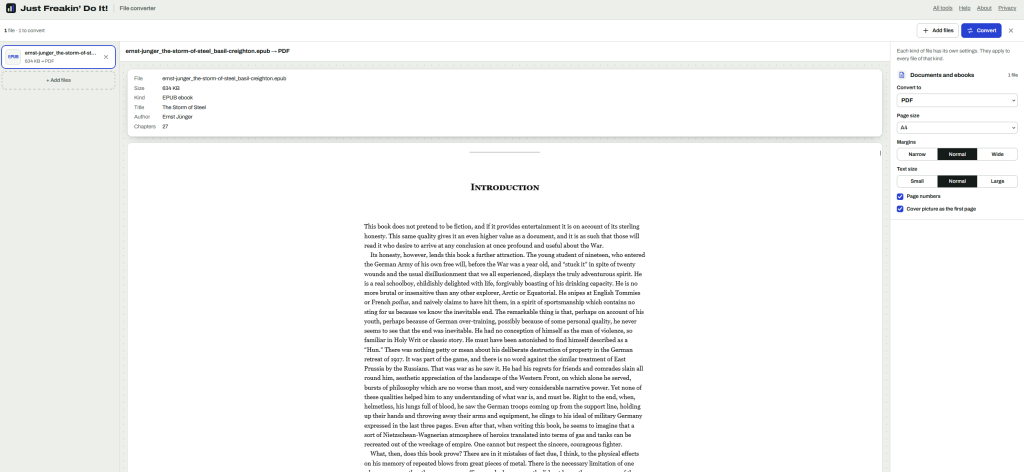
    1. Open the file converter and drop in the EPUB.
    2. Under Documents, choose PDF.
    3. Choose a page size. A5 or 6 × 9 in reads comfortably on a tablet and prints well as a small book; A4 or US Letter suits printing at home.
    4. Choose a text size. Larger text for screens, smaller for printing to save paper.
    5. Press Convert, then Download.

    What you get

    • The cover as the first page.
    • Each chapter starting on a new page.
    • PDF bookmarks from the book’s own contents list, so you can jump between chapters in any PDF reader.
    • Real text you can select, search and copy, with working links.
    • The title and author kept in the PDF’s details.
    • Page numbers at the bottom of each page (untick Page numbers to leave them off).

    Pictures go in at full quality. Characters the built-in fonts don’t have, such as Chinese, Japanese, Korean or emoji, are drawn as sharp pictures of the text: they look right but can’t be searched. The converter tells you if this happens.

    Screenshot of a file converter website showing an EPUB ebook, The Storm of Steel by Ernst Jünger, being converted to PDF. The interface displays ebook metadata and a preview of the introduction, with settings for page size, margins, text size, page numbers and a cover page.

    Going the other way

    The converter also makes EPUBs, from Word documents, Markdown, HTML and text, with a contents list built from the headings. That’s handy for reading long reports on an e-reader. PDF to EPUB is less reliable with any tool, because a PDF stores positioned words rather than paragraphs; the converter rebuilds paragraphs and headings, but columns, tables and pictures aren’t kept.

    Is it private?

    Yes. The book is read and converted inside your browser and never uploaded. That’s worth knowing if the EPUB is an unpublished manuscript or a review copy.

    Related

  • How small can a QR code be printed?

    A QR code with a short link can be printed as small as about 2 cm (0.8 in) wide, including its blank border, if it’s read from close up. Two things push the size up: how much the code holds, because more data means more, smaller squares, and how far away people scan it from. A good rule is that a code should be at least a tenth of the scanning distance: a poster read from 2 metres needs a code at least 20 cm wide.

    Why content changes the size

    A QR code is a grid of black and white squares (called modules). The more you put in it, the more squares it needs: the smallest code, version 1, is 21 × 21 squares, and each version up adds 4 more per side, up to version 40 at 177 × 177. Phones need each square to be big enough to see, so a denser code needs printing larger to keep its squares the same size.

    I ran some typical contents through the QR encoder the JFDI QR code maker uses, at its two most common error-correction levels:

    What the code holdsCharactersSquares across (Medium)Squares across (Highest, for logos)
    Short link: https://jfdi.pro/blog/menu212529
    Typical page link543341
    Wi-Fi network and password433337
    Long link with tracking parameters1124557
    Contact card (name, company, phone, email, website)1695369

    The long tracking link needs almost twice as many squares across as the short link, and with a logo it needs more than twice.

    Minimum sizes for close-up scanning

    Working from the 2 cm guideline for a short link, each square is about 0.6 mm. Keeping squares that size, and adding the standard blank border of 4 squares on each side, gives these minimum widths for codes read from close up (a table card, a business card, a product label):

    What the code holdsMinimum width (Medium)With a logo (Highest)
    Short link2.0 cm2.2 cm
    Typical page link or Wi-Fi2.5 cm3.0 cm
    Long link with tracking3.2 cm3.9 cm
    Contact card3.7 cm4.7 cm

    These are minimums for good conditions: sharp printing, a dark code on a light background, and a modern phone. Add a margin of safety for anything that matters, and test with an older phone.

    Minimum sizes for scanning from a distance

    For posters, shop windows and signs, distance matters more than content. Use the 10:1 rule as a starting point:

    Scanning distanceMinimum code width
    30 cm (in your hand)3 cm
    1 m (a poster on a wall)10 cm
    2 m (across a room)20 cm
    5 m (a shop window from the pavement)50 cm

    Dense codes need more than this; short links can manage a little less.

    How to make a code smaller

    • Shorten the link. Link to yoursite.com/menu, not a long page address with tracking parameters. This is the biggest win. (Avoid third-party link shorteners for print: if the service closes, the code dies. See why free QR codes stop working.)
    • Put fewer fields in a contact card. A name, phone and email are often enough.
    • Leave out the logo, or keep it small. A logo hides part of the code, so it needs the highest error correction, which adds squares.
    • Use square dots. Rounded and dot styles look nice but leave less margin for error at small sizes.

    The maker’s notes under the preview show the code’s version, its squares across and its error correction, and warn when a code holds enough data that it needs printing at least 4 cm wide.

    Printing checklist

    1. Download SVG or PDF for print, so the edges stay sharp at any size.
    2. Keep the blank border (4 squares is the standard; never less than 2).
    3. Dark on light, with contrast of at least 4:1, on a matt surface.
    4. Don’t print on curves or creases.
    5. Test the printed proof with two or three phones, from the real distance.

    Related