Author: Jason Carter

  • How to compress a PDF to send by email

    To compress a PDF for email, shrink the pictures inside it: that’s where almost all the size is. Open it in the JFDI PDF toolkit, go to the Finish tab, choose Balanced (or Smallest for a tight limit) under Making the file smaller, and download. The new size is shown next to the old one. It’s free, there’s no upload, and there’s no file-size cap.

    How big can an email attachment be?

    Email serviceLimitSource
    Gmail (personal)25 MB; anything bigger is sent as a Google Drive linkGoogle
    Outlook with an internet account such as Outlook.com20 MBMicrosoft
    Outlook with a work (Exchange) account10 MB by default; your IT team may have changed itMicrosoft

    Outlook’s limit covers the whole email, and the way attachments are encoded for sending can add up to a third to their size on some systems, so aim well under the limit. For a 10 MB limit, aim for 7 MB.

    Step by step

    1. Open the PDF toolkit and drop in your PDF, or choose Compress on the start page.
    2. Go to the Finish tab and find Making the file smaller.
    3. Choose a setting (see the table below). Start with Balanced.
    4. Download PDF. The message shows the new size beside the old one. If it’s still too big, try Small or Smallest.
    SettingPictures becomeGood for
    Keep as they areUnchangedText documents, or when quality matters most
    BalancedUp to 2,200 pixels, good-quality JPEGMost files: noticeably smaller, no visible loss on screen
    SmallUp to 1,500 pixelsSharing and reading on screen
    SmallestUp to 1,000 pixels, lower qualityEmail with a strict size limit

    Pictures are only replaced when the result is actually smaller. Unused data, including pages you deleted, is always removed.

    Why some PDFs barely shrink

    Compression works on pictures. A PDF that’s mostly text, such as a report exported from Word, is already compact: a page of text takes a few kilobytes, so there’s little to remove. If such a file is large, it’s usually because of:

    • Embedded fonts, especially several large ones. These can’t be removed without changing how the text looks.
    • Vector drawings such as detailed maps, plans or charts with thousands of points. For these, Turn every page into a picture (150 dpi) can help, but the text then can’t be selected, searched or read by screen readers.
    • Lots of pages. Split the document instead: the Finish tab can split a PDF into several files by page ranges.

    Scanned documents are the opposite: every page is a full-size photo, so they often shrink by most of their size.

    Other ways to get under the limit

    • Remove pages nobody needs, such as blank pages from a scanner, in the Pages tab.
    • Split the file into two emails with Splitting into several PDFs.
    • Scan at a lower resolution next time: 150 to 200 dpi is plenty for reading on screen.
    • Use a link instead of an attachment for very large files.

    Is it safe?

    The PDF is compressed inside your browser and never uploaded, so a payslip or a contract doesn’t pass through anyone’s server. If it’s confidential, add a password in the same Finish tab (AES-256 encryption) and send the password by a different route.
    Related

  • How to make a Sankey diagram, free and without an account

    How to make a Sankey diagram, free and without an account

    A Sankey diagram shows how a quantity moves between stages, such as energy from fuels to uses, money from income to spending, or visitors from pages to sign-ups. Each flow is drawn as a band whose width is proportional to its size. To make one, you need a table with three columns, From, To and Value, with one row per flow.

    Where the name comes from

    The diagram is named after Captain Matthew Henry Phineas Riall Sankey, an Irish engineer, who used one in 1898 to show how much of a steam engine’s energy was lost at each stage (Wikipedia). Charles Minard had drawn flows of the same kind decades earlier, most famously in his 1869 map of Napoleon’s march on Moscow.

    The data layout

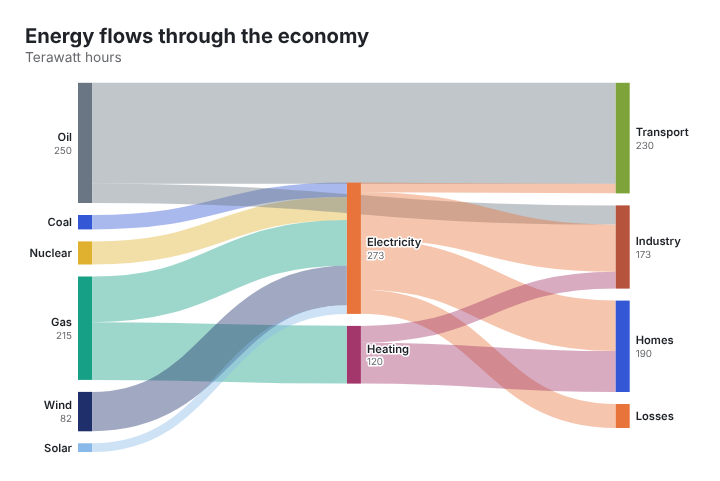
    Each row is one flow between two nodes. This is the example in the JFDI chart maker, showing energy flowing through an economy (illustrative figures, in terawatt hours):

    FromToValue
    GasElectricity95
    GasHeating120
    WindElectricity82
    OilTransport210
    ElectricityHomes105
    ElectricityLosses50

    A node can be a target in one row and a source in another. Electricity receives flows from gas, wind and other fuels, then sends flows on to homes, industry and losses. The chart works out the stages from that.

    A Sankey diagram of energy flowing from fuels through electricity and heating to homes, industry and transport
    The chart maker’s example Sankey: band widths are proportional to each flow.

    Step by step

    1. Open the chart maker and type sankey in the search box, then click Sankey diagram.
    2. Replace the example data on the Data step. Paste your three columns straight from Excel or Google Sheets, with a header row.
    3. Check the totals. Wherever a node has flows both in and out, the two sides should add up, or the difference should go to a node such as Other or Losses.
    4. Style it on the Format step: title, colours, and node width and spacing.
    5. Export it as PNG, SVG or PDF, or copy the embed code for a website. The interactive embed shows each flow’s value on hover.

    Nothing you paste is uploaded. The chart is drawn by your browser.

    Tips for a readable Sankey

    • Keep it to about 15 to 20 nodes. Beyond that, bands get too thin to read. Group small items into Other.
    • Make it balance. A node that receives 300 and sends on 250 looks wrong. Show the missing 50 explicitly, often as Losses or Unallocated.
    • Use the same units throughout. Mixing percentages and totals breaks the widths.
    • Put the story in the title. “Half of all gas goes to heating” beats “Energy flows”.

    When to use something else

    If you want to showTry
    How one total breaks down, one levelBar chart or treemap
    Gains and losses from a start value to an end valueWaterfall chart
    How people move between categories over several stages (for example, survey answers in two years)Alluvial chart
    Steps in a sign-up or sales funnel, with drop-offsFunnel Sankey
    Revenue flowing to costs and profitIncome statement chart

    All of these are in the chart maker’s Flow and process family.

    Common questions

    Can a flow go backwards?

    Not in a standard Sankey: flows run left to right through stages. Loops (A to B to A) confuse the layout, so split repeated stages into separate nodes, such as Year 1 and Year 2.

    Can I use negative values?

    No. A band can’t have negative width. Show reductions as flows to a node such as Losses or Refunds.

    Is it free to use commercially?

    Yes. Charts you make are yours, with no watermark and no credit required.

    Related

  • What is a choropleth map, and when does it mislead?

    What is a choropleth map, and when does it mislead?

    A choropleth map shades each area, such as a country, state or council, according to a value, with darker colours usually meaning more. It’s the most common kind of data map. It works well for rates (per person, per km², percentages) and badly for totals, because big areas look important just for being big.

    Where the name comes from

    The word comes from the Greek choros (area) and plethos (multitude). The geographer John Kirtland Wright coined it in 1938, but the idea is much older: Baron Pierre Charles Dupin drew a map of France in 1826 shading each département by access to basic education, usually counted as the first choropleth (Wikipedia).

    Mistake 1: mapping totals

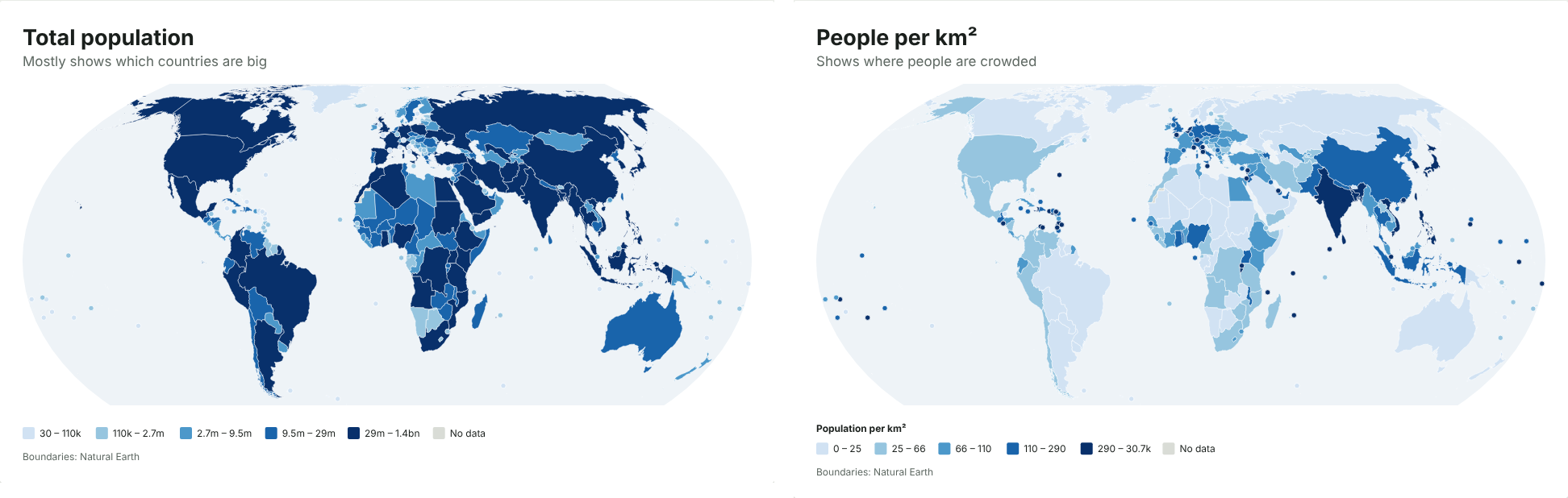
    Shade a world map by total population and China and India are darkest, which is true but tells you nothing a list wouldn’t. Shade it by people per km² and you see where people are actually crowded: Bangladesh, the Netherlands, Singapore, Rwanda.

    The same population data as a total and as a rate
    Left: total population, which mostly shows which countries are big. Right: people per km², which shows where people are crowded.

    Totals are what statisticians call extensive variables: they grow with the size of the area. Rates are intensive: they don’t. A choropleth should almost always show a rate. Skipping this step is one of the most common mistakes in data maps; it made some COVID-19 dashboards misleading.

    If what you really want to show is a total, use sized dots instead: one circle per area, its size set by the value. Readers judge a total by the size of a circle much better than by a shade of colour.

    The JFDI map maker checks for this. If a column looks like a total (it rises and falls with population, or it’s called something like Total, Number or Deaths), it suggests showing it per million people, per km², or as sized dots. You can still keep it as it is.

    Mistake 2: big areas shout

    Even with a rate, every area is filled with one flat colour, so a large area looks like it carries more weight than a small one with the same value. Russia, Canada and the US Mountain West dominate maps because they’re big. Ten cities with high values can be invisible next to one empty county with a slightly lower one.

    Ways to soften this:

    • Equal-area projections. The Mercator projection used by web maps makes Greenland look as big as Africa, when Africa is about 14 times larger. Use an equal-area projection, such as Equal Earth, for any shaded map. The map maker warns you if you pick Mercator for one.
    • Tile or hexagon maps, where every area gets the same space. These suit US states and UK constituencies. See why election maps use hexagons.
    • A cartogram, where each area is sized by population.
    • Small areas drawn as dots so places like Singapore or Malta don’t disappear.

    Choosing the colour steps

    How you split values into colours changes the story. The same data can look calm or alarming depending on where the breaks fall.

    MethodUse it when
    Equal numbers of places per colour (quantiles)Most data. Uses the full colour range.
    Natural breaksValues fall into clear clusters.
    Equal-sized stepsValues are spread evenly, or round numbers matter.
    Your own thresholdsA number means something, such as 50% or a target.
    Smooth gradientYou want every difference visible. Add a log scale for data spanning several orders of magnitude.

    Use one light-to-dark colour ramp for values that run from low to high. Use a two-sided (diverging) ramp only when there’s a meaningful middle, such as zero change or the national average.

    A quick checklist

    Before you publish a shaded map, check that:

    1. It shows a rate, not a total (or uses sized dots for totals).
    2. It uses an equal-area projection.
    3. The colour steps are explained in the legend, and the breaks aren’t hiding the story.
    4. Areas with no data are a neutral grey, not the lightest colour.
    5. The title says what’s being measured and the source line says where it came from.

    Related

  • How to compress an image to exactly 100 KB (or any size)

    To compress an image to a specific size such as 100 KB, use a tool that aims for a file size rather than a quality setting. In the JFDI image editor, open the picture, choose Aim for a size under Save as, type 100 KB, and download. The editor tries quality levels until it finds the best one that fits under 100 KB. If even the lowest sensible quality is too big, it makes the picture smaller in pixels until it fits, and tells you.

    Why forms ask for 100 KB

    Job applications, exam registrations, government portals and membership systems often set a maximum file size for photos and signatures, commonly somewhere between 20 KB and 500 KB. A photo straight from a phone is usually 2 to 5 MB, so it needs to be 20 to 50 times smaller.

    You can get there by trial and error with a quality slider, or let the tool do the search.

    Step by step

    1. Open the image editor and drop in your picture (or several; each one is handled separately).
    2. Crop it first if the form wants a particular shape, such as a square or passport proportions. Click the crop button above the picture, or pick a shape under Crop.
    3. Resize it if the form gives pixel dimensions, under Resize. A smaller picture needs less compression to hit a size, so it looks better. For a 100 KB limit, around 800 to 1,200 pixels on the longest side is usually plenty.
    4. Under Save as, choose JPG and switch to Aim for a size. Type 100 KB (or whatever the form says).
    5. Check the preview. The list on the left shows the new file size. Zoom to 100% to check faces and text are still clear.
    6. Download.

    The editor saves each file as close to the target as it can without going over, so it won’t fail a strict upload check.

    KB or KiB?

    Some forms count 1 KB as 1,000 bytes and others as 1,024. If a form rejects a file that should fit, aim a few kilobytes lower, such as 95 KB for a 100 KB limit.

    Which format?

    FormatUse it when
    JPGPhotos and scans for forms. Accepted everywhere.
    PNGSignatures, logos and screenshots with sharp edges and few colours.
    WebPWebsites. Smaller than JPG at the same quality, but some forms won’t accept it.

    For a PNG, quality can’t be lowered because PNG is lossless. The editor reduces the number of colours instead (256 colours usually looks identical for screenshots and logos), then the pixel size, until the file fits.

    Getting the best quality at a small size

    • Crop away background. Fewer pixels of wall means more detail for the face.
    • Resize before compressing. A 1,000-pixel photo at good quality looks better than a 4,000-pixel photo squeezed hard.
    • Avoid noise. Photos taken in dim light have grain, which compresses badly. Take the photo in good light.
    • Check text at 100% zoom. For scanned documents, make sure small print is still readable.

    What happens to the photo’s hidden details

    Phone photos contain the location where they were taken, the date and the camera model. The editor removes these by default, which also saves a few kilobytes. See how to remove location data from photos.

    Is it private?

    Yes. The photo is compressed in your browser and never uploaded. That matters for ID photos and signatures, which are exactly the images you shouldn’t scatter across free websites.

    Related

  • How to make a Wi-Fi QR code

    To make a Wi-Fi QR code, enter your network name, password and security type into a QR code maker that has a Wi-Fi option, then print the code. In the JFDI QR code maker, choose Wi-Fi, fill in the three boxes and download. Guests point their phone’s camera at it and tap to join. iPhones running iOS 11 or later and Android phones running Android 10 or later can join straight from the camera app.

    Step by step

    1. Open the QR code maker and choose Wi-Fi.
    2. Network name: type it exactly as it appears in your phone’s Wi-Fi list. It’s case sensitive, so Cafe_Guest and cafe_guest are different networks.
    3. Password: type it exactly, including capitals, spaces and symbols.
    4. Security: WPA / WPA2 / WPA3 for almost every modern router. Choose WEP only for very old equipment, or None for an open network.
    5. Hidden network: tick this if your network doesn’t broadcast its name.
    6. Add a caption such as “Scan to join our Wi-Fi”, so people know what the code is for.
    7. Download a PNG to print at home, or SVG or PDF for a print shop. Test it with two different phones before laminating.

    Special characters in the name or password, such as ;, : or ", are handled for you; the QR format needs them escaped, which trips up some generators.

    What’s inside the code

    A Wi-Fi QR code is a short line of text in a standard format that phones understand:

    WIFI:T:WPA;S:Cafe_Guest;P:coffee-and-cake;;

    T is the security type, S the network name and P the password. When a phone reads it, it offers to join that network with that password.

    Security: the password is readable

    Anyone who scans the code can see the password, and any QR reader app will display it as text. So:

    • Use a guest network. Most routers can run a separate guest network that has internet access but can’t see your computers, printers or smart devices. Put the guest network in the code, never your main one.
    • Only display it where you’d show the password anyway, such as inside your café, office reception or holiday let.
    • Change the guest password from time to time, and print a new code when you do.

    The JFDI QR code maker builds the code in your browser, so your Wi-Fi password is never sent to us or anyone else. That isn’t true of every generator: some send what you type to a server to make the image.

    Printing tips

    • Size: a Wi-Fi code holds a little more than a short link, so print it at least 3 cm wide. At a distance, a good rule is that the code should be at least a tenth of the scanning distance; see how small a QR code can be printed.
    • Contrast: dark code on a white or light background.
    • Leave the margin clear: don’t let text or a frame run into the blank border.
    • Put the network name and password underneath in text too, for laptops and older phones.

    Troubleshooting

    The phone sees the code but won’t connect

    Check the network name and password character by character, including capitals and spaces, and that the security type matches your router (almost always WPA). If you changed the password, the old code no longer works.

    Older phones don’t react

    Phones older than iOS 11 or Android 10 may need a QR scanner app. Print the network name and password under the code for them.

    Related

  • Why dates change when you open a CSV, and how to stop it

    Dates change when you open a CSV because the file stores everything as plain text, and Excel guesses what each value is. Anything that looks a bit like a date becomes one: 1-2 turns into 2 January, the gene name MARCH1 into 1 March, and 03/04/2025 into either 3 April or 4 March depending on your computer’s region settings. The fix is to stop Excel guessing, or to convert the file with something that reads the whole column before deciding.

    Three ways dates go wrong

    1. Text that isn’t a date becomes one

    Excel converts values such as 1-2, 3/4, JAN1 or SEPT1 into dates. For part numbers, survey codes or scores, that’s corruption, and saving the file makes it permanent.

    The best-known case is genetics. A 2016 study in Genome Biology looked at the spreadsheets supplied with 3,587 papers in 18 journals and found gene names converted to dates in 19.6% of them (Pesquisa FAPESP). In 2020 the committee that names human genes gave up and renamed some: SEPT1 became SEPTIN1 and MARCH1 became MARCHF1, so Excel would leave them alone.

    2. Day and month swap

    03/04/2025 means 3 April in the UK and March 4 in the US. Excel reads it using your computer’s region setting, so the same file gives different dates on different computers. Worse, it’s inconsistent within a file: on a UK-set computer, a US-format 03/25/2025 can’t be a valid day-first date, so it stays as text while 03/04/2025 beside it becomes 3 April. You end up with a column that’s half dates and half text, with the dates silently wrong.

    3. Dates become numbers

    Excel stores dates as a count of days since 1900. When a date column ends up formatted as a number, or a date is copied to another program, you see values like 45748 instead of 1 April 2025.

    Fix 1: switch off the guessing in Excel

    In Excel for Microsoft 365 and Excel 2024 there’s a setting for exactly this. On Windows go to File › Options › Data; on a Mac go to Excel › Preferences › Edit. Under Automatic Data Conversion, untick Convert “date-like” combinations of continuous letters and numbers into a date.

    Microsoft notes a limit: values with a space or punctuation, such as JAN 1 or JAN-1, may still become dates (Microsoft). For full control, use the next fix.

    Fix 2: import the file and set the column types

    Open a blank workbook, choose Data › From Text/CSV, then Transform Data. Set code columns to Text. For real dates, right-click the column header and choose Change Type › Using Locale, then pick the date format the file actually uses, such as English (United States) for month-first dates.

    Fix 3: convert the file to Excel first

    The JFDI file converter looks at the whole column before deciding what a date means. If any value in it is like 25/03/2025, which can only be day-first, it reads the whole column day-first. Only if a column is truly ambiguous does it fall back to your browser’s language, and you can set it yourself under Reading the file › Dates like 03/04/2025 mean.

    Real dates become real Excel dates you can sort and calculate with. Codes that only look like dates stay as text, and a column that mixes dates with other text keeps those values as text so nothing is lost.

    When it writes CSV files, dates come out as 2025-03-31 (the ISO 8601 format), which every program reads the same way.

    How to write dates so this never happens

    If you produce CSV files for other people:

    • Write dates as YYYY-MM-DD. 2025-04-03 can’t be misread, and it sorts correctly as text.
    • Keep codes unambiguous. A prefix or letters elsewhere (PN-0102 rather than 1-2) avoids accidental dates.
    • Say what each column is in a header or a readme, especially for IDs.

    Related

  • How to sign a PDF for free, with no account

    To sign a PDF for free, open it in the JFDI PDF toolkit, choose Signature, then draw, type or upload your signature and drag it into place. Download the signed PDF. There’s no account, no watermark and no limit on how many documents you sign, and the document stays on your device the whole time.

    Step by step

    1. Open the PDF toolkit and drop your PDF on the page, or choose Sign a PDF on the start page.
    2. Go to the page that needs signing and choose Signature (shortcut S).
    3. Make your signature in one of three ways:
      • Draw with a mouse, trackpad, finger or stylus (pen pressure is used where your device supports it). Choose black or one of two blues.
      • Type your name and pick a handwriting style.
      • Upload a photo or scan of your signature on paper. Remove the white background makes the paper see-through, so only the ink shows.
    4. Drag it into place and resize it from the corners.
    5. Add the date with the Date tool, which stamps today’s date as text you can edit. Use Add text for your printed name or initials.
    6. Download PDF.

    Tick Remember on this device to reuse your signature next time. It’s kept in your browser only, never on a server, and you can delete it with its ×.

    Which signature method looks best?

    MethodLooks likeBest for
    Upload a photoYour real ink signatureContracts and anything formal
    DrawClose to real, if you have a stylus or a steady fingerQuick forms on a phone or tablet
    TypeA neat handwriting fontInformal approvals, where a signature is a formality

    For a photo, sign in black pen on plain white paper, photograph it in good light, and crop close. The background removal does the rest.

    Is this a legally valid signature?

    What you’re adding is an electronic signature: a picture of your signature placed on the page. In the UK, EU and US, electronic signatures are generally accepted for everyday paperwork such as tenancy agreements, consent forms, job offers and invoices. Some documents have special rules, such as wills and some property deeds, and some organisations insist on a particular service. If the stakes are high, check with whoever asked you to sign.

    It isn’t a certificate-based digital signature, the kind that cryptographically locks a document and proves who signed it. If a PDF already carries one of those, changing the file in any way, in this or any other editor, makes that signature show as no longer valid.

    Filling in the rest of the form

    Most documents that need signing also need filling in:

    • Fillable forms show blue-tinted boxes in the editor. Click a box and type, tick checkboxes and pick from drop-downs with the Select tool. Answers stay editable after download unless you tick Lock form answers in place in the Finish tab.
    • Forms with no boxes, such as scans, can be filled in with Add text, Tick and Date.

    Sending it back

    If the signed file is too big to email, the Finish tab’s Making the file smaller setting usually fixes that; see how to compress a PDF for email. If it’s confidential, you can add a password there too, encrypted with AES-256. Send the password separately, by text or phone.

    Why not use a free e-signature service?

    Signature services are built for collecting signatures from other people, with tracking and reminders, and they’re good at that. But they need accounts, usually limit free use, and keep your document on their servers. To sign something yourself and send it back, you don’t need any of that.

    Related

  • How to map US county data from Excel (FIPS codes explained)

    How to map US county data from Excel (FIPS codes explained)

    To map US county data, you need a column that identifies each county, ideally its five-digit FIPS code, and a column of values. Paste both into the JFDI map maker and it draws all of the roughly 3,200 counties and county-equivalents, with state borders on top. It’s free, there’s no account, and your spreadsheet isn’t uploaded.

    Most problems with county maps come from the codes, not the map. Here’s how FIPS codes work and how to avoid the usual gaps.

    What a FIPS code is

    A county FIPS code has five digits: two for the state, then three for the county within it.

    CountyState codeCounty codeFIPS
    Autauga County, Alabama0100101001
    Los Angeles County, California0603706037
    Cook County, Illinois1703117031
    Miami-Dade County, Florida1208612086

    Almost every US government dataset (Census Bureau, BLS, CDC, USDA) includes FIPS codes, often in a column called GEOID, FIPS or county_fips. Codes are more reliable than names, because many states share county names: there are dozens of Washington Counties and Jefferson Counties.

    Step by step

    1. Get your data into two columns: the FIPS code (or county name) and the value. Extra columns are fine.
    2. Paste it into the map maker, or drop the CSV or Excel file on the page. It recognises county data and switches to the US county map on its own.
    3. Check the match count under Data. If any rows aren’t matched, press Fix to see why.
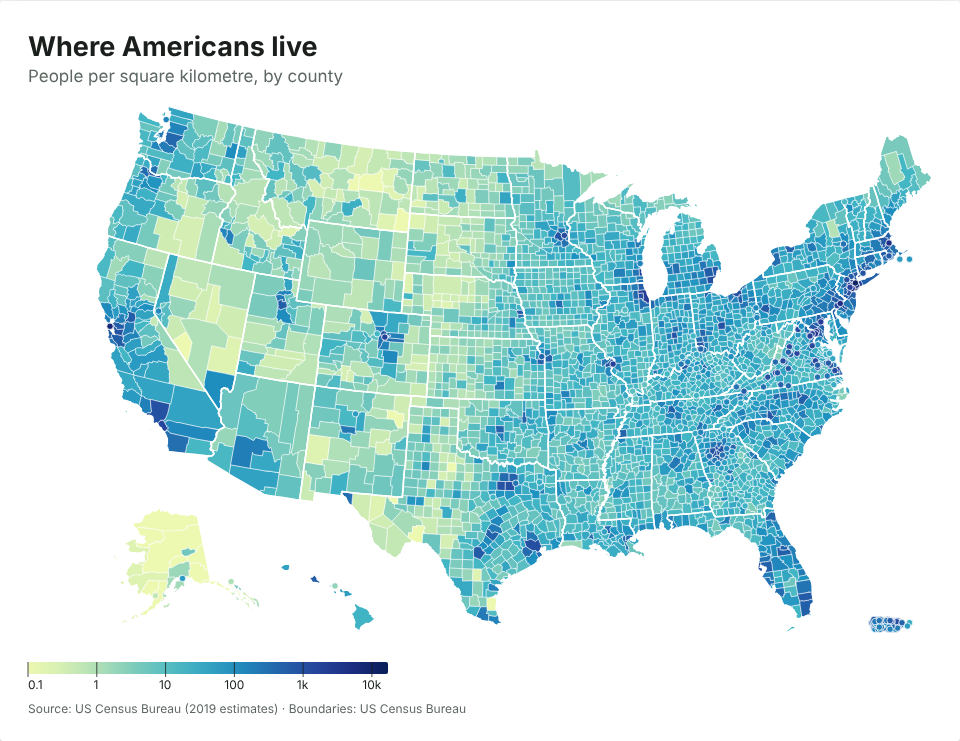
    4. Pick a scale. With 3,000 areas, a smooth gradient often reads better than steps. Turn on Log scale for things like population density that vary a thousandfold.
    5. Zoom if you need to. If all your data is in one state or a few neighbouring ones, the map zooms in automatically. You can choose the area yourself under Map › Area.
    A map of US counties shaded by population density
    US counties by people per square kilometre, on a log scale. Census Bureau 2019 estimates.

    Mistake 1: Excel drops the leading zero

    Open a CSV in Excel and 01001 becomes 1001. Every county in the seven states whose codes start with 0 (Alabama, Alaska, Arizona, Arkansas, California, Colorado and Connecticut) loses a digit. Joins in other tools then quietly fail for those states.

    The map maker handles four-digit codes, so 1001 still finds Autauga County. If you need the zeros back for other work, the JFDI file converter keeps them when it turns a CSV into an Excel file. There’s a whole post on why Excel loses leading zeros and how to stop it.

    Mistake 2: Connecticut’s counties no longer exist in the data

    Connecticut replaced its eight counties with nine planning regions as county-equivalents. The Census Bureau began publishing data for the regions in 2023, starting with population estimates and the 2022 American Community Survey (CTData). The new codes run from 09110 to 09190:

    FIPSPlanning region
    09110Capitol
    09120Greater Bridgeport
    09130Lower Connecticut River Valley
    09140Naugatuck Valley
    09150Northeastern Connecticut
    09160Northwest Hills
    09170South Central Connecticut
    09180Southeastern Connecticut
    09190Western Connecticut

    The region boundaries don’t line up with the old counties, so there’s no honest way to draw old-county data (such as Fairfield County, 09001) on the current map. The map maker tells you this rather than guessing. If your data is older, you’ll need a pre-2022 boundary file, which you can load under Map › Use my own boundaries.

    Mistake 3: Names that changed

    A few counties have been renamed or split, and older datasets still use the old versions:

    • Shannon County, South Dakota became Oglala Lakota County in 2015, with a new code. The map maker matches both.
    • Dade County, Florida is Miami-Dade.
    • Valdez-Cordova, Alaska split into Chugach and Copper River in 2019. The map shows the combined area, and data for the two new areas is suggested as part of it.

    If you only have names

    Names work, as long as the state is there too. All of these match:

    • Cook County, Illinois, Cook County, IL, Cook, IL
    • county in one column and state in another (the map maker pairs them up)
    • parishes in Louisiana, boroughs and census areas in Alaska, and Virginia’s independent cities (Fairfax city and Fairfax County are different places)

    A county name with no state only matches if just one county has that name.

    Where to get county data

    • data.census.gov for the American Community Survey (income, housing, commuting and much more)
    • the Bureau of Labor Statistics’ Local Area Unemployment Statistics for monthly unemployment rates
    • CDC WONDER for health data

    Map rates (per person, per cent, per square mile) rather than totals: big counties otherwise look important just for being big. What is a choropleth map, and when does it mislead? explains why.

    Related

  • How to make a waterfall chart from spreadsheet data

    How to make a waterfall chart from spreadsheet data

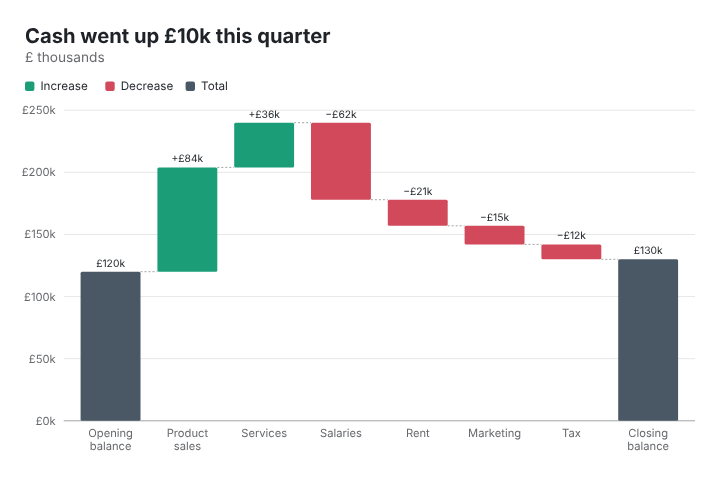
    A waterfall chart shows how you get from a starting value to an ending value through a series of gains and losses. Each step is a floating bar, green for increases and red for decreases, and the final bar shows the total. To make one, you need two columns: the step name and the change.

    Finance teams call it a bridge chart, because it bridges two numbers: last year’s profit and this year’s, an opening and closing cash balance, a budget and the actual spend.

    The data layout

    This is the example in the JFDI chart maker, a quarter’s cash movements in £ thousands:

    ItemChange (£k)
    Opening balance120
    Product sales84
    Services36
    Salaries-62
    Rent-21
    Marketing-15
    Tax-12
    Closing balance

    Three rules:

    1. The first row is the starting value.
    2. Every other row is a change, positive or negative. Don’t type running totals.
    3. Leave the value empty where you want a total. Any row with no value is drawn as a total bar showing the running total at that point. That’s how you get the final bar, and subtotals part-way through.

    In this example the closing balance works out at £130k: up £10k on the quarter.

    A waterfall chart showing an opening balance of 120, rises from sales and services, falls from salaries, rent, marketing and tax, and a closing balance of 130
    The chart maker’s example: £10k more cash at the end of the quarter than at the start.

    Step by step

    1. Open the chart maker, search for waterfall and click Waterfall chart.
    2. Paste your two columns onto the Data step, replacing the example.
    3. Add a total row at the end with no value.
    4. Write a title that says the result, such as “Cash went up £10k this quarter”. The chart maker’s example does exactly this.
    5. Set the units under Format › Numbers (a £ prefix and k suffix, for example) and turn on value labels.
    6. Export as PNG for slides, SVG or PDF for print, or an embed for a web page.

    Showing subtotals

    To show a subtotal part-way through, such as gross profit before overheads, add a row with an empty value and a name like Gross profit where it should appear. The bar is drawn from zero to the running total at that point, and the steps after it continue from there.

    Getting the order right

    The order of the rows is the order of the story. Common conventions:

    • Income first, then costs, so the chart climbs and then falls.
    • Biggest changes first within each group, so the reader sees what mattered most.
    • Group small items into Other to keep it to about 10 steps.

    When to use something else

    • To show where money goes rather than how a total changed, a Sankey diagram or the chart maker’s Income statement chart (revenue flowing to costs and profit) is clearer.
    • To compare several totals side by side, use a column chart.
    • To show change over time for one value, use a line chart.

    Making one in Excel instead

    Excel has had a built-in waterfall chart since Excel 2016, under Insert › Charts. Its quirk is that totals aren’t automatic: you right-click a bar and choose Set as total. The chart maker does it from the empty cells, works in any browser, and exports SVG and embeds, which Excel doesn’t.

    Related

  • Remove an image background for free, on your own device

    To remove a background for free without uploading your photo, use a tool that runs the cut-out model on your own device. In the JFDI image editor, open the picture, set Background to Remove, and download a transparent PNG. The AI model runs in your browser, so the photo never leaves your computer, and there are no credits, watermarks or sign-up.

    How it works

    Background removal uses a machine-learning model trained to find the main subject of a photo, such as a person, pet, product or object, and separate it from everything behind it. The image editor uses a model called IS-Net (from the DIS, “dichotomous image segmentation”, research project), compiled to run inside a web page.

    The first time you use it, the editor downloads the model, about 44 MB, and your browser keeps it for next time. After that:

    • With a graphics card your browser can use (most current computers, and recent iPhones and Android phones), a photo takes a second or two.
    • Without one, it runs on your processor, which takes from a few seconds to about a minute per photo, depending on the device.

    The line under the preview tells you which was used.

    Most free background removers work differently: they upload the photo to a server, run the model there, and send back the result. remove.bg, for example, says it deletes uploads “at the latest about one hour after the upload” (remove.bg). Running the model locally means no upload at all.

    Step by step

    1. Open the image editor and drop in one photo or a whole batch.
    2. Under Background, choose Remove.
    3. Pick the edge style: Soft for hair and fur, Crisp for products and objects. Tighten the edge trims a thin halo if you see one.
    4. Choose what replaces the background: transparent (saved as PNG, or WebP if you prefer) or a solid colour, such as white for marketplace listings.
    5. Touch up if needed with the brush button above the picture: paint with Remove over anything that should go, or Keep over anything that should stay.
    6. Download.

    Where it works well, and where it doesn’t

    Works wellNeeds touching up
    People and portraits against any backgroundBusy scenes where the subject blends in
    Pets, including fur (with Soft edges)Glass, water and see-through objects
    Products on a table or plain backgroundVeils, smoke and fine mesh
    Cars, furniture, foodSeveral people when you only want one

    Plain background? Use One colour instead

    For logos and product shots on a plain white or coloured background, the AI is overkill. Choose Background › One colour instead. The colour is picked automatically from the picture’s edges, and Only where it touches the edges (on by default) keeps the same colour inside the subject, such as the white of an eye or a white label. It’s often more precise than the AI for flat graphics.

    Tips for better cut-outs

    • Start from the largest version of the photo you have. More pixels means finer edges.
    • Light the subject well and keep it in focus; a sharp edge against a blurred background is the easiest case.
    • Save as WebP if the transparent PNG is too large for your website. WebP keeps transparency in a much smaller file.
    • For marketplace photos, replace the background with pure white rather than transparent, since many listing sites require it.

    Common questions

    Is it really free?

    Yes, with no limit on the number of photos and no watermark. Because the model runs on your device, it costs nothing to run.

    Why is it slow?

    Your browser is using your processor rather than your graphics card. It still works; leave the tab open and it will get through the batch. Chrome, Edge and Safari 26 or later use the graphics card on most devices.

    Can I use the results commercially?

    Yes. The pictures are yours.

    Related