A waterfall chart shows how you get from a starting value to an ending value through a series of gains and losses. Each step is a floating bar, green for increases and red for decreases, and the final bar shows the total. To make one, you need two columns: the step name and the change.
Finance teams call it a bridge chart, because it bridges two numbers: last year’s profit and this year’s, an opening and closing cash balance, a budget and the actual spend.
The data layout
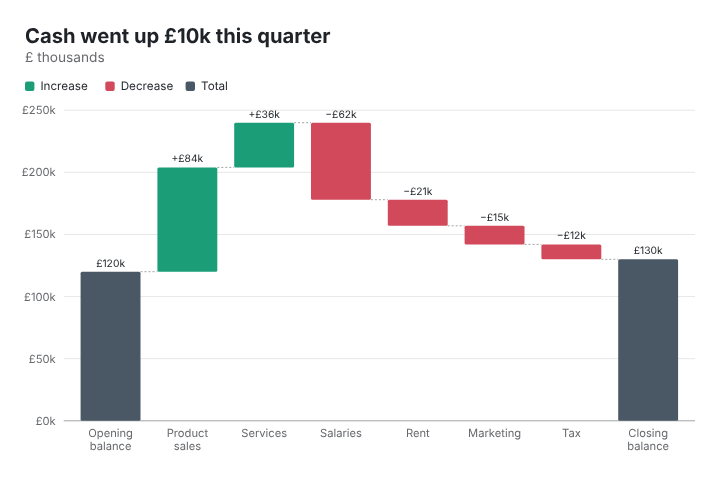
This is the example in the JFDI chart maker, a quarter’s cash movements in £ thousands:
| Item | Change (£k) |
|---|---|
| Opening balance | 120 |
| Product sales | 84 |
| Services | 36 |
| Salaries | -62 |
| Rent | -21 |
| Marketing | -15 |
| Tax | -12 |
| Closing balance |
Three rules:
- The first row is the starting value.
- Every other row is a change, positive or negative. Don’t type running totals.
- Leave the value empty where you want a total. Any row with no value is drawn as a total bar showing the running total at that point. That’s how you get the final bar, and subtotals part-way through.
In this example the closing balance works out at £130k: up £10k on the quarter.
Step by step
- Open the chart maker, search for waterfall and click Waterfall chart.
- Paste your two columns onto the Data step, replacing the example.
- Add a total row at the end with no value.
- Write a title that says the result, such as “Cash went up £10k this quarter”. The chart maker’s example does exactly this.
- Set the units under Format › Numbers (a £ prefix and k suffix, for example) and turn on value labels.
- Export as PNG for slides, SVG or PDF for print, or an embed for a web page.
Showing subtotals
To show a subtotal part-way through, such as gross profit before overheads, add a row with an empty value and a name like Gross profit where it should appear. The bar is drawn from zero to the running total at that point, and the steps after it continue from there.
Getting the order right
The order of the rows is the order of the story. Common conventions:
- Income first, then costs, so the chart climbs and then falls.
- Biggest changes first within each group, so the reader sees what mattered most.
- Group small items into Other to keep it to about 10 steps.
When to use something else
- To show where money goes rather than how a total changed, a Sankey diagram or the chart maker’s Income statement chart (revenue flowing to costs and profit) is clearer.
- To compare several totals side by side, use a column chart.
- To show change over time for one value, use a line chart.
Making one in Excel instead
Excel has had a built-in waterfall chart since Excel 2016, under Insert › Charts. Its quirk is that totals aren’t automatic: you right-click a bar and choose Set as total. The chart maker does it from the empty cells, works in any browser, and exports SVG and embeds, which Excel doesn’t.