Choose a chart by the question it needs to answer. Comparing items? Use bars. Change over time? Use a line. Parts of a whole? Use a stacked bar or, for two or three parts, a pie. Relationship between two numbers? Use a scatter plot. Flows between stages? Use a Sankey. The rest of this guide covers the cases in between.
Every chart below is in the JFDI chart maker. Paste your data once and the gallery redraws all 130 chart types with it, putting the ones that fit your data’s shape first.
1. Comparing items
Chart
Use it when
Avoid when
Bar chart
Comparing a handful to a few dozen categories, especially with long names
Showing change over time
Column chart
Comparing a few categories, or a few time periods
Category names are long
Grouped bar or column
Comparing two or three series per category
More than about four series
Dot plot
Many categories with values close together
You need to show zero as a baseline
Lollipop chart
Like a bar chart, but lighter when bars are many
Values are negative and positive
Bullet chart
Actual against a target, with good/bad bands
The audience hasn’t seen one before
Slope chart
Who rose and who fell between two points in time
More than two points in time
Diverging bar chart
Values above and below zero, or a midpoint
Everything is on one side
Sort bars by value unless the categories have a natural order (age groups, months).
2. Change over time
Chart
Use it when
Avoid when
Line chart
Continuous change, many time points
You have only two or three points
Column chart
A few periods, or totals per period
Dozens of periods
Step chart
Values that change in jumps, such as prices or interest rates
Change is gradual
Area chart
Emphasising volume over time for one series
Comparing several series that overlap
Stacked area chart
A total and its components over time
Readers need to compare the middle layers
Line with final dot
Highlighting the latest value
—
Year-over-year line
Comparing the same months across years
Data isn’t seasonal
Fan chart
A forecast with widening uncertainty
You don’t have a range
Bump chart
Rankings rising and falling
The actual values matter more than ranks
Calendar heatmap
Daily values across a year, showing weekly patterns
Data is monthly
3. Parts of a whole
Chart
Use it when
Avoid when
Stacked bar or column
Parts of a total, compared across categories
More than about five parts
100% stacked bar
Shares, not totals, across categories
Totals matter
Pie or donut
Two or three parts of one whole
Parts are similar in size, or there are many
Waffle chart
Showing a percentage people can count, such as 37 in 100
Values need decimals
Treemap
Many parts, or parts within parts
Precise comparison matters
Sunburst
Hierarchies with two or three levels
More than three levels
Waterfall chart
How a start value becomes an end value
Values aren’t sequential changes
Pie or bar? Bars win for anything but two or three slices, because people compare lengths far more accurately than angles.
4. Distributions
Chart
Use it when
Avoid when
Histogram
The shape of one set of values
Comparing many groups
Box plot
Comparing medians and spread across groups
Audience isn’t used to them
Violin plot
Comparing the shape of distributions
Groups are small
Beeswarm plot
Showing every individual value, up to a few hundred
Thousands of points
Population pyramid
Two groups (such as men and women) by age band
Groups aren’t comparable
5. Relationships
Chart
Use it when
Avoid when
Scatter plot
Two numbers per item: is there a pattern?
Only a handful of items
Scatter with trend line
Showing the direction of a relationship
The relationship isn’t straight
Bubble chart
A third number shown by size
Bubbles overlap heavily
Connected scatter plot
How two numbers moved together over time
More than one or two series
Heatmap
Values across two categories, such as day × hour
Precise values matter
Quadrant chart
Sorting items into four groups, such as impact × effort
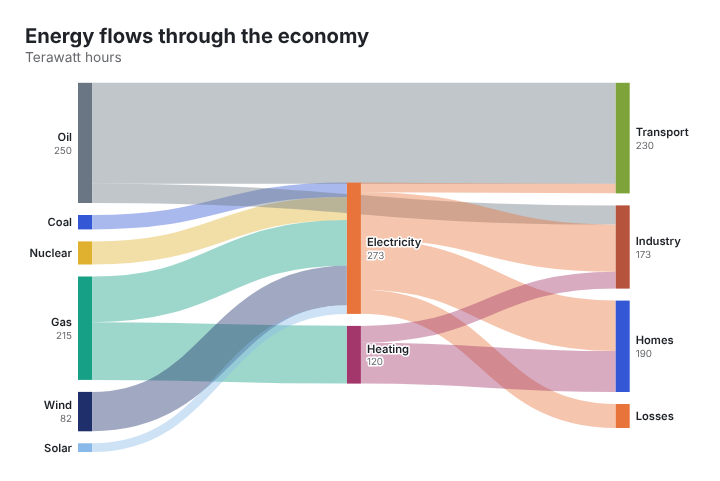
A Sankey diagram shows how a quantity moves between stages, such as energy from fuels to uses, money from income to spending, or visitors from pages to sign-ups. Each flow is drawn as a band whose width is proportional to its size. To make one, you need a table with three columns, From, To and Value, with one row per flow.
The diagram is named after Captain Matthew Henry Phineas Riall Sankey, an Irish engineer, who used one in 1898 to show how much of a steam engine’s energy was lost at each stage (Wikipedia). Charles Minard had drawn flows of the same kind decades earlier, most famously in his 1869 map of Napoleon’s march on Moscow.
The data layout
Each row is one flow between two nodes. This is the example in the JFDI chart maker, showing energy flowing through an economy (illustrative figures, in terawatt hours):
From
To
Value
Gas
Electricity
95
Gas
Heating
120
Wind
Electricity
82
Oil
Transport
210
Electricity
Homes
105
Electricity
Losses
50
A node can be a target in one row and a source in another. Electricity receives flows from gas, wind and other fuels, then sends flows on to homes, industry and losses. The chart works out the stages from that.
The chart maker’s example Sankey: band widths are proportional to each flow.
Step by step
Open the chart maker and type sankey in the search box, then click Sankey diagram.
Replace the example data on the Data step. Paste your three columns straight from Excel or Google Sheets, with a header row.
Check the totals. Wherever a node has flows both in and out, the two sides should add up, or the difference should go to a node such as Other or Losses.
Style it on the Format step: title, colours, and node width and spacing.
Export it as PNG, SVG or PDF, or copy the embed code for a website. The interactive embed shows each flow’s value on hover.
Nothing you paste is uploaded. The chart is drawn by your browser.
Tips for a readable Sankey
Keep it to about 15 to 20 nodes. Beyond that, bands get too thin to read. Group small items into Other.
Make it balance. A node that receives 300 and sends on 250 looks wrong. Show the missing 50 explicitly, often as Losses or Unallocated.
Use the same units throughout. Mixing percentages and totals breaks the widths.
Put the story in the title. “Half of all gas goes to heating” beats “Energy flows”.
When to use something else
If you want to show
Try
How one total breaks down, one level
Bar chart or treemap
Gains and losses from a start value to an end value
How people move between categories over several stages (for example, survey answers in two years)
Alluvial chart
Steps in a sign-up or sales funnel, with drop-offs
Funnel Sankey
Revenue flowing to costs and profit
Income statement chart
All of these are in the chart maker’s Flow and process family.
Common questions
Can a flow go backwards?
Not in a standard Sankey: flows run left to right through stages. Loops (A to B to A) confuse the layout, so split repeated stages into separate nodes, such as Year 1 and Year 2.
Can I use negative values?
No. A band can’t have negative width. Show reductions as flows to a node such as Losses or Refunds.
Is it free to use commercially?
Yes. Charts you make are yours, with no watermark and no credit required.
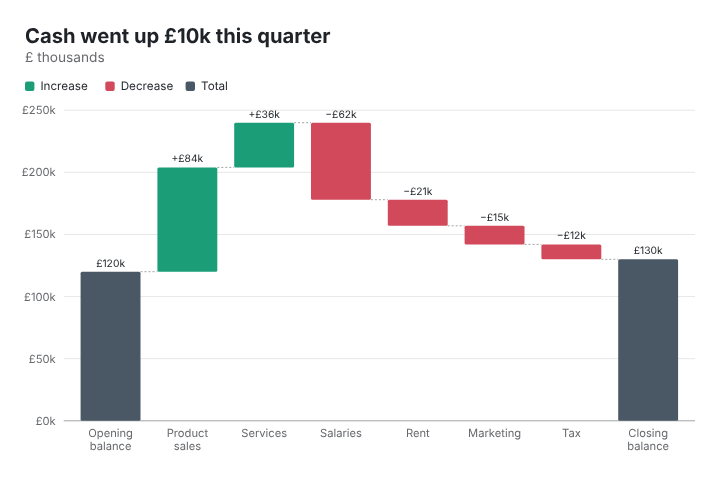
A waterfall chart shows how you get from a starting value to an ending value through a series of gains and losses. Each step is a floating bar, green for increases and red for decreases, and the final bar shows the total. To make one, you need two columns: the step name and the change.
Finance teams call it a bridge chart, because it bridges two numbers: last year’s profit and this year’s, an opening and closing cash balance, a budget and the actual spend.
The data layout
This is the example in the JFDI chart maker, a quarter’s cash movements in £ thousands:
Item
Change (£k)
Opening balance
120
Product sales
84
Services
36
Salaries
-62
Rent
-21
Marketing
-15
Tax
-12
Closing balance
Three rules:
The first row is the starting value.
Every other row is a change, positive or negative. Don’t type running totals.
Leave the value empty where you want a total. Any row with no value is drawn as a total bar showing the running total at that point. That’s how you get the final bar, and subtotals part-way through.
In this example the closing balance works out at £130k: up £10k on the quarter.
The chart maker’s example: £10k more cash at the end of the quarter than at the start.
Step by step
Open the chart maker, search for waterfall and click Waterfall chart.
Paste your two columns onto the Data step, replacing the example.
Add a total row at the end with no value.
Write a title that says the result, such as “Cash went up £10k this quarter”. The chart maker’s example does exactly this.
Set the units under Format › Numbers (a £ prefix and k suffix, for example) and turn on value labels.
Export as PNG for slides, SVG or PDF for print, or an embed for a web page.
Showing subtotals
To show a subtotal part-way through, such as gross profit before overheads, add a row with an empty value and a name like Gross profit where it should appear. The bar is drawn from zero to the running total at that point, and the steps after it continue from there.
Getting the order right
The order of the rows is the order of the story. Common conventions:
Income first, then costs, so the chart climbs and then falls.
Biggest changes first within each group, so the reader sees what mattered most.
Group small items into Other to keep it to about 10 steps.
When to use something else
To show where money goes rather than how a total changed, a Sankey diagram or the chart maker’s Income statement chart (revenue flowing to costs and profit) is clearer.
To compare several totals side by side, use a column chart.
To show change over time for one value, use a line chart.
Making one in Excel instead
Excel has had a built-in waterfall chart since Excel 2016, under Insert › Charts. Its quirk is that totals aren’t automatic: you right-click a bar and choose Set as total. The chart maker does it from the empty cells, works in any browser, and exports SVG and embeds, which Excel doesn’t.
To embed a chart that resizes on phones, make it in the JFDI chart maker, go to the Export step, and copy the Interactive embed code. Paste it into an HTML block on your page. The chart redraws to fit the width it’s given, keeps its tooltips, and needs no account or hosting on our side.
Yes: loads the free d3 library from cdnjs (Cloudflare)
None
Works where scripts are blocked
No
Yes
Choose Interactive for most websites. Choose Static SVG for email newsletters, platforms that strip scripts, or pages where you don’t want any third-party request.
There’s also Download as web page, which saves the chart as a standalone HTML file you can upload anywhere or send to someone.
Where to paste it
WordPress
In the block editor, add a Custom HTML block (type /html) and paste the code. Use the block’s Preview tab to check it. Some hosted WordPress plans and some security plugins remove scripts from posts; if the chart doesn’t appear, use the Static SVG embed instead.
Squarespace
Add a Code block, paste the code, and make sure the display mode is set to HTML.
Wix
Add an Embed HTML element (the menu names vary between Wix editors), choose Code, and paste. Wix shows embeds inside a frame, so drag the frame to the height you want.
Plain HTML
Paste the code where the chart should appear. It takes the width of its container, so put it inside your normal article column.
Why responsive matters
A chart designed at 960 pixels wide and simply shrunk to a 375-pixel phone screen has its text cut to about 40% of its size, which is unreadable. The interactive embed redraws the chart at the phone’s width instead, so the text stays at a readable size. It redraws again if the window is resized.
Accessibility
Add a description for screen readers under Format › Accessibility. Suggest a description writes a first draft from the title and the data (for example the highest value and the overall trend), and the description is built into both kinds of embed. Write it to say what the chart shows, not what kind of chart it is.
Privacy
Your data is built into the embed code itself. Nothing is stored on our servers, so there’s no account to keep paying for and no chart that disappears if a service shuts down. The trade-off is that anyone who views the page source can see the data, so don’t embed anything you wouldn’t publish.
The interactive embed loads the d3 drawing library from cdnjs, a public library host run by Cloudflare, which means visitors’ browsers make one request to it. If that matters for your site, use the Static SVG embed.
Maps too
The map maker has embed code of its own. Map embeds are completely self-contained: everything, including the boundaries, is in the code, and nothing loads from anywhere else.
Common questions
Will the chart update if I change my data?
No. The embed holds a copy of the data from when you made it. To update it, change the chart and paste the new code over the old one.
Is there a size limit?
The chart maker shows the size of the code next to the copy buttons. Charts with a few thousand data points are fine; very large datasets make long code, and some editors are slow with that.