Tag: PDF

  • Which online file tools upload your files? We checked six

    All six popular online file tools we checked upload your file to their servers to process it, and say so in their own documentation: Smallpdf, iLovePDF, Adobe Acrobat’s online tools, CloudConvert, Zamzar and remove.bg. They say they delete files after anything from about an hour to seven days. That’s not sinister, it’s how most of these services work, but it’s worth knowing before you drop in a payslip, a passport scan or a client’s contract. Tools that run in your browser, like JFDI, don’t upload anything.

    What each tool says

    We read each company’s own help, security or privacy pages in October 2026. Policies change, so follow the links for the current wording.

    ToolUploads your file?What it says about keeping itSource
    SmallpdfYes, to servers in IrelandFree tool usage: “Files deleted after 1 hour”Smallpdf
    iLovePDFYes“Completely deleted within 2 hours of upload”, or straight away with a Delete it now buttoniLovePDF
    Adobe Acrobat online toolsYes: “Acrobat online services upload your files to Adobe cloud storage”Signed in: kept in your account. Not signed in: deleted after an unspecified short periodAdobe
    CloudConvertYes, to servers in Germany, or the US for US users“Automatically deleted after 24 hours at the latest”, or straight away with the delete buttonCloudConvert
    ZamzarYesFor people without an account, kept “for no longer than 7 days following receipt”Zamzar
    remove.bgYesDeleted “at the latest about one hour after the upload”remove.bg

    All six are served over encrypted (HTTPS) connections, and several describe further security measures. None of this suggests they misuse files. The point is simply that, for a while, your file exists on a computer you don’t control.

    Why it can matter

    For a restaurant menu or a holiday photo, it probably doesn’t. It’s worth thinking twice when:

    • The file is about someone else. Customer lists, patient letters, HR documents and client contracts often come with legal duties. Many employers’ policies forbid putting them into unapproved online services.
    • The file is about you, in detail. Passports, bank statements, payslips and tax returns are exactly what identity thieves want.
    • The file is confidential before publication: results, a manuscript, a bid, an unannounced product.

    Any company storing files, even briefly, can suffer a data breach, a mistake or a legal demand. A file that never leaves your device can’t be caught up in any of those.

    How browser-only tools are different

    A browser-only tool sends you the program instead of asking you for the file. The page loads code into your browser, and your browser does the converting, compressing or editing on your own computer. When you click Download, the result is saved from your browser’s memory straight to your device. Our explainer on how browser-only tools work goes into the technology.

    That’s how every JFDI tool works: the PDF toolkit, file converter, image editor (including background removal), chart maker, map maker and QR code maker.

    Check any tool yourself in two minutes

    You don’t have to trust anyone’s privacy page, including ours. Your browser can show you every request a page makes.

    1. Open the tool in Chrome, Edge or Firefox.
    2. Press F12 (or right-click the page and choose Inspect) and open the Network tab.
    3. Tick Preserve log (Chrome and Edge) or Persist Logs (Firefox, in the settings cog), and clear the list with the 🚫 button.
    4. Use the tool as normal: add a file, convert it, download the result.
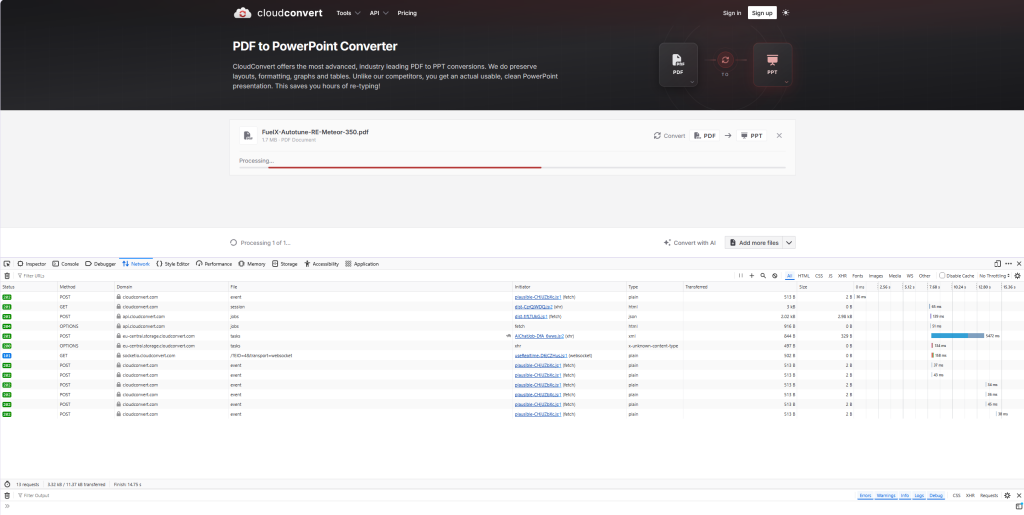
    5. Look at the list. Sort by Size or look for requests with the method POST or PUT. An upload shows up as a request whose size is roughly the size of your file, sent to the tool’s server.

    On a browser-only tool you’ll see the page fetch its own code (and, for some tools, a one-off download such as a font or an AI model), but nothing sent out that’s as big as your file. On an upload-based tool, you’ll see your file go.
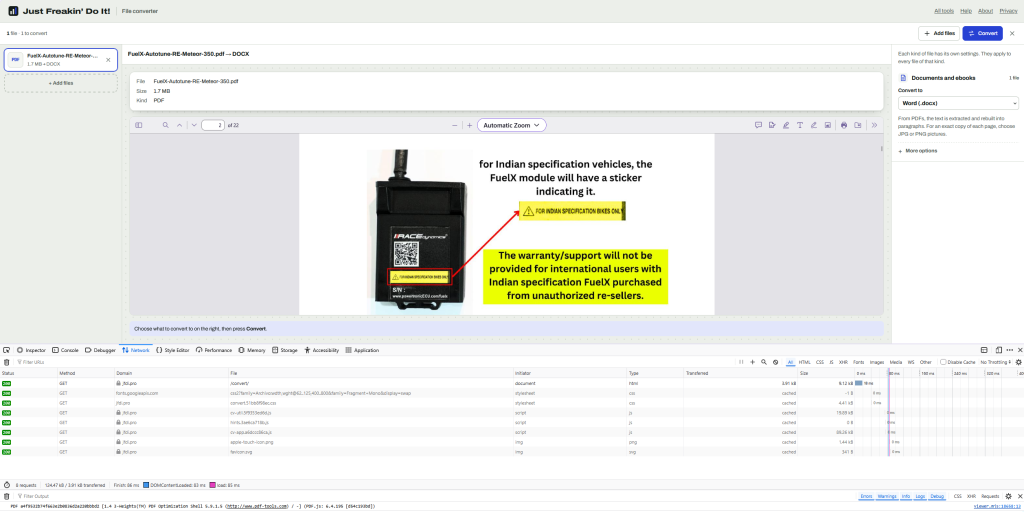
    JFDI File Converter does not upload your files away from your device. All of the work is performed locally, in private.
    Some online file converter tools upload your files to their server - compromising your privacy.

    Do browser tools have downsides?

    Yes, a few:

    • Your device does the work, so very large files are faster on a computer than an old phone.
    • Nothing is saved for you. Close the tab and your work is gone unless you’ve downloaded it.
    • Some jobs need a server, such as OCR on scanned documents or converting formats browsers can’t read. Those services aren’t wrong to upload; just choose them deliberately.
    Related

  • How to redact a PDF properly (a black box isn’t enough)

    To redact a PDF properly, the hidden words have to be removed from the file, not just covered. A black rectangle, a black highlight or a white box drawn on top hides text from view, but the text is still there underneath, and anyone can select it, copy it and paste it somewhere else. Use a real redaction tool, then check the result before you send it.

    The black box mistake keeps happening

    This isn’t a beginner’s error. It has caught out lawyers, government departments and newspapers for years:

    • January 2019: lawyers for Paul Manafort filed a document in his case with black bars over sensitive passages. A Guardian reporter found the text could be copied and pasted into a new document, revealing details about his contacts with Konstantin Kilimnik (Columbia Journalism Review).
    • 2014: redactions in a leaked CIA presentation published by The New York Times could be bypassed by highlighting and copying, exposing an NSA agent’s name.
    • 2011: a federal judge’s opinion in Apple v. Samsung had redacted passages that could be copied into a text document.
    • A 2011 study estimated that “thousands, and probably tens of thousands” of documents in the US federal courts’ PACER system had redaction failures.

    The last three are from the American Bar Association’s round-up of embarrassing redaction failures.

    Why covering doesn’t work

    A PDF isn’t a picture of a page. It’s a list of instructions: put these words here in this font, draw this shape there, place this image. When you draw a black box, you add one more instruction, draw a black rectangle, on top. The instruction that draws the words is untouched, so:

    • Copy and paste pulls the text from under the box.
    • Search finds it.
    • Screen readers read it aloud.
    • Text extraction by any program, including search engines, sees it.

    The same goes for black highlighting in Word before saving as PDF, and for white-out boxes.

    What proper redaction does

    Real redaction removes the content under the box from the file. In the JFDI PDF toolkit, the Redact tool works like this:

    1. Open the PDF in the toolkit and go to Edit & sign.
    2. Choose Redact (shortcut X) and drag over every name, number or passage that must go.
    3. Download. Each page with a redaction is rebuilt as a 200 dpi image with the black boxes burned in, so the hidden words no longer exist anywhere in the file.

    The trade-off: the rest of a redacted page can no longer be selected or searched, because the page is now a picture. Pages without redactions stay as normal text. Page numbers and watermarks are added afterwards, so they stay sharp.

    Nothing is uploaded at any point. The PDF is opened and rebuilt inside your browser, which is the point when the document is confidential.

    Don’t forget the hidden information

    Visible text isn’t the only thing that leaks. PDFs can carry:

    • Document details: the author’s name, the software used, creation and editing dates.
    • Editing history: some programs save changes by adding to the end of the file, so earlier versions of a page can still be inside.
    • Attachments, scripts and form data.
    • Text under scans: a scanned page that’s been through OCR has an invisible text layer behind the image.

    In the toolkit’s Finish tab, tick Remove hidden information before downloading. It strips the author, software, dates, embedded metadata, scripts, attachments and editing history. And check the file name: “Smith-v-Jones-settlement-£2.4m.pdf” can give away what the redactions hide.

    White-out or redact?

    White-outRedact
    Looks likeA white (or coloured) boxA black box
    The hidden wordsStill in the file. Anyone can copy them.Removed for good
    Rest of the pageUnchangedTurned into an image
    Use it forTidying up, hiding a typo, making space for new textNames, addresses, account numbers, anything confidential

    The toolkit’s Change existing text tool also covers the original words rather than removing them, so never use it to remove private information.

    Check before you send: five tests

    1. Select all and copy (Ctrl+A, Ctrl+C) on each redacted page, then paste into a text editor. Nothing hidden should appear.
    2. Search the PDF for a redacted word, such as a surname.
    3. Open it in a different PDF reader: your browser’s built-in viewer and one other.
    4. Check the document properties (File › Properties in most readers) for the author and title.
    5. Read the file name.

    Common questions

    Can a redaction be undone?

    Not when the content has been removed, as above. A drawn box can be “undone” by anyone with a PDF editor, by simply deleting the box.

    Is redacting a scanned document different?

    A scan is already a picture, so a black box burned into the image hides it. But scans often have an invisible OCR text layer; a real redaction tool removes that too, which is why the toolkit rebuilds the page.

    Does Adobe Acrobat do this properly?

    Yes, when you use its Redact tool and apply the redactions; drawing a black shape with its comment tools doesn’t. The same check above works for any tool.

    Related

  • How to sign a PDF for free, with no account

    To sign a PDF for free, open it in the JFDI PDF toolkit, choose Signature, then draw, type or upload your signature and drag it into place. Download the signed PDF. There’s no account, no watermark and no limit on how many documents you sign, and the document stays on your device the whole time.

    Step by step

    1. Open the PDF toolkit and drop your PDF on the page, or choose Sign a PDF on the start page.
    2. Go to the page that needs signing and choose Signature (shortcut S).
    3. Make your signature in one of three ways:
      • Draw with a mouse, trackpad, finger or stylus (pen pressure is used where your device supports it). Choose black or one of two blues.
      • Type your name and pick a handwriting style.
      • Upload a photo or scan of your signature on paper. Remove the white background makes the paper see-through, so only the ink shows.
    4. Drag it into place and resize it from the corners.
    5. Add the date with the Date tool, which stamps today’s date as text you can edit. Use Add text for your printed name or initials.
    6. Download PDF.

    Tick Remember on this device to reuse your signature next time. It’s kept in your browser only, never on a server, and you can delete it with its ×.

    Which signature method looks best?

    MethodLooks likeBest for
    Upload a photoYour real ink signatureContracts and anything formal
    DrawClose to real, if you have a stylus or a steady fingerQuick forms on a phone or tablet
    TypeA neat handwriting fontInformal approvals, where a signature is a formality

    For a photo, sign in black pen on plain white paper, photograph it in good light, and crop close. The background removal does the rest.

    Is this a legally valid signature?

    What you’re adding is an electronic signature: a picture of your signature placed on the page. In the UK, EU and US, electronic signatures are generally accepted for everyday paperwork such as tenancy agreements, consent forms, job offers and invoices. Some documents have special rules, such as wills and some property deeds, and some organisations insist on a particular service. If the stakes are high, check with whoever asked you to sign.

    It isn’t a certificate-based digital signature, the kind that cryptographically locks a document and proves who signed it. If a PDF already carries one of those, changing the file in any way, in this or any other editor, makes that signature show as no longer valid.

    Filling in the rest of the form

    Most documents that need signing also need filling in:

    • Fillable forms show blue-tinted boxes in the editor. Click a box and type, tick checkboxes and pick from drop-downs with the Select tool. Answers stay editable after download unless you tick Lock form answers in place in the Finish tab.
    • Forms with no boxes, such as scans, can be filled in with Add text, Tick and Date.

    Sending it back

    If the signed file is too big to email, the Finish tab’s Making the file smaller setting usually fixes that; see how to compress a PDF for email. If it’s confidential, you can add a password there too, encrypted with AES-256. Send the password separately, by text or phone.

    Why not use a free e-signature service?

    Signature services are built for collecting signatures from other people, with tracking and reminders, and they’re good at that. But they need accounts, usually limit free use, and keep your document on their servers. To sign something yourself and send it back, you don’t need any of that.

    Related

  • How to convert EPUB to PDF, and when you shouldn’t

    To convert an EPUB to PDF, open it in a converter that lays the book out page by page, choose a page size, and save. The JFDI file converter does this in your browser: the cover comes first, each chapter starts on a new page, and the book’s own table of contents becomes clickable PDF bookmarks. But before you convert, check you actually need a PDF, because an EPUB is often the better format.

    EPUB and PDF are built for different jobs

    EPUBPDF
    LayoutReflows to fit any screen and text sizeFixed pages, the same everywhere
    Best forReading on phones, tablets and e-readersPrinting, annotating, sharing a set layout
    Text sizeReader choosesFixed when the PDF is made
    Page numbersVary with screen and text sizeStable, so people can cite “page 42”

    When to convert

    • You want to print it, or print a few chapters.
    • You annotate in a PDF app, such as a tablet note-taking app, or need stable page numbers for a course or book club.
    • Someone needs to open it without an ebook app. Every computer opens PDFs.

    When not to

    • You read on a phone or small e-reader. A PDF page doesn’t reflow, so you’ll be zooming and scrolling sideways.
    • You want it on a Kindle. Amazon’s Send to Kindle accepts EPUB files directly, and the result reads better than a PDF.
    • The book is copy-protected (DRM). Books bought from most big stores are locked to their reading app and can’t be converted. DRM-free books, such as those from Project Gutenberg, Standard Ebooks and many independent publishers, convert fine.

    Step by step

    1. Open the file converter and drop in the EPUB.
    2. Under Documents, choose PDF.
    3. Choose a page size. A5 or 6 × 9 in reads comfortably on a tablet and prints well as a small book; A4 or US Letter suits printing at home.
    4. Choose a text size. Larger text for screens, smaller for printing to save paper.
    5. Press Convert, then Download.

    What you get

    • The cover as the first page.
    • Each chapter starting on a new page.
    • PDF bookmarks from the book’s own contents list, so you can jump between chapters in any PDF reader.
    • Real text you can select, search and copy, with working links.
    • The title and author kept in the PDF’s details.
    • Page numbers at the bottom of each page (untick Page numbers to leave them off).

    Pictures go in at full quality. Characters the built-in fonts don’t have, such as Chinese, Japanese, Korean or emoji, are drawn as sharp pictures of the text: they look right but can’t be searched. The converter tells you if this happens.

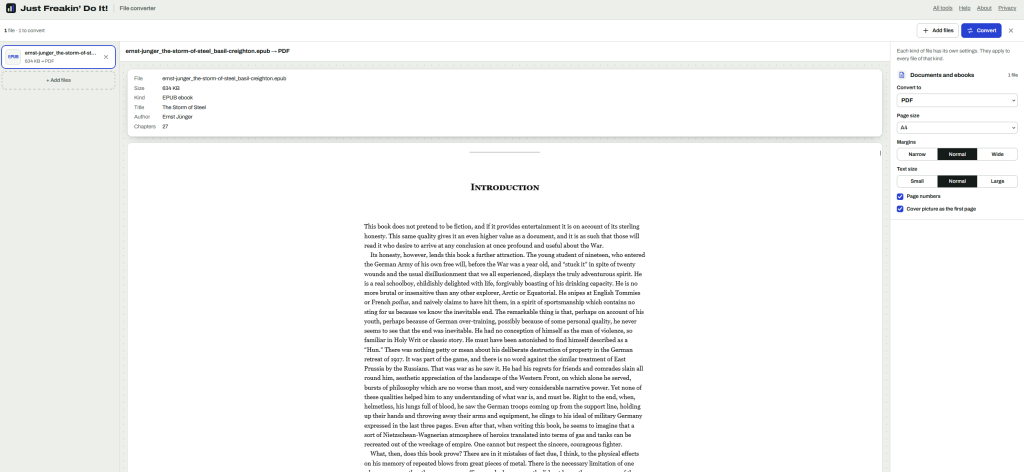
    Screenshot of a file converter website showing an EPUB ebook, The Storm of Steel by Ernst Jünger, being converted to PDF. The interface displays ebook metadata and a preview of the introduction, with settings for page size, margins, text size, page numbers and a cover page.

    Going the other way

    The converter also makes EPUBs, from Word documents, Markdown, HTML and text, with a contents list built from the headings. That’s handy for reading long reports on an e-reader. PDF to EPUB is less reliable with any tool, because a PDF stores positioned words rather than paragraphs; the converter rebuilds paragraphs and headings, but columns, tables and pictures aren’t kept.

    Is it private?

    Yes. The book is read and converted inside your browser and never uploaded. That’s worth knowing if the EPUB is an unpublished manuscript or a review copy.

    Related