All six popular online file tools we checked upload your file to their servers to process it, and say so in their own documentation: Smallpdf, iLovePDF, Adobe Acrobat’s online tools, CloudConvert, Zamzar and remove.bg. They say they delete files after anything from about an hour to seven days. That’s not sinister, it’s how most of these services work, but it’s worth knowing before you drop in a payslip, a passport scan or a client’s contract. Tools that run in your browser, like JFDI, don’t upload anything.
What each tool says
We read each company’s own help, security or privacy pages in October 2026. Policies change, so follow the links for the current wording.
| Tool | Uploads your file? | What it says about keeping it | Source |
|---|---|---|---|
| Smallpdf | Yes, to servers in Ireland | Free tool usage: “Files deleted after 1 hour” | Smallpdf |
| iLovePDF | Yes | “Completely deleted within 2 hours of upload”, or straight away with a Delete it now button | iLovePDF |
| Adobe Acrobat online tools | Yes: “Acrobat online services upload your files to Adobe cloud storage” | Signed in: kept in your account. Not signed in: deleted after an unspecified short period | Adobe |
| CloudConvert | Yes, to servers in Germany, or the US for US users | “Automatically deleted after 24 hours at the latest”, or straight away with the delete button | CloudConvert |
| Zamzar | Yes | For people without an account, kept “for no longer than 7 days following receipt” | Zamzar |
| remove.bg | Yes | Deleted “at the latest about one hour after the upload” | remove.bg |
All six are served over encrypted (HTTPS) connections, and several describe further security measures. None of this suggests they misuse files. The point is simply that, for a while, your file exists on a computer you don’t control.
Why it can matter
For a restaurant menu or a holiday photo, it probably doesn’t. It’s worth thinking twice when:
- The file is about someone else. Customer lists, patient letters, HR documents and client contracts often come with legal duties. Many employers’ policies forbid putting them into unapproved online services.
- The file is about you, in detail. Passports, bank statements, payslips and tax returns are exactly what identity thieves want.
- The file is confidential before publication: results, a manuscript, a bid, an unannounced product.
Any company storing files, even briefly, can suffer a data breach, a mistake or a legal demand. A file that never leaves your device can’t be caught up in any of those.
How browser-only tools are different
A browser-only tool sends you the program instead of asking you for the file. The page loads code into your browser, and your browser does the converting, compressing or editing on your own computer. When you click Download, the result is saved from your browser’s memory straight to your device. Our explainer on how browser-only tools work goes into the technology.
That’s how every JFDI tool works: the PDF toolkit, file converter, image editor (including background removal), chart maker, map maker and QR code maker.
Check any tool yourself in two minutes
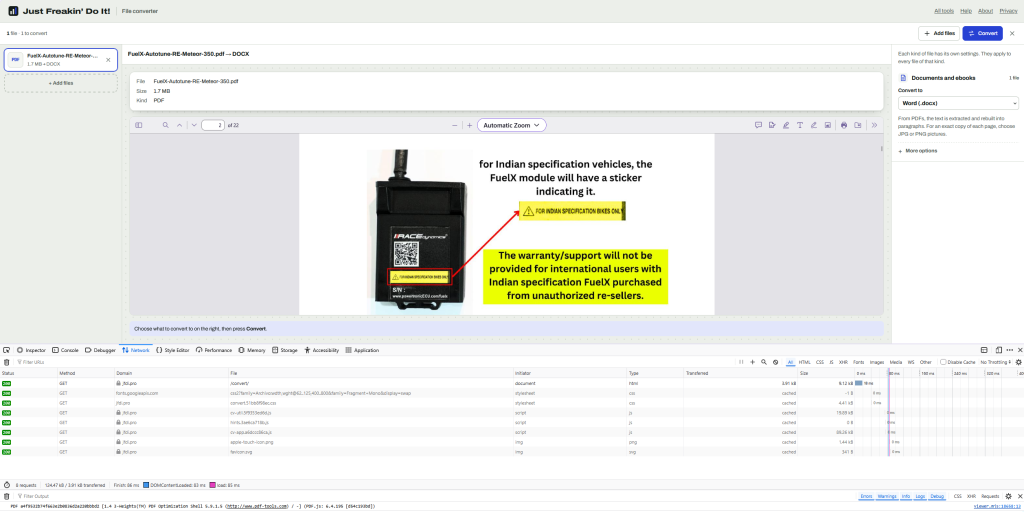
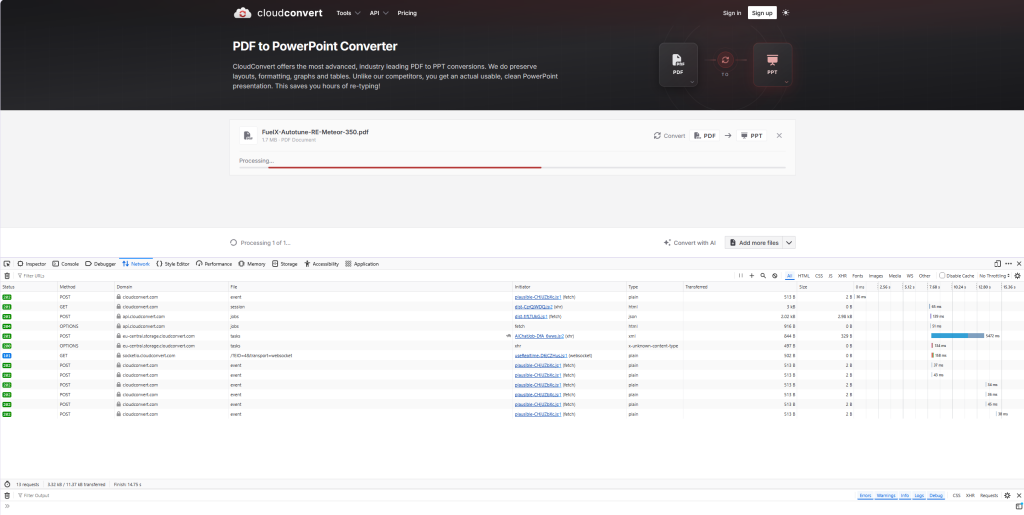
You don’t have to trust anyone’s privacy page, including ours. Your browser can show you every request a page makes.
- Open the tool in Chrome, Edge or Firefox.
- Press F12 (or right-click the page and choose Inspect) and open the Network tab.
- Tick Preserve log (Chrome and Edge) or Persist Logs (Firefox, in the settings cog), and clear the list with the 🚫 button.
- Use the tool as normal: add a file, convert it, download the result.
- Look at the list. Sort by Size or look for requests with the method POST or PUT. An upload shows up as a request whose size is roughly the size of your file, sent to the tool’s server.
On a browser-only tool you’ll see the page fetch its own code (and, for some tools, a one-off download such as a font or an AI model), but nothing sent out that’s as big as your file. On an upload-based tool, you’ll see your file go.
Do browser tools have downsides?
Yes, a few:
- Your device does the work, so very large files are faster on a computer than an old phone.
- Nothing is saved for you. Close the tab and your work is gone unless you’ve downloaded it.
- Some jobs need a server, such as OCR on scanned documents or converting formats browsers can’t read. Those services aren’t wrong to upload; just choose them deliberately.