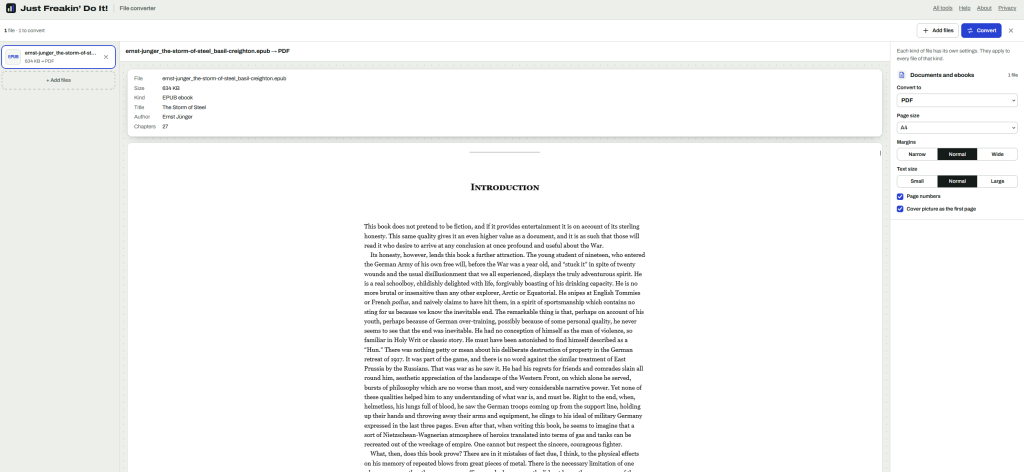
To convert an EPUB to PDF, open it in a converter that lays the book out page by page, choose a page size, and save. The JFDI file converter does this in your browser: the cover comes first, each chapter starts on a new page, and the book’s own table of contents becomes clickable PDF bookmarks. But before you convert, check you actually need a PDF, because an EPUB is often the better format.
EPUB and PDF are built for different jobs
| EPUB | ||
|---|---|---|
| Layout | Reflows to fit any screen and text size | Fixed pages, the same everywhere |
| Best for | Reading on phones, tablets and e-readers | Printing, annotating, sharing a set layout |
| Text size | Reader chooses | Fixed when the PDF is made |
| Page numbers | Vary with screen and text size | Stable, so people can cite “page 42” |
When to convert
- You want to print it, or print a few chapters.
- You annotate in a PDF app, such as a tablet note-taking app, or need stable page numbers for a course or book club.
- Someone needs to open it without an ebook app. Every computer opens PDFs.
When not to
- You read on a phone or small e-reader. A PDF page doesn’t reflow, so you’ll be zooming and scrolling sideways.
- You want it on a Kindle. Amazon’s Send to Kindle accepts EPUB files directly, and the result reads better than a PDF.
- The book is copy-protected (DRM). Books bought from most big stores are locked to their reading app and can’t be converted. DRM-free books, such as those from Project Gutenberg, Standard Ebooks and many independent publishers, convert fine.
Step by step
- Open the file converter and drop in the EPUB.
- Under Documents, choose PDF.
- Choose a page size. A5 or 6 × 9 in reads comfortably on a tablet and prints well as a small book; A4 or US Letter suits printing at home.
- Choose a text size. Larger text for screens, smaller for printing to save paper.
- Press Convert, then Download.
What you get
- The cover as the first page.
- Each chapter starting on a new page.
- PDF bookmarks from the book’s own contents list, so you can jump between chapters in any PDF reader.
- Real text you can select, search and copy, with working links.
- The title and author kept in the PDF’s details.
- Page numbers at the bottom of each page (untick Page numbers to leave them off).
Pictures go in at full quality. Characters the built-in fonts don’t have, such as Chinese, Japanese, Korean or emoji, are drawn as sharp pictures of the text: they look right but can’t be searched. The converter tells you if this happens.
Going the other way
The converter also makes EPUBs, from Word documents, Markdown, HTML and text, with a contents list built from the headings. That’s handy for reading long reports on an e-reader. PDF to EPUB is less reliable with any tool, because a PDF stores positioned words rather than paragraphs; the converter rebuilds paragraphs and headings, but columns, tables and pictures aren’t kept.
Is it private?
Yes. The book is read and converted inside your browser and never uploaded. That’s worth knowing if the EPUB is an unpublished manuscript or a review copy.