Category: File conversion

  • How to open a CSV in Excel without losing leading zeros

    Excel drops leading zeros because a CSV file has no column types, so Excel guesses, and anything that looks like a number becomes one. 00123 turns into 123, phone numbers lose their first 0, and long ID numbers get rounded to 15 digits. To stop it, either turn off the conversion in Excel’s options, import the file with the column set to Text, or convert the CSV to an Excel file that already stores those columns as text.

    What goes wrong

    In the CSVAfter opening in Excel
    00123 (product code)123
    07700 900123 (UK mobile)stays text only because of the space; 07700900123 becomes 7700900123
    02134 (US ZIP code)2134
    4111111111111111 (16-digit number)4.11111E+15, and the last digit becomes 0

    The last row is the nastiest. Excel stores numbers to 15 significant digits, so the sixteenth digit is replaced with a zero for good. Save the file and the original number is gone.

    Fix 1: change Excel’s settings (Microsoft 365 and Excel 2024)

    Newer versions of Excel let you switch off the conversions. On Windows go to File › Options › Data; on a Mac go to Excel › Preferences › Edit. Under Automatic Data Conversion, untick:

    • Remove leading zeros and convert to number
    • Keep the first 15 digits of long numbers and display in scientific notation if required

    Microsoft documents both in Set automatic data conversions. The settings apply to every workbook you open from then on, so they’re the best fix if you handle codes and IDs all the time. Older versions of Excel don’t have them.

    Fix 2: import instead of opening

    Instead of double-clicking the CSV, open a blank workbook and use Data › From Text/CSV. In the preview, choose Transform Data, select the columns that hold codes, and set their type to Text. Then Close & Load.

    This works in any recent Excel, but you have to do it every time, for every column.

    Fix 3: convert the CSV to an Excel file first

    The JFDI file converter reads each value for what it is. Codes such as 00123, phone numbers and postcodes stay exactly as written, and numbers longer than 15 digits are kept as text with every digit. Real numbers, dates and percentages still become numbers and dates, so you can sort and calculate with them.

    1. Open the file converter and drop in your CSV (or a whole folder of them).
    2. Choose Excel under Convert to.
    3. Press Convert, then Download.

    The workbook also gets a bold header row that stays put when you scroll, filter buttons and sized columns. Nothing is uploaded: the conversion runs in your browser, which matters when the file is a customer list.

    Fix 4: Google Sheets

    In Google Sheets, use File › Import › Upload, and untick Convert text to numbers, dates, and formulas before importing. Leading zeros and long numbers stay as written.

    Already lost the zeros?

    If the file has been saved after Excel removed them, the zeros are gone from the file. For codes with a fixed length you can add them back with a formula, for example =TEXT(A2,"00000") for five-digit ZIP codes. Long numbers rounded to 15 digits can’t be recovered; go back to the original export.

    Why it matters

    Lost leading zeros cause quiet failures: postcodes that don’t match, FIPS county codes that leave Alabama off a map, product codes that don’t find their stock. The same habit of guessing types is behind Excel turning text into dates, which famously corrupted gene names in published research. That’s the subject of why dates change when you open a CSV.
    Related

  • Why dates change when you open a CSV, and how to stop it

    Dates change when you open a CSV because the file stores everything as plain text, and Excel guesses what each value is. Anything that looks a bit like a date becomes one: 1-2 turns into 2 January, the gene name MARCH1 into 1 March, and 03/04/2025 into either 3 April or 4 March depending on your computer’s region settings. The fix is to stop Excel guessing, or to convert the file with something that reads the whole column before deciding.

    Three ways dates go wrong

    1. Text that isn’t a date becomes one

    Excel converts values such as 1-2, 3/4, JAN1 or SEPT1 into dates. For part numbers, survey codes or scores, that’s corruption, and saving the file makes it permanent.

    The best-known case is genetics. A 2016 study in Genome Biology looked at the spreadsheets supplied with 3,587 papers in 18 journals and found gene names converted to dates in 19.6% of them (Pesquisa FAPESP). In 2020 the committee that names human genes gave up and renamed some: SEPT1 became SEPTIN1 and MARCH1 became MARCHF1, so Excel would leave them alone.

    2. Day and month swap

    03/04/2025 means 3 April in the UK and March 4 in the US. Excel reads it using your computer’s region setting, so the same file gives different dates on different computers. Worse, it’s inconsistent within a file: on a UK-set computer, a US-format 03/25/2025 can’t be a valid day-first date, so it stays as text while 03/04/2025 beside it becomes 3 April. You end up with a column that’s half dates and half text, with the dates silently wrong.

    3. Dates become numbers

    Excel stores dates as a count of days since 1900. When a date column ends up formatted as a number, or a date is copied to another program, you see values like 45748 instead of 1 April 2025.

    Fix 1: switch off the guessing in Excel

    In Excel for Microsoft 365 and Excel 2024 there’s a setting for exactly this. On Windows go to File › Options › Data; on a Mac go to Excel › Preferences › Edit. Under Automatic Data Conversion, untick Convert “date-like” combinations of continuous letters and numbers into a date.

    Microsoft notes a limit: values with a space or punctuation, such as JAN 1 or JAN-1, may still become dates (Microsoft). For full control, use the next fix.

    Fix 2: import the file and set the column types

    Open a blank workbook, choose Data › From Text/CSV, then Transform Data. Set code columns to Text. For real dates, right-click the column header and choose Change Type › Using Locale, then pick the date format the file actually uses, such as English (United States) for month-first dates.

    Fix 3: convert the file to Excel first

    The JFDI file converter looks at the whole column before deciding what a date means. If any value in it is like 25/03/2025, which can only be day-first, it reads the whole column day-first. Only if a column is truly ambiguous does it fall back to your browser’s language, and you can set it yourself under Reading the file › Dates like 03/04/2025 mean.

    Real dates become real Excel dates you can sort and calculate with. Codes that only look like dates stay as text, and a column that mixes dates with other text keeps those values as text so nothing is lost.

    When it writes CSV files, dates come out as 2025-03-31 (the ISO 8601 format), which every program reads the same way.

    How to write dates so this never happens

    If you produce CSV files for other people:

    • Write dates as YYYY-MM-DD. 2025-04-03 can’t be misread, and it sorts correctly as text.
    • Keep codes unambiguous. A prefix or letters elsewhere (PN-0102 rather than 1-2) avoids accidental dates.
    • Say what each column is in a header or a readme, especially for IDs.

    Related

  • Convert MOV to MP4 free, with no upload and no size limit

    To convert MOV to MP4 without losing quality, change the container and copy the video inside it as it is. Most MOV files from iPhones and cameras already hold H.264 or H.265 video, which MP4 supports, so the conversion takes seconds and nothing is re-encoded. The JFDI file converter does this in your browser, with no upload and no file-size limit.

    MOV and MP4 are wrappers, not formats

    A video file is a container holding separate streams: video, sound, and sometimes subtitles and details such as the recording date. MOV is Apple’s QuickTime container; MP4 is the international standard container that was based on it. The video inside is usually compressed with a codec such as H.264 or H.265 (HEVC).

    That’s why the same video can be a MOV or an MP4: the streams inside are identical, and only the packaging differs. Converting between them can be a simple repackage (called remuxing), which is lossless and fast, as long as the new container supports the codec.

    Step by step

    1. Open the file converter and drop in your MOV files. You can add as many as you like.
    2. Under Video, choose MP4 in Convert to.
    3. Leave Quality on Same as the original. The converter copies the video and sound without re-encoding whenever it can.
    4. Press Convert, then Download, or Download all (ZIP) for several.

    For very large files in Chrome or Edge on a computer, use Save into a folder… first. Each converted file is then written straight to disk as it’s made, rather than held in memory.

    When the video has to be re-encoded

    Sometimes copying isn’t enough:

    • The video won’t play on an older TV or phone. iPhones set to High Efficiency record H.265 (HEVC), which some older devices can’t play. Set Video type to H.264, which plays on virtually everything. This re-encodes the video at high quality.
    • You need a smaller file. Choose Medium or Small file, or Aim for a file size (for example 25 MB for email or 10 MB for Discord). If the first attempt comes out too big, it tries again a little smaller.
    • You want to trim it. Set Start at and End at under Video.

    Re-encoding uses your device’s own video hardware, the same chips that record and play video, so it’s quick. A minute of HD video typically takes well under a minute on a recent computer or phone.

    The recording date and location

    Most converters lose the date a video was recorded, so converted videos jump to “today” in your photo library. For MP4, MOV and M4A, the JFDI converter copies the recording date across, so converted phone videos stay in the right place.

    Phones also store where a video was taken. The converter removes the location by default, which is what you want before posting a video publicly. If you’re archiving your own videos and want to keep it, untick Remove the location under More options.

    Why not use an online converter?

    Most online video converters upload your file to their servers, convert it there and let you download the result. That’s slow for big files, often capped at a size limit on free plans, and means your video sits on someone else’s server for a while. Converting in the browser avoids all three: the file never leaves your device, there’s no size limit beyond your device’s memory and storage, and there’s no queue.

    Other options

    • On a Mac, QuickTime Player’s File › Export As re-encodes to MOV, not MP4. The free app HandBrake converts to MP4 but always re-encodes.
    • On an iPhone, set Settings › Camera › Formats to Most Compatible to record H.264 in future. Apple explains the options in Using HEIF or HEVC media on Apple devices.

    Common questions

    Will I lose quality?

    Not with Same as the original when the video can be copied across. Re-encoding (to H.264, or to make the file smaller) loses a little, though at high quality you’re unlikely to see it.

    What about AVI or WMV?

    Browsers can’t read those formats, so the converter can’t either. The free VLC player converts them to MP4.

    Does it work on a phone?

    Yes, in a current browser. A computer copes better with very long videos.

    Related

  • How to convert EPUB to PDF, and when you shouldn’t

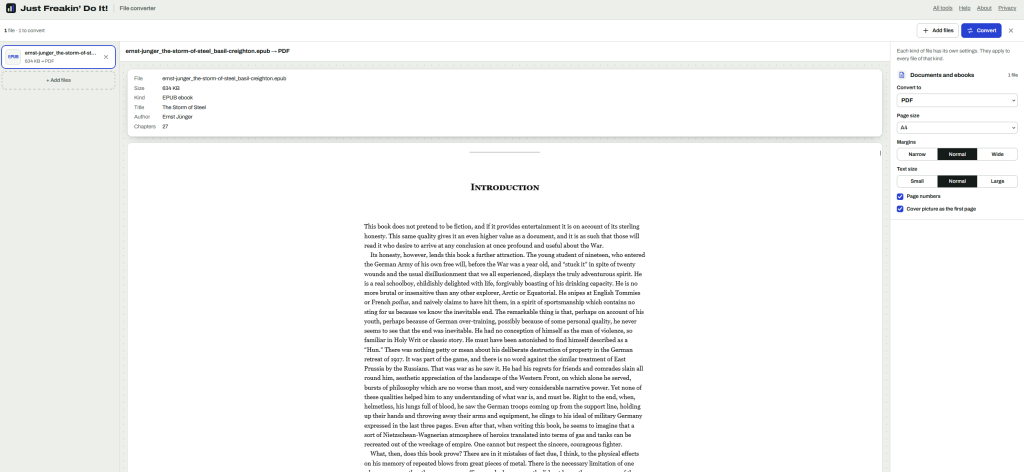
    To convert an EPUB to PDF, open it in a converter that lays the book out page by page, choose a page size, and save. The JFDI file converter does this in your browser: the cover comes first, each chapter starts on a new page, and the book’s own table of contents becomes clickable PDF bookmarks. But before you convert, check you actually need a PDF, because an EPUB is often the better format.

    EPUB and PDF are built for different jobs

    EPUBPDF
    LayoutReflows to fit any screen and text sizeFixed pages, the same everywhere
    Best forReading on phones, tablets and e-readersPrinting, annotating, sharing a set layout
    Text sizeReader choosesFixed when the PDF is made
    Page numbersVary with screen and text sizeStable, so people can cite “page 42”

    When to convert

    • You want to print it, or print a few chapters.
    • You annotate in a PDF app, such as a tablet note-taking app, or need stable page numbers for a course or book club.
    • Someone needs to open it without an ebook app. Every computer opens PDFs.

    When not to

    • You read on a phone or small e-reader. A PDF page doesn’t reflow, so you’ll be zooming and scrolling sideways.
    • You want it on a Kindle. Amazon’s Send to Kindle accepts EPUB files directly, and the result reads better than a PDF.
    • The book is copy-protected (DRM). Books bought from most big stores are locked to their reading app and can’t be converted. DRM-free books, such as those from Project Gutenberg, Standard Ebooks and many independent publishers, convert fine.

    Step by step

    1. Open the file converter and drop in the EPUB.
    2. Under Documents, choose PDF.
    3. Choose a page size. A5 or 6 × 9 in reads comfortably on a tablet and prints well as a small book; A4 or US Letter suits printing at home.
    4. Choose a text size. Larger text for screens, smaller for printing to save paper.
    5. Press Convert, then Download.

    What you get

    • The cover as the first page.
    • Each chapter starting on a new page.
    • PDF bookmarks from the book’s own contents list, so you can jump between chapters in any PDF reader.
    • Real text you can select, search and copy, with working links.
    • The title and author kept in the PDF’s details.
    • Page numbers at the bottom of each page (untick Page numbers to leave them off).

    Pictures go in at full quality. Characters the built-in fonts don’t have, such as Chinese, Japanese, Korean or emoji, are drawn as sharp pictures of the text: they look right but can’t be searched. The converter tells you if this happens.

    Screenshot of a file converter website showing an EPUB ebook, The Storm of Steel by Ernst Jünger, being converted to PDF. The interface displays ebook metadata and a preview of the introduction, with settings for page size, margins, text size, page numbers and a cover page.

    Going the other way

    The converter also makes EPUBs, from Word documents, Markdown, HTML and text, with a contents list built from the headings. That’s handy for reading long reports on an e-reader. PDF to EPUB is less reliable with any tool, because a PDF stores positioned words rather than paragraphs; the converter rebuilds paragraphs and headings, but columns, tables and pictures aren’t kept.

    Is it private?

    Yes. The book is read and converted inside your browser and never uploaded. That’s worth knowing if the EPUB is an unpublished manuscript or a review copy.

    Related